
1. Увод
The Next Cine800S GoogleTV Projector is designed to provide a versatile and immersive home entertainment experience. This manual offers essential information for the safe and efficient setup, operation, and maintenance of your projector. Please read this manual thoroughly before using the device.
2. Безбедносне информације
- Напајање: Use only the specified power adapter. Ensure the power cord is not damaged or pinched.
- вентилација: Do not block ventilation openings. Maintain adequate space around the projector for proper airflow to prevent overheating.
- Пласман: Поставите пројектор на стабилну, равну површину. Избегавајте постављање на директно сунчево светло, близу извора топлоте или у окружења са високом влажношћу или прашином.
- Чишћење: Искључите напајање пре чишћења. Користите меку, суву крпу. Не користите течна или аеросолна средства за чишћење.
- Нега сочива: Avoid touching the projector lens directly. Use a soft, lint-free cloth specifically designed for optical lenses if cleaning is necessary.
- Сервисирање: Не покушавајте сами да поправите пројектор. Све сервисирање препустите квалификованом особљу.
3. Производ је готовview
The Next Cine800S is a Full HD LED projector featuring Google TV. Below are key components and features.

Слика 3.1: Предња страна view of the Next Cine800S GoogleTV Projector, highlighting its design and key features like 800 ANSI Lumens and Google TV integration.
3.1. Кључне карактеристике
- Резолуција екрана: Full HD 1920x1080, supporting screen sizes from 40 to 200 inches.
- Осветљеност: 800 ANSI Lumens.
- Обрада видеа: Supports 4Kx2K @ 60fps encode/decode.
- Focus & Keystone: Automatic or Manual Focus, Automatic Keystone Correction.
- Оперативни систем: Google TV with Android 14.
- Услуге стримовања: Netflix L1, Prime Video, YouTube, Disney+ with L1 DRM Certification.
- Бежична повезаност: Wi-Fi 802.11 a/b/g/n/ac (2.4G & 5G) and Bluetooth 5.0.
- Меморија: 2GB LPDDR4 RAM / 8GB eMMC Storage.
- аудио: Integrated 12W (4W) Speaker.
- Оптички систем: Dust-Sealed Optical Mechanism.
- Пресликавање екрана: Air Screen and Google Cast for iOS & Android devices.
3.2. Портови и везе
Identify the various input and output ports on your projector.
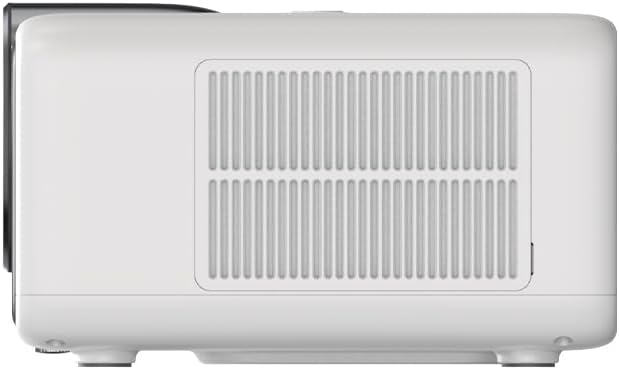
Figure 3.2: Rear panel of the projector, displaying available ports. Note: Actual ports may vary slightly by region or production batch. This model typically includes HDMI, USB, and a 2.5mm Audio Jack.
- ДВИ: Connect to external video sources such as Blu-ray players, gaming consoles, or computers.
- УСБ: За повезивање УСБ уређаја за складиштење података ради репродукције медија files.
- 2.5 мм аудио прикључак: For connecting external audio devices like headphones or speakers.
4. Подешавање
4.1. Распакивање и први преглед
- Пажљиво извадите пројектор и сву додатну опрему из паковања.
- Check for any signs of damage during transit. If damage is found, contact your retailer immediately.
- Уверите се да је присутна сва наведена додатна опрема.
4.2. Постављање пројектора
Optimal placement is crucial for the best viewинг искуство.

Слика 4.1: Прample of projector placement and adjustable screen sizes (40" to 200").
- Удаљеност: Position the projector at a suitable distance from the screen or wall to achieve your desired screen size (40 to 200 inches).
- Висина: Place the projector on a stable surface or mount it to project the image at the desired height.
- Монтажа: The projector includes a mounting point on its base. Ensure any tripod or mount used is compatible with the projector's screw size and weight. Note that some standard tripod screws may not fit.
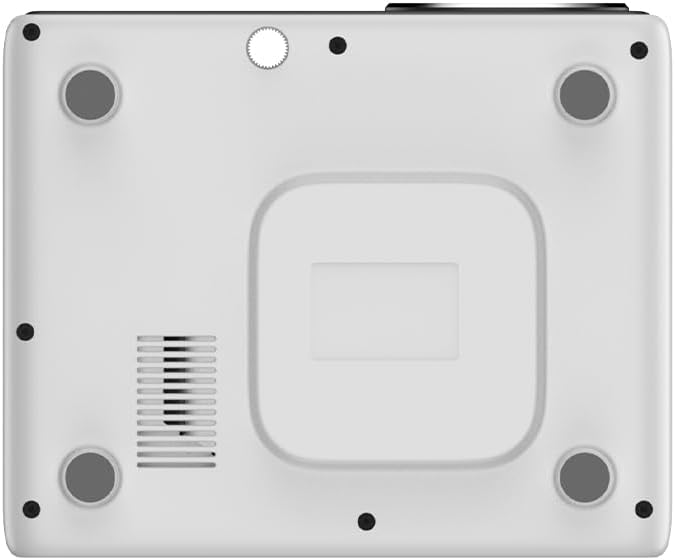
Слика 4.2: Дно view of the projector, indicating the mounting point and ventilation grilles.
4.3. Прикључак за напајање
- Прикључите адаптер за напајање на улазни порт за напајање пројектора.
- Укључите адаптер за напајање у одговарајућу електричну утичницу.
- Притисните дугме за напајање на пројектору или даљинском управљачу да бисте га укључили.
4.4. Почетно подешавање и мрежна веза
- Upon first power-on, the projector will guide you through the initial Google TV setup process.
- Follow the on-screen instructions to select your language, connect to a Wi-Fi network (2.4G or 5G), and log in with your Google account.
- The projector features automatic focus and keystone correction. If the image is not perfectly clear or rectangular, you can access manual adjustment options in the settings menu.
5. Упутство за употребу
5.1. Навигација кроз Google TV
The projector runs on Google TV, providing a user-friendly interface for accessing content.

Figure 5.1: The Google TV interface on the Next Cine800S Projector, showing recommended content and installed applications.
- Use the remote control to navigate through menus, select apps, and control playback.
- The home screen provides personalized recommendations and quick access to your favorite streaming services.
5.2. Апликације за стримовање
Access popular streaming platforms directly from your projector.

Figure 5.2: Supported streaming applications and Google Play Store access.
- Pre-installed apps include Netflix, Prime Video, YouTube, and Disney+.
- Download additional applications from the Google Play Store.
- Ensure you are logged into your respective service accounts to access content.
5.3. Повезивање спољних уређаја
- ДВИ: Connect your device to an HDMI port. The projector will automatically detect the input or you can manually select it from the input source menu.
- УСБ: Insert a USB drive into the USB port. The media player application will typically launch automatically, allowing you to browse and play supported media files (JPG, PNG, BMP, JPEG, MP3, M4A, MP2, WAV, FLAC, MP4, MOV, TS, DAT, F4V, 3GP).
5.4. Пресликавање екрана
The projector supports Air Screen and Google Cast for mirroring content from your iOS or Android devices.
- Ensure your mobile device and the projector are connected to the same Wi-Fi network.
- On your mobile device, open the screen mirroring function (e.g., 'Screen Cast', 'Smart View', 'AirPlay').
- Select the projector from the list of available devices.
6. Одржавање
Редовно одржавање обезбеђује оптималне перформансе и продужава век трајања вашег пројектора.
6.1. Чишћење сочива

Figure 6.1: Close-up of the projector lens, which requires careful cleaning.
- Use a soft, lint-free cloth or a lens cleaning brush to gently remove dust from the lens surface.
- For stubborn smudges, use a specialized lens cleaning solution applied to a microfiber cloth, not directly to the lens.
- Avoid abrasive materials or excessive force, which can scratch the lens.
6.2. Cleaning Ventilation Ports
- Periodically check the ventilation grilles for dust accumulation.
- Use a soft brush or a vacuum cleaner with a brush attachment to gently clean the grilles.
- Не стављајте никакве предмете у вентилационе отворе.
6.3. Ажурирања софтвера
- Ensure your projector is connected to the internet.
- Navigate to the system settings to check for and install available software updates. Updates can improve performance and add new features.
КСНУМКС. Решавање проблема
Овај одељак се бави уобичајеним проблемима на које можете наићи са пројектором.
| Проблем | Могући узрок | Решење |
|---|---|---|
| Нема струје | Кабл за напајање је искључен, проблем са утичницом | Проверите везу кабла за напајање. Покушајте са другом утичницом. |
| Нема слике | Input source not selected, device not connected, lens cap on | Ensure input source is correctly selected. Check HDMI/USB connections. Remove lens cap. |
| Слика је мутна | Фокус није подешен | Adjust focus manually using the projector's focus ring or through the settings menu if automatic focus is not sufficient. |
| Image is distorted/trapezoidal | Keystone not adjusted, projector not perpendicular to screen | The projector has automatic keystone correction. If the image is still distorted, access the manual keystone correction settings to fine-tune the image. |
| Нема звука или је звук лошег квалитета | Volume too low, external audio device not connected, speaker issue | Increase volume. Check external audio connections if used. If internal speaker sound is distorted at low volumes, consider connecting external speakers via the 2.5mm audio jack or Bluetooth. |
| Проблеми са Ви-Фи везом | Нетачна лозинка, проблеми са рутером, сметње сигнала | Verify Wi-Fi password. Restart router. Ensure projector is within Wi-Fi range. |
| Даљински управљач не ради | Batteries low/dead, IR sensor blocked | Replace batteries. Ensure no obstructions between remote and projector's IR sensor. |
8. Спецификације
Detailed technical specifications for the Next Cine800S GoogleTV Projector.
| Феатуре | Спецификација |
|---|---|
| Модел | Cine800S |
| Дисплаи Тецхнологи | ЛЕД пројектор |
| Нативе Ресолутион | Full HD 1920x1080 |
| Осветљеност | КСНУМКС АНСИ Луменс |
| Величина пројекције | 40" — 200" |
| Видео Децодинг | 4Kx2K @ 60fps |
| Фоцус | Аутоматско или ручно |
| Кеистоне Цоррецтион | Аутоматски |
| Оперативни систем | Google TV, Android 14 |
| DRM Certification | Netflix L1, Prime Video, YouTube, Disney+ L1 |
| Ви-Фи | 802.11 a/b/g/n/ac (2.4G & 5G) |
| Блуетоотх | 5.0 |
| РАМ | 2ГБ ЛПДДР4 |
| Интерна меморија | 8ГБ еММЦ |
| Излаз звучника | 12 В (4 В) |
| Портс | HDMI, 2.5mm Audio Jack, USB |
| Подржани медијски формати | JPG, PNG, BMP, JPEG, MP3, M4A, MP2, WAV, FLAC, MP4, MOV, TS, DAT, F4V, 3GP, FAT, NTFS |
| Оптицал Мецханисм | Dust-Sealed System |
| Сцреен Мирроринг | Air Screen, Google Cast (iOS & Android) |
9. Гаранција и подршка
For warranty information, please refer to the documentation provided with your purchase or visit the official Next website. For technical support, product inquiries, or service requests, please contact Next customer service through their official channels.
Држите рачун о куповини и серијски број производа при руци када контактирате подршку.