
1. Увод
This manual provides essential information for the safe and efficient use of your Kyocera ECOSYS MZ3201ix A3 Laser Multifunction Printer. Please read this manual thoroughly before operating the device and keep it for future reference.
Производ је завршенview
The Kyocera ECOSYS MZ3201ix is a versatile A3 laser multifunction printer designed for both office and home office environments. It offers high-resolution printing, copying, scanning, and faxing capabilities, ensuring efficient document management.
Кључне карактеристике:
- Print resolution up to 1200 dpi.
- Print speed up to 32/17 pages A4/A3 per minute in black and white.
- 100-sheet universal feeder and 500-sheet cassette.
- Duplex unit for double-sided printing (DIN A5 - DIN A3).
- Integrated high-level security features.
- Automatic Document Feeder (ADF).
- Network-ready with Ethernet and USB connectivity.
- Scan to email functionality.
- Intuitive touch screen interface.
2. Безбедносне информације
Увек се придржавајте следећих мера предострожности како бисте спречили повреде или оштећење уређаја.
- Напајање: Connect the printer only to a grounded power outlet with the correct voltagе. Не преоптерећујте утичнице.
- Пласман: Place the printer on a stable, level surface. Ensure adequate ventilation around the device. Avoid placing it near water or heat sources.
- Руковање: Не покушавајте да растављате или модификујете штампач. Сва сервисирања препустите квалификованом особљу.
- Потрошни материјал: Use only genuine Kyocera toner and parts. Keep toner cartridges out of reach of children.
- Померање уређаја: The printer is heavy (49 kg). Use appropriate lifting techniques or assistance when moving it to prevent injury.
3. Шта је у кутији
Пажљиво распакујте кутију и уверите се да су сви предмети присутни:
- Kyocera ECOSYS MZ3201ix Multifunction System
- Тонер кертриџ
- Контејнер за отпадни тонер
- Кабл за напајање
- Безбедносна упутства
- Водич за брзи почетак
If any items are missing or damaged, please contact your vendor or Kyocera support.
4. Подешавање
4.1 Распакивање и постављање
- Уклоните сав материјал за паковање, траке и заштитне фолије са штампача.
- Place the printer on a sturdy, level surface capable of supporting its weight (approximately 49 kg). Ensure there is sufficient space around the printer for ventilation and access to trays and covers.
4.2 Повезивање кабла за напајање
- Connect the power cable to the power input on the rear of the printer.
- Укључите други крај кабла за напајање у уземљену електричну утичницу.
4.3 Installing Toner and Waste Toner Container
- Отворите предњи поклопац штампача.
- Insert the toner cartridge according to the instructions provided on the cartridge and inside the printer.
- Insert the waste toner container into its designated slot.
- Добро затворите предњи поклопац.
4.4 Убацивање папира
- Pull out the paper cassette (standard 500-sheet tray or 100-sheet universal feeder).
- Adjust the paper guides to the size of the paper you are loading (supports A5 to A3).
- Load the paper stack, ensuring it does not exceed the maximum fill line.
- Пажљиво гурните касету за папир назад у штампач.
4.5 Мрежна и УСБ веза
- За мрежну везу (Етернет): Connect an Ethernet cable from your network router/switch to the LAN port on the printer.
- За директно повезивање (USB): Connect a USB 2.0 cable from your computer to the USB port on the printer.
4.6 Инсталација софтвера
- Укључите штампач помоћу дугмета за напајање.
- Follow the on-screen instructions on the printer's touch screen for initial setup, including language and network settings.
- On your computer, insert the driver CD (if provided) or download the latest drivers and utility software from the official Kyocera webсајту.
- Run the installer and follow the prompts to install the printer drivers and software.
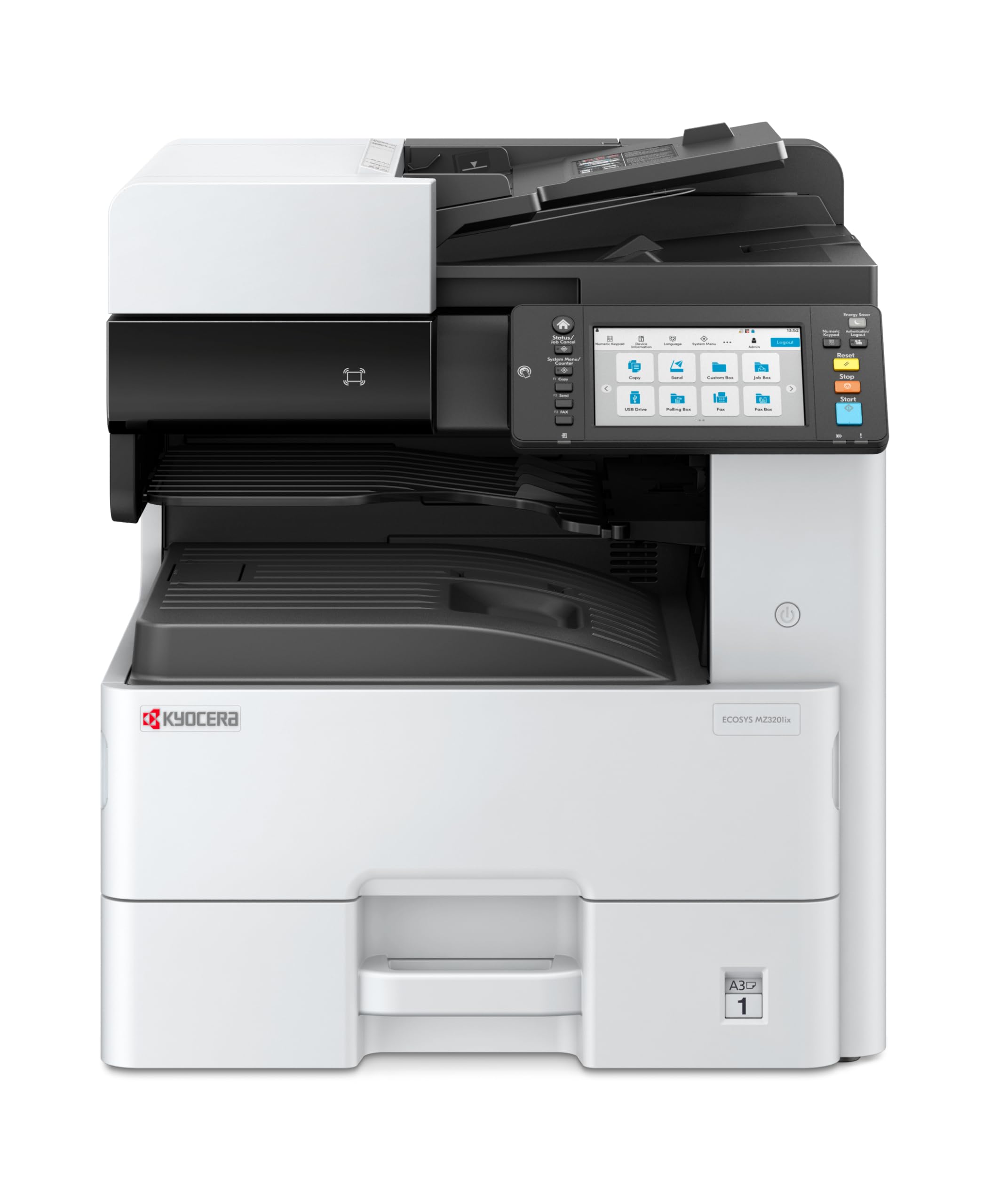
Image 1: Kyocera ECOSYS MZ3201ix A3 Laser Multifunction Printer. This image shows the front view of the printer, highlighting its compact design and the integrated touch screen panel.
5. Упутство за употребу
5.1 Основно штампање
- Отворите документ који желите да одштампате на рачунару.
- Изаберите File > Штампај.
- Choose the Kyocera ECOSYS MZ3201ix from the list of available printers.
- Adjust print settings (e.g., number of copies, paper size, duplex printing) as needed.
- Кликните Принт.
5.2 Копирање докумената
- Поставите документ лицем надоле на стакло скенера или лицем нагоре у аутоматски улагач докумената (ADF).
- On the printer's touch screen, select the Копирај функција.
- Adjust settings such as number of copies (up to 999), zoom, and paper type.
- Притисните тастер Почни дугме за почетак копирања.
5.3 Скенирање докумената
- Поставите документ на стакло скенера или у ADF.
- On the printer's touch screen, select the Скенирај функција.
- Choose your desired scan destination (e.g., Scan to PC, Scan to Email, Scan to USB).
- Configure scan settings such as resolution (up to 1200 x 1200 dpi), color mode, and file формату.
- Притисните тастер Почни дугме да бисте започели скенирање.
5.4 Слање докумената факсом
(Note: Fax functionality requires a telephone line connection, not detailed in this manual.)
- Поставите документ на стакло скенера или у ADF.
- On the printer's touch screen, select the факс функција.
- Унесите број факса примаоца помоћу тастатуре.
- Прилагодите сва потребна подешавања факса.
- Притисните тастер Почни дугме за слање факса.
6. Одржавање
Редовно одржавање обезбеђује оптималне перформансе и продужава век трајања вашег штампача.
6.1 Чишћење штампача
- Екстеријер: Обришите спољашње површине меком, дamp, крпа која не оставља влакна. Не користите абразивна средства за чишћење или раствараче.
- Стакло скенера: Gently clean the scanner glass with a soft cloth and a non-abrasive glass cleaner.
- ADF ваљци: Periodically clean the ADF rollers with a lint-free cloth dampened with isopropyl alcohol to prevent paper jams.
6.2 Замена кертриџа са тонером
- When the printer indicates low toner, order a new Kyocera toner cartridge.
- Отворите предњи поклопац штампача.
- Извадите празан кертриџ са тонером тако што ћете га извући.
- Распакујте нови кертриџ са тонером и нежно га протресите да бисте распоредили тонер.
- Insert the new toner cartridge firmly into its slot until it clicks into place.
- Затворите предњи поклопац.
6.3 Replacing Waste Toner Container
- When the printer indicates the waste toner container is full, prepare a new one.
- Open the cover that provides access to the waste toner container.
- Carefully remove the full waste toner container. Seal it in a plastic bag for proper disposal.
- Insert the new waste toner container into its slot.
- Затворите поклопац.
КСНУМКС. Решавање проблема
Овај одељак се бави уобичајеним проблемима на које можете наићи са штампачем.
7.1 Заглављивање папира
- Симптом: Printer stops, and an error message indicates a paper jam.
- решење: Turn off the printer. Open all covers and trays. Carefully remove any jammed paper, pulling in the direction of the paper path. Ensure no small pieces of paper remain. Close all covers and restart the printer.
7.2 Лош квалитет штампе
- Симптом: Faded prints, streaks, or spots on pages.
- решење: Check toner level and replace if low. Perform a print head cleaning or calibration from the printer's maintenance menu. Ensure you are using appropriate paper for your print job.
7.3 Штампач не реагује
- Симптом: Printer is online but does not print documents sent from the computer.
- решење: Check all cable connections (USB/Ethernet). Restart both the printer and your computer. Verify that the correct printer driver is installed and selected. Check the printer's network settings if connected via Ethernet.
7.4 Кодови грешака
If an error code appears on the touch screen, refer to the comprehensive user manual (available on the Kyocera website) for specific instructions related to that code. Many codes indicate specific issues like open covers, paper jams, or consumable replacement needs.
8. Спецификације
| Феатуре | Спецификација |
|---|---|
| Бранд | Киоцера |
| Назив модела | ECOSYS MZ3201ix |
| Број модела | 110C2V3NL0 |
| Технологија повезивања | Етхернет, УСБ 2.0 |
| Технологија штампе | Ласер |
| Посебне карактеристике | Automatic Document Feeder, Auto-Duplex, Network Ready, Scan to Email, Touch Screen |
| Излаз штампача | Моноцхроме |
| Max Print Speed Black & White | 32 Pages per minute (A4) |
| Тежина артикла | 49 килограма |
| Димензије производа (ДкШкВ) | 58.5P x 59D x 68.8V cm |
| Max Print Resolution Black & White | 1200 к 1200 дпи |
| Резолуција скенера | 1200 к 1200 дпи |
| Дуплек Принтинг | Аутоматски |
| Max Copy Count | 999 |
| Време излаза прве странице | 5.2 секунди |
| Max Supported Paper Size | A3 |
| Максимални капацитет улазног листа | 1600 |
| Printing Media Type | Обичан папир |
| Функције | Copy, Fax, Scan, Print |
9. Гаранција и подршка
Your Kyocera ECOSYS MZ3201ix printer comes with a standard manufacturer's warranty. For detailed information regarding warranty terms, duration, and coverage, please refer to the warranty card included with your product or visit the official Kyocera webсајту.
Корисничка подршка:
If you encounter any issues that cannot be resolved using this manual or require technical assistance, please contact Kyocera customer support. You can find contact information on the Kyocera webсајту или у документацији коју сте добили уз штампач.
When contacting support, please have your printer's model name (ECOSYS MZ3201ix) and serial number ready. The serial number is typically located on a label on the back or bottom of the printer.


