Microsoft Wireless Optical Desktop Executive Keyboard and Mouse Combo
Упутство за употребу
1. Увод
This manual provides comprehensive instructions for the Microsoft Wireless Optical Desktop Executive Keyboard and Mouse Combo. Please read this manual thoroughly before use to ensure proper setup and operation. This combo is designed for use with personal computers running Windows or Mac operating systems.
2. Садржај пакета
- Microsoft Wireless Optical Desktop Executive Keyboard
- Microsoft Wireless Optical Desktop Executive Mouse
- УСБ бежични пријемник
- 4 AA Batteries (2 for keyboard, 2 for mouse)
- Упутство за употребу (овај документ)
3. Подешавање
3.1 Инсталација батерије
- тастатура: Locate the battery compartment on the underside of the keyboard. Open the cover and insert two AA batteries, ensuring correct polarity (+/-). Close the cover.
- миш: Locate the battery compartment on the underside of the mouse. Open the cover and insert two AA batteries, ensuring correct polarity (+/-). Close the cover.
3.2 Connecting the USB Wireless Receiver
- Прикључите бежични USB пријемник у слободан USB порт на рачунару.
- Ваш оперативни систем би требало аутоматски да детектује и инсталира потребне драјвере. Овај процес може потрајати неколико тренутака.
- Once drivers are installed, the keyboard and mouse should be ready for use. If not, press the 'Connect' button on the receiver and then on the keyboard/mouse (if available) to establish a connection.
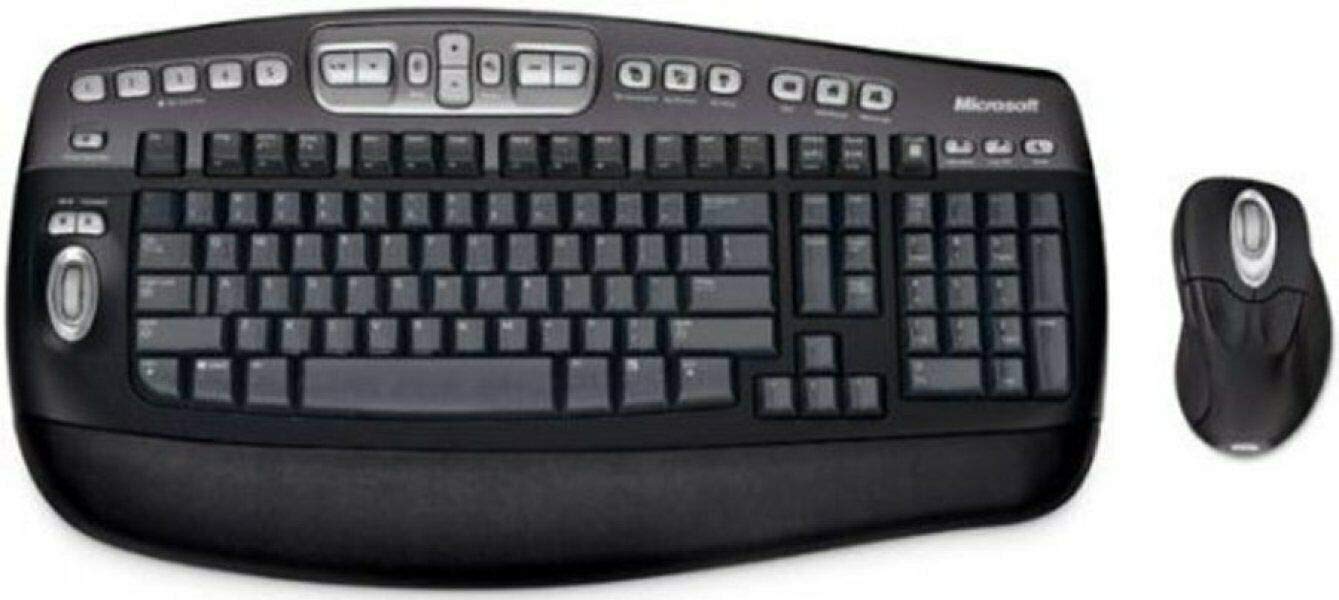
An image showing the Microsoft Wireless Optical Desktop Executive Keyboard and Mouse Combo, highlighting its ergonomic design and wireless components.
4. Операција
4.1 Карактеристике тастатуре
- Wider Keys with Softer Edges: Designed for comfortable typing.
- Врући тастери: Provides one-touch access to frequently used computer functions and files such as Mail, Web/Home, Messenger, My Documents, and My Pictures.
- 5 Programmable 'My Favorites' Keys: Customize these keys for one-touch access to your favorite webсајтова или апликација.
4.2 Карактеристике миша
- High-Performance Optical Technology: Ensures precise control without the need for maintenance.
- Ергономски дизајн: Обликован за удобну употребу током дужег периода.
- Scroll Wheel with Application Switching: Push down on the scroll wheel to easily move between open windows.
- 5 програмабилних дугмади: Includes two side buttons for forward/back navigation in web browsers. All five buttons, including the wheel button, can be reassigned to various functions.
4.3 Customizing Keys and Buttons
To customize the programmable keys on the keyboard and buttons on the mouse, you may need to install Microsoft's IntelliType Pro and IntelliPoint software, respectively. These can typically be downloaded from the official Microsoft support website. Follow the on-screen instructions within the software to assign desired functions.
5. Одржавање
5.1 Чишћење
- тастатура: Користите меку крпу која не оставља длачицеampводом или благим раствором за чишћење. Избегавајте прекомерну влагу. Не прскајте средства за чишћење директно на тастатуру.
- миш: Очистите спољашњост меком, дamp cloth. For the optical sensor, use a dry cotton swab to gently remove any dust or debris.
5.2 Замена батерије
Replace the AA batteries in both the keyboard and mouse when performance degrades or the low battery indicator (if present) illuminates. Always use fresh, high-quality AA alkaline batteries. Dispose of old batteries according to local regulations.
КСНУМКС. Решавање проблема
6.1 Keyboard or Mouse Not Responding
- Уверите се да су батерије правилно инсталиране и да нису истрошене. Замените их ако је потребно.
- Проверите да ли је бежични USB пријемник безбедно прикључен у исправан USB порт. Покушајте са другим USB портом.
- Ensure the keyboard and mouse are within range of the receiver (typically up to 30 feet or 10 meters).
- Re-establish the connection: Press the 'Connect' button on the receiver, then on the keyboard and mouse.
- Поново покрените рачунар.
6.2 Erratic Mouse Movement
- Очистите оптички сензор на доњој страни миша.
- Уверите се да користите миш на одговарајућој површини. Веома рефлектујуће или провидне површине могу изазвати проблеме. Препоручује се подлога за миш.
- Проверите да ли има сметњи од других бежичних уређаја.
6.3 Hot Keys or Programmable Buttons Not Working
- Ensure Microsoft IntelliType Pro (for keyboard) and IntelliPoint (for mouse) software is installed and up to date.
- Check the software settings to confirm keys/buttons are assigned correctly.
7. Спецификације
| Бранд | Мицрософт |
| Модел | Wireless Optical Desktop Executive |
| Технологија повезивања | Радио фреквенција |
| Посебна карактеристика | Ергономски дизајн |
| Компатибилни уређаји | Personal Computer (Windows/Mac) |
| Батерије | Потребне су 4 АА батерије (укључене) |
| Тежина артикла | 4.75 фунти |
| Димензије пакета | 20.4 к 10.9 к 3.5 инча |
8. Гаранција и подршка
8.1 Информације о гаранцији
For detailed warranty information, please refer to the documentation included with your product packaging or visit the official Microsoft support webсајт. Услови гаранције могу се разликовати у зависности од региона и производа.
8.2 Корисничка подршка
For further assistance, technical support, or driver downloads, please visit the official Microsoft support website. You can typically find support resources by searching for your product model on their site.


