1. Увод
The SteelSeries Sensei Laser Gaming Mouse is designed for precision and customization, catering to both casual and competitive gamers. It features an advanced laser sensor, an ambidextrous design, and extensive customization options through its dedicated software. This manual provides detailed instructions for setup, operation, maintenance, and troubleshooting to ensure optimal performance of your device.

Слика 1: Одозго надоле view of the SteelSeries Sensei Laser Gaming Mouse, showcasing its sleek grey finish and central scroll wheel.
2. Садржај пакета
Молимо вас да проверите да ли су све ставке присутне у вашем пакету:
- SteelSeries Sensei Laser Gaming Mouse
- Водич за брзи почетак (ако је укључен)

Image 2: Retail packaging for the SteelSeries Sensei Laser Gaming Mouse, displaying the product name and brand logo.
3. Подешавање
3.1 Повезивање хардвера
- Unpack the SteelSeries Sensei Laser Gaming Mouse from its packaging.
- Connect the USB cable of the mouse to an available USB port on your computer. The mouse is plug-and-play compatible, and your operating system should automatically detect and install the necessary basic drivers.
3.2 Software Installation (SteelSeries Engine)
For full customization and advanced features, it is recommended to install the SteelSeries Engine software:
- Visit the official SteelSeries webсајт (стеелсериес.цом/енгине) to download the latest version of the SteelSeries Engine software.
- Пратите упутства на екрану да бисте инсталирали софтвер.
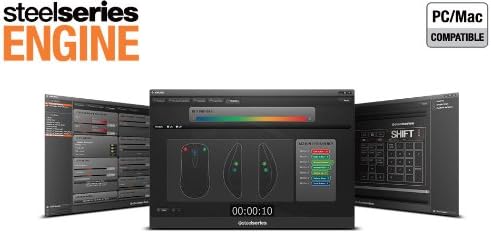
- Once installed, launch the SteelSeries Engine to configure your mouse settings, including CPI, button assignments, macros, and lighting effects.
Слика 3: Доња страна view of the SteelSeries Sensei Laser Gaming Mouse, showing the laser sensor and product information label.
4. Управљање мишем
4.1 Ambidextrous Design
The Sensei mouse features an ambidextrous shape, making it comfortable for both left-handed and right-handed users. The side buttons are mirrored on both sides to accommodate different grip styles and preferences.
4.2 Програмабилна дугмад
The mouse is equipped with 7 programmable buttons. These buttons can be customized using the SteelSeries Engine software to perform various functions, including:
- Standard mouse clicks (left, right, middle)
- Keyboard key assignments
- Complex macros
- CPI switching

Слика 4: Бочна страна view of the SteelSeries Sensei Laser Gaming Mouse, highlighting the two programmable side buttons.
4.3 CPI Adjustment
The Sensei mouse allows for on-the-fly CPI (Counts Per Inch) adjustment. The dedicated CPI indicator button, typically located behind the scroll wheel, allows you to cycle between two user-defined CPI settings. These settings can be configured within the SteelSeries Engine software to match your preferred sensitivity levels for different tasks or games.
4.4 Осветљење
The mouse features three-zone illumination: the scroll wheel, the CPI indicator, and the SteelSeries logo. The color and lighting effects (e.g., steady, pulse) for these zones can be customized through the SteelSeries Engine software.
5. SteelSeries Engine Software
The SteelSeries Engine is a powerful software suite that unlocks the full potential of your Sensei mouse. Key functionalities include:
- Мапирање дугмади: Assign any function, keyboard key, or macro to any of the 7 programmable buttons.
- CPI Settings: Fine-tune and save multiple CPI profileза различите апликације или игре.
- Макро уредник: Create and manage complex macros for in-game actions or productivity tasks.
- Стопа гласања: Подесите брзину гласања миша за оптималан одзив.
- Контрола осветљења: Customize LED colors and effects for the scroll wheel, CPI indicator, and logo.
- Проfile Менаџмент: Креирајте и сачувајте више професионалацаfiles, allowing you to switch between different configurations quickly.
- Ажурирања фирмвера: Keep your mouse's firmware up-to-date for improved performance and new features.

Image 5: Screenshot of the SteelSeries Engine software interface, showing options for button mapping, CPI adjustment, and lighting customization.
6. Одржавање
To ensure the longevity and optimal performance of your SteelSeries Sensei mouse, follow these maintenance guidelines:
- Чишћење: Користите меку, суву крпу да обришете површину миша. За тврдокорну прљавштину, благо дamp Може се користити крпа, али водите рачуна да влага не уђе у миш. Избегавајте јаке хемикалије или абразивна средства за чишћење.
- Брига о сензорима: Keep the laser sensor on the bottom of the mouse clean and free from dust or debris. Use a cotton swab or compressed air if necessary.
- Управљање кабловима: Избегавајте оштра савијања или прекомерно повлачење USB кабла како бисте спречили оштећења.
КСНУМКС. Решавање проблема
If you encounter issues with your SteelSeries Sensei mouse, refer to the following common solutions:
- Миш не реагује:
- Уверите се да је УСБ кабл безбедно повезан са рачунаром.
- Покушајте да повежете миш са другим УСБ портом.
- Поново покрените рачунар.
- Inconsistent Tracking:
- Clean the laser sensor on the bottom of the mouse.
- Уверите се да користите миш на одговарајућој површини (нпр. подлога за миш).
- Check for dust or debris on your mouse pad.
- Дугмад не раде:
- Verify button assignments in the SteelSeries Engine software.
- Ensure the software is running correctly and profileс су учитани.
- Проблеми са софтвером:
- Update the SteelSeries Engine software to the latest version.
- Reinstall the SteelSeries Engine software.
- Check for any available firmware updates for your mouse within the software.
8. Спецификације
| Феатуре | Детаљ |
|---|---|
| Бранд | СтеелСериес |
| Број модела | 62150 |
| Технологија детекције покрета | Ласер |
| Технологија повезивања | УСБ |
| Боја | Греи |
| Хардверска платформа | PC |
| Компатибилност оперативног система | All Major PC Operating Systems |
| Тежина артикла | 14.6 унци |
| Димензије производа (ДкШкВ) | 7.9 к 6.8 к 2.3 инча |
| Програмабилна дугмад | 7 |
| Illumination Zones | 3 (Scroll Wheel, CPI Indicator, Logo) |
9. Гаранција и подршка
The SteelSeries Sensei Laser Gaming Mouse is covered by a manufacturer's warranty. For detailed information regarding warranty terms, conditions, and duration, please refer to the warranty card included with your product or visit the official SteelSeries website. For technical support, driver downloads, and frequently asked questions, please visit the SteelSeries support page.
SteelSeries Official Webсајт: стеелсериес.цом
SteelSeries Support: суппорт.стеелсериес.цом


