1. Готовоview
The Apple iMac 21.5-inch (Late 2015) is an all-in-one desktop computer designed for various computing tasks. This model features a 4K Retina Display, an Intel Core i5 processor, 8GB of RAM, and a 1TB hard drive. It includes essential connectivity options for peripherals and external devices.
Кључне карактеристике:
- 21.5-inch 4K Retina Display for sharp visuals.
- 3.1GHz quad-core Intel Core i5 processor with Turbo Boost up to 3.6GHz.
- 8GB Onboard Memory (DDR3 SDRAM at 1867 MHz).
- 1TB (5400-rpm) Hard Drive for storage.
- Intel Iris Pro Graphics 6200.
- Интегрисани микрофон.
- Multiple high-speed I/O ports including two Thunderbolt ports and four USB 3.0 ports.
- Wireless connectivity: Wi-Fi (802.11a, 802.11abg) and Bluetooth.
2. Производ Views

Предња и бочна view of the Apple iMac 21.5-inch (Late 2015) showing its slim profile и приказ.
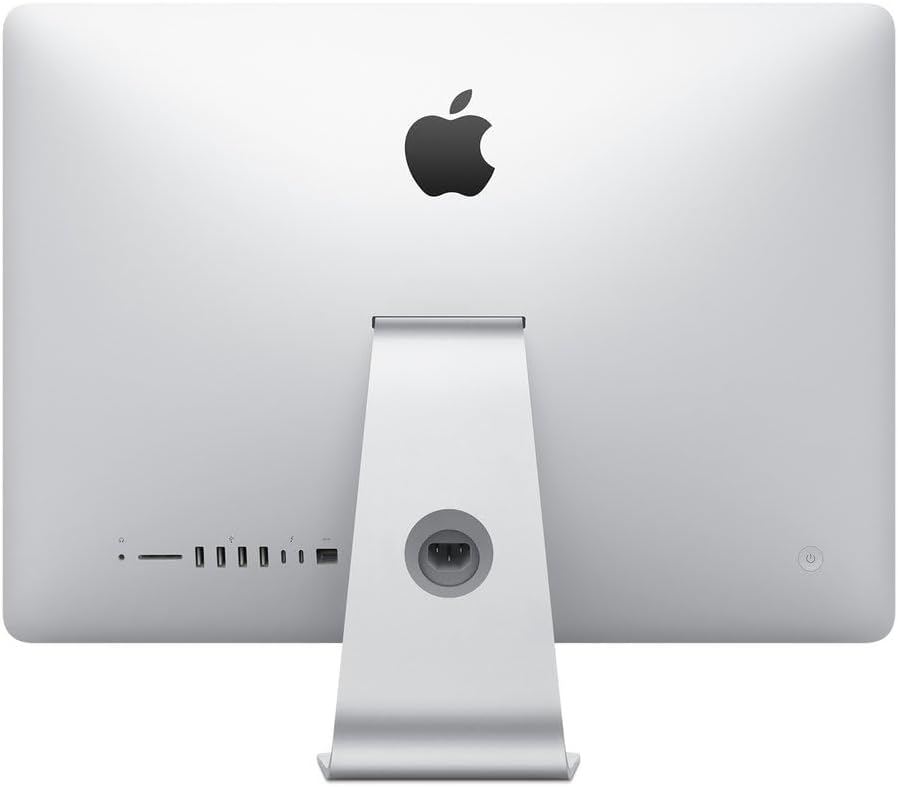
Позади view of the Apple iMac 21.5-inch (Late 2015) highlighting the various input/output ports and power connection.
3. Подешавање
3.1 Распакивање
Carefully remove the iMac from its packaging. Ensure all components, including the power cord, keyboard, and mouse, are present. Place the iMac on a stable, flat surface.
3.2 Повезивање периферних уређаја
- Тастатура и миш: Connect the provided generic wired keyboard and mouse to any of the four USB 3.0 ports located on the back of the iMac.
- Снага: Connect the power cord to the power port on the back of the iMac, then plug it into a grounded electrical outlet.
- Мрежа (опционо): For a wired internet connection, connect an Ethernet cable from your router or modem to the Ethernet port on the back of the iMac. For Wi-Fi, setup will be completed during initial software configuration.
- Спољни уређаји (опционо): Use the Thunderbolt ports or additional USB 3.0 ports for external hard drives, printers, or other accessories.
3.3 Укључивање
Press the power button located on the lower-left rear side of the iMac. The screen will illuminate, and the macOS setup assistant will guide you through the initial configuration process, including language selection, network connection, and user account creation.
4. Operating System Basics
The iMac comes pre-installed with macOS (OS X El Capitan or later). This section provides a general overview of basic macOS operation.
4.1 macOS Interface
- Десктоп: The main workspace where you can see your files, folders, and application icons.
- Доцк: Located at the bottom of the screen, the Dock provides quick access to frequently used applications, documents, and folders.
- Трака менија: At the top of the screen, the Menu Bar contains menus for the active application, system status icons, and the Apple menu.
- Финдер: Тхе file management system for macOS, allowing you to browse, organize, and access your files.
4.2 Essential Applications
Your iMac includes a suite of pre-installed applications for productivity, creativity, and communication, such as Safari (web browser), Mail, Pages, Numbers, Keynote, Photos, Music, and Messages.
5. Одржавање
5.1 Cleaning the iMac
- Екран: Користите меку крпу која не оставља длачицеampened with water to clean the display. Avoid harsh chemicals.
- Прилог: Обришите алуминијумско кућиште меком, сувом крпом.
- Периферни уређаји: Редовно чистите тастатуру и миш како бисте спречили накупљање прашине и прљавштине.
5.2 Ажурирања софтвера
Regularly check for and install macOS updates to ensure optimal performance, security, and access to the latest features. Go to System Settings (or System Preferences) > Software Update.
5.3 Управљање унутрашњом прашином
Over time, dust can accumulate inside the iMac, potentially affecting performance and cooling. While internal cleaning should ideally be performed by a qualified technician, users can use compressed air to gently clear dust from external vents. Ensure the iMac is powered off and unplugged before attempting any cleaning.
КСНУМКС. Решавање проблема
6.1 Споре перформансе
- Поново покрени: Једноставно поновно покретање често може решити привремене проблеме са перформансама.
- Простор на диску: Ensure you have sufficient free space on your 1TB hard drive. Delete unnecessary files or move them to external storage.
- Монитор активности: Use Activity Monitor (found in Applications/Utilities) to identify applications or processes consuming excessive CPU, memory, or disk resources.
- Ажурирања софтвера: Уверите се да су macOS и све апликације ажурирани.
- Накупљање прашине: Excessive internal dust can lead to overheating and slow performance. Refer to the Maintenance section for cleaning advice.
6.2 Повезивање периферних уређаја
- УСБ уређаји: If a USB device is not recognized, try connecting it to a different USB port or restarting the iMac.
- Wireless Keyboard/Mouse: If using wireless peripherals (not included with this renewed model but commonly used), ensure they are charged and properly paired via Bluetooth. Check battery levels.
- Ви-Фи: If experiencing Wi-Fi issues, restart your router and modem. Check Wi-Fi settings in macOS to ensure you are connected to the correct network.
6.3 Проблеми са приказом
- Без приказа: Уверите се да је iMac укључен и да је кабл за напајање безбедно повезан.
- Треперећи/искривљени приказ: Try restarting the iMac. If the issue persists, it may indicate a hardware problem requiring professional service.
7. Техничке спецификације
| Бранд | Аппле |
| Број модела | MK452LL/A |
| Назив модела | иМац |
| Модел Иеар | 2015 |
| Величина екрана | 21.5 инча |
| Максимална резолуција екрана | 4096 к 3204 |
| Нативе Ресолутион | 4К (3840 к 2160) |
| ЦПУ модел | Интел Цоре и5 |
| Брзина процесора | 3.1 GHz (Turbo Boost up to 3.6GHz) |
| Инсталирана РАМ меморија | 8 GB DDR3 SDRAM (1867 MHz) |
| Хард диск капацитета | 1 TB (5400-rpm) |
| Опис графичке картице | Intel Iris Pro Graphics 6200 |
| Оперативни систем | OS X El Capitan (or later) |
| УСБ портови | 4 к УСБ 3.0 |
| Тхундерболт портови | 2 |
| Технологија повезивања | Етхернет, Ви-Фи, Блуетоотх |
| Димензије артикла (ДкШкВ) | 20.79 к 6.89 к 17.72 инча |
| Тежина артикла | 12.5 фунти |
8. Гаранција и подршка
This renewed Apple iMac comes with a 90-дневна ограничена гаранција. For technical assistance or warranty claims, please refer to the documentation provided by the seller or contact their customer support. Additional support resources for macOS and Apple products can be found on the official Apple Support webсајту.


