Увод
Овај приручник пружа детаљна упутства за подешавање, рад, одржавање и решавање проблема вашег ViewSonic VA2446MH-LED 24-inch Full HD 1080p LED monitor. Please read this manual thoroughly before using the product to ensure proper functionality and safety.
Шта је у кутији
- ЛЦД монитор
- Повер Цабле
- ВГА кабел
- Аудио кабл
- Водич за брзи почетак

Пакет укључује ViewSonic VA2446MH-LED monitor, a power cable, an HDMI cable, and a Quick Start Guide to assist with initial setup.
Сетуп
Склапање постоља
Follow the instructions in the Quick Start Guide to attach the stand to the monitor. Ensure all connections are secure.
Повезивање монитора
The VA2446MH-LED monitor supports both HDMI and VGA inputs.
Повер Цоннецтион
Connect the provided power cable to the monitor's power input and then to a power outlet.
Видео Цоннецтион
Choose either an HDMI or VGA cable to connect your computer to the monitor.
- For HDMI: Connect one end of the HDMI cable to the HDMI port on your computer and the other end to the HDMI input on the monitor.
- For VGA: Connect one end of the VGA cable to the VGA port on your computer and the other end to the VGA input on the monitor.
Audio Connection (Optional)
If using the monitor's built-in speakers or audio output, connect the audio cable from your computer's audio output to the monitor's audio input.

This image displays the rear of the monitor, highlighting the HDMI, VGA, and audio input/output ports for flexible connectivity, as well as the location of the integrated 2x 2.5-watt speakers.

Детаљно view of the monitor's back panel, illustrating the power input, HDMI port, VGA port, and audio ports for connecting external devices.
Руковање монитором
Укључивање/искључивање
Притисните дугме за напајање које се налази на предњој или доњој страни монитора да бисте га укључили или искључили. Индикаторска лампица напајања ће светлети када је монитор укључен.
Избор улаза
Use the monitor's On-Screen Display (OSD) menu or dedicated input selection buttons to switch between HDMI and VGA inputs.
Он-Сцреен Дисплаи (ОСД) мени
The OSD menu allows you to adjust various display settings such as brightness, contrast, color temperature, and aspect ratio.
- Press the Menu button to access the OSD.
- Use the navigation buttons (usually arrows) to browse through options.
- Press the Select or Enter button to confirm a selection.
- Press the Exit or Menu button again to close the OSD.
ViewSplit Software (Optional)
ViewСоницова ексклузива ViewSplit software allows you to create customized screen layouts for enhanced productivity.
To install, download the software from the ViewСониц website's product support page.
After installation, double-click the ViewSplit icon on your desktop or click the notification tray icon to open the application.
Select a predefined template or create a customizable template by dragging and resizing the red borders. Save your customized templates for future use.
This official ViewSonic video illustrates how to use the ViewSplit software to divide your monitor screen into multiple viewing windows, enhancing multitasking and productivity. It shows how to select predefined templates and customize layouts by dragging application windows into desired zones.
Одржавање
Чишћење екрана
Нежно обришите екран меком крпом која не оставља влакна. За тврдокорне мрље, лагано дampОчистите крпу водом или неабразивним средством за чишћење екрана. Избегавајте директно прскање течности на екран.
Чишћење Цasing
Користите меку, суву крпу за чишћење монитора casinг. Не користите јаке детерџенте или абразивна средства за чишћење.
Складиштење
When storing the monitor for an extended period, ensure it is powered off and disconnected from the power source. Store it in a cool, dry place, ideally in its original packaging.
Решавање проблема
Но Повер
- Уверите се да је дугме за напајање (или прекидач) УКЉУЧЕНО.
- Ensure the A/C power cord is securely connected to the display.
- Укључите други електрични уређај (попут радија) у утичницу да бисте проверили да ли утичница испоручује одговарајућу количинуtage.
Напајање је УКЉУЧЕНО, али нема слике на екрану
- Уверите се да је видео кабл испоручен са екраном правилно причвршћен за видео излаз на задњој страни рачунара. Ако други крај видео кабла није трајно прикључен на екран, правилно га причврстите за екран.
- Подесите подешавања осветљености и контраста путем OSD менија.
- If you are using an older Macintosh (older than G3), a Macintosh adapter may be required.
Погрешне или ненормалне боје
- Ако неке боје (црвена, зелена или плава) недостају, проверите видео кабл да бисте се уверили да је добро повезан. Лабави или сломљени пинови у конектору кабла могу изазвати неисправну везу.
- Connect the display to another computer to isolate the issue.
- Ако имате старију графичку картицу, контактирајте ViewSonic for a non-DDC adapter.
Контролна дугмад не раде
- Press only one button at a time. Ensure no objects are obstructing the buttons.
Спецификације
| Феатуре | Спецификација |
|---|---|
| Величина приказа на сталном екрану | 24 инча |
| Резолуција екрана | 1920к1080 |
| Максимална резолуција екрана | 1920 к 1080 пиксела |
| Бранд | ViewСониц |
| Сериес | VA |
| Број модела артикла | VA2446MH-LED |
| Тежина артикла | 9.02 фунти |
| Димензије производа | 8.32 к 22.49 к 15.78 инча |
| Димензије артикла ДкШкВ | 8.32 к 22.49 к 15.78 инча |
| Боја | Црно |
| Извор напајања | 10 |
| Волtage | 240 Волтс |
| Произвођач | ViewСониц |
| ASIN | B074F28QNS |
| Датум првог доступног | 1. јул 2017 |
| Величина екрана | 24 инча |
| Резолуција | ФХД 1080п |
| Аспецт Ратио | 16:9 |
| Опис површине екрана | Anti-glare, Hard coating (3H) |
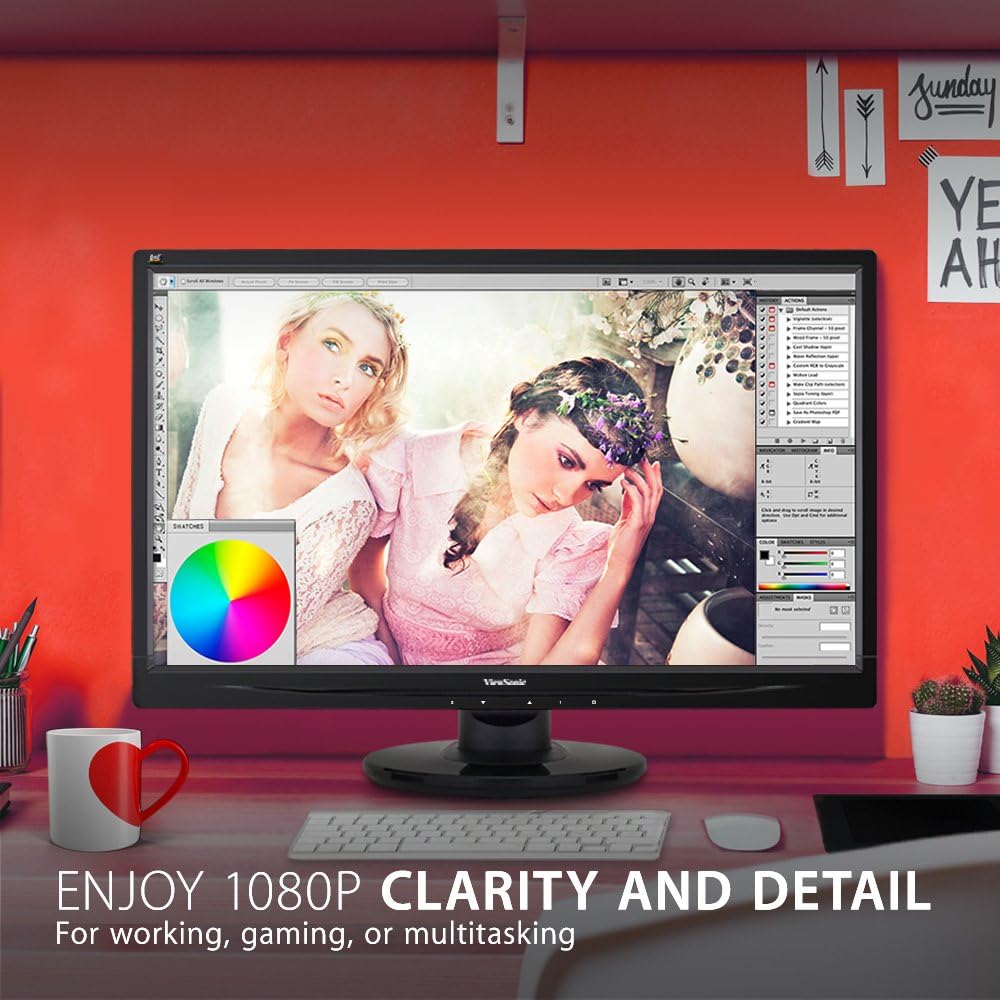
The monitor showcases its Full HD 1080p clarity and detail, ideal for tasks like graphic design, gaming, or general multitasking, with a color palette visible on screen.
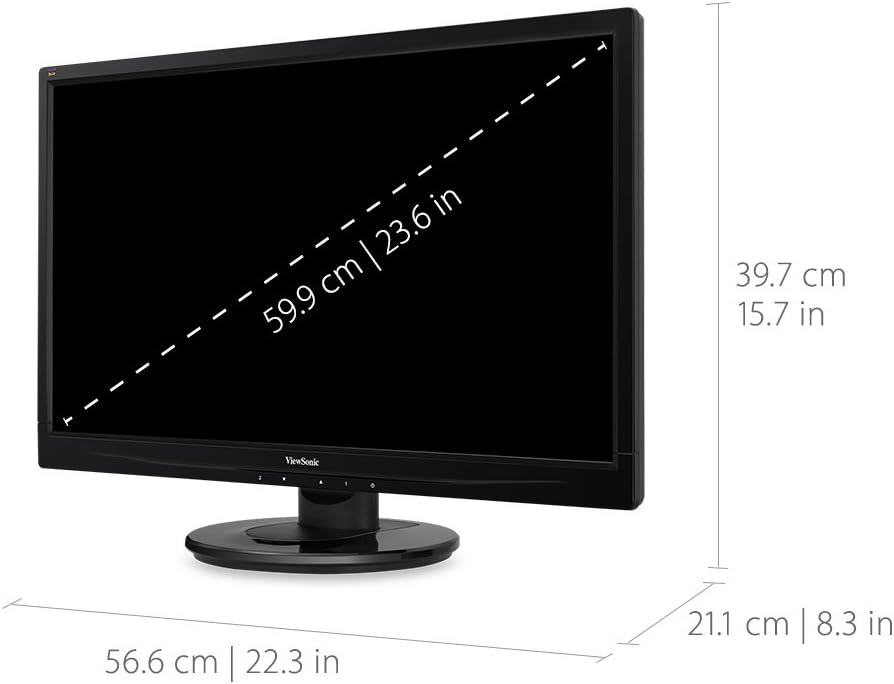
This diagram provides the physical dimensions of the monitor, indicating a 23.6-inch diagonal screen size (59.9 cm) and overall measurements of 22.3 inches (56.6 cm) width, 15.7 inches (39.7 cm) height, and 8.3 inches (21.1 cm) depth.
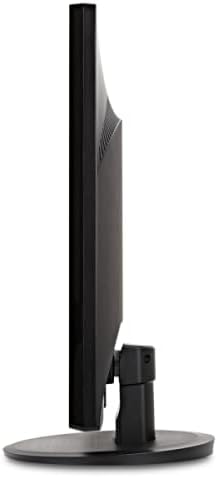
Страна view of the monitor, highlighting its slim profile and the design of the stand.
Гаранција и подршка
За информације о гаранцији и техничкој подршци, обратите се званичном ViewСониц webсајт или документацију која је приложена уз ваш производ.
Можете посетити званичника ViewSonic Store for more information: ViewSonic Store


