Увод
The Amazon Fire TV Recast is an over-the-air DVR that allows you to watch and record live television from channels available through an HD antenna. It integrates with Fire TV devices, Echo Show, and compatible mobile devices, providing access to live sports, local news, and other programming without monthly fees. This 1 TB model offers up to 150 hours of HD recording capacity and features four tuners, enabling simultaneous recording of up to four shows.
Шта је укључено
- Fire TV Recast device
- Напајање од 50В
- Водич за брзи почетак
Шта је потребно
- HD antenna (sold separately)
- Fire TV streaming media player, Fire TV Edition television, or Echo Show
- Compatible mobile device for setup: Fire tablet (5th Gen or newer), iOS device running iOS 10 or higher, or Android device running Android 5.0 or higher
- Fire TV mobile app (available on Amazon Appstore, Google Play Store, or iOS Appstore)
Водич за подешавање
Follow these steps to set up your Fire TV Recast. For a visual guide, refer to the setup video below.
1. Физичка веза
- Connect the HD Antenna: Attach your HD antenna to the 'TV Antenna Input' port on the back of the Fire TV Recast. Place the antenna in a location that provides the best reception for over-the-air channels.
- Повежите се на мрежу: Connect an Ethernet cable from your router or network switch to the 'Gigabit Ethernet' port on the back of the Fire TV Recast. Alternatively, the device supports Wi-Fi connectivity (2.4 G Wi-Fi 2x2 Wi-Fi b/g/n and 5 G Wi-Fi 2x2 Wi-Fi a/n/ac).
- Прикључите напајање: Plug the 50W power supply into the 'Power' port on the back of the Fire TV Recast and then into a wall outlet.
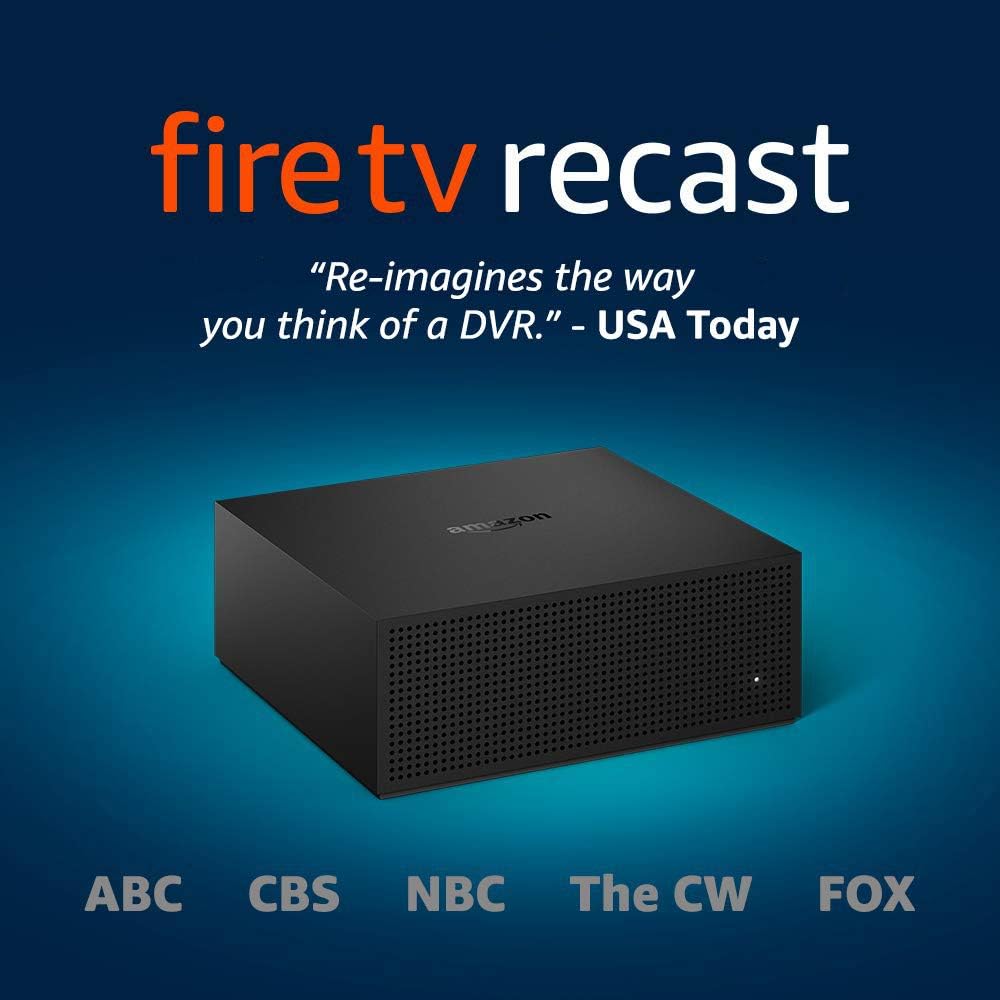
Image: The Amazon Fire TV Recast device, showing its compact black design and various ports on the back for antenna, USB, Ethernet, and power.
2. App Setup and Channel Scan
- Download the Fire TV App: On your compatible mobile device (Fire tablet 5th Gen+, iOS 10+, Android 5.0+), download and install the Amazon Fire TV app from your device's app store.
- Пријавите се: Open the Fire TV app and sign in with your Amazon account. Ensure this is the same account linked to your Fire TV streaming media player or Echo Show.
- Set Up New Device: In the app, navigate to the settings and select 'Set Up a New Device', then choose 'Set up Fire TV Recast'.
- Connect to Recast Wi-Fi: The app will guide you to connect your mobile device to the Fire TV Recast's temporary Wi-Fi network (e.g., 'Amazon-XXX').
- Скенирај за канале: Once connected, the app will initiate a channel scan to find available over-the-air channels through your HD antenna. This process may take several minutes.
- Комплетно подешавање: Follow any remaining on-screen prompts in the app to complete the setup, including enabling location services for optimal antenna performance.

Image: An indoor antenna positioned near a window, illustrating a recommended placement for optimal signal reception for the Fire TV Recast.
Видео водич за подешавање
Video: An unboxing and setup guide for the Fire TV Recast. This video demonstrates the physical connections, app installation, and initial channel scanning process. (Duration: 6:45)
Упутство за употребу
Watching Live TV
Once your Fire TV Recast is set up and channels are scanned, you can access live TV through your Fire TV device or Echo Show.
- Using Fire TV: Navigate to the 'Live' tab on your Fire TV interface. Select 'Guide' to view all available live TV channels and browse programs.
- Using Echo Show: Say, "Alexa, tune to [Channel Name]" or "Alexa, open Channel Guide."

Image: A television screen showing a live sports broadcast, indicating the ability to record free over-the-air TV channels.
Recording Shows
The Fire TV Recast allows you to record up to four shows simultaneously with its four tuners.
- From the Guide: Browse the live TV guide on your Fire TV device or the Fire TV app. Select a program and choose the 'Record' option. You can record a single episode or an entire series.
- Гласовна команда: With a compatible Alexa-enabled device, say "Alexa, record [Show Name]" or "Alexa, record [Channel Name] at [Time]."
Watching Recorded Shows
Access your recorded content from any compatible device.
- On Fire TV/Echo Show: Go to the 'Recordings' section in your Fire TV interface or Fire TV app. Select the show you wish to watch.
- On Mobile Devices: Open the Fire TV app on your compatible mobile device and navigate to the 'Recordings' tab.
Watching On-the-Go
Stream your live and recorded shows in HD from your Fire TV Recast to your compatible mobile devices (Fire tablet, iOS, or Android) using the Fire TV app, even when you are away from home.

Слика: Особа viewing content on a mobile device while sitting on grass, demonstrating the 'watch on-the-go' feature of the Fire TV Recast.
Гласовна контрола са Алека
The Fire TV Recast integrates seamlessly with Alexa for hands-free control.
- Промени канале: "Alexa, tune to NBC."
- Управљајте снимцима: "Alexa, show my recordings."
- Play Specific Shows: "Alexa, play The Voice."

Image: An Echo Show device displaying a live TV program, with a speech bubble indicating an Alexa voice command: 'Alexa, tune to NBC.'
Одржавање
To ensure optimal performance and longevity of your Fire TV Recast, consider the following maintenance tips:
- Држите вентилацију: Ensure the device is placed in a well-ventilated area to prevent overheating. Avoid covering the vents.
- Ажурирања софтвера: The Fire TV Recast automatically receives software updates. Ensure it remains connected to the internet to receive the latest features and security enhancements.
- Чишћење: Use a soft, dry, lint-free cloth to clean the exterior of the device. Do not use abrasive cleaners or solvents.
- Провера антене: Periodically check your HD antenna and its connections for any damage or degradation that might affect signal quality.
Решавање проблема
If you encounter issues with your Fire TV Recast, try the following common troubleshooting steps:
- No Channels Found/Poor Signal:
- Check antenna connection and ensure it is securely attached.
- Adjust antenna position or try a different location for better reception.
- Perform a new channel scan through the Fire TV app.
- Проблеми са снимањем:
- Verify that the Fire TV Recast is connected to your network and has a stable internet connection.
- Ensure there is sufficient storage space available on the device.
- Check the signal strength for the channel you are trying to record.
- Проблеми са повезивањем апликација:
- Ensure your mobile device and Fire TV Recast are on the same Wi-Fi network.
- Restart the Fire TV app on your mobile device.
- Restart your Fire TV Recast by unplugging it from power for 30 seconds and plugging it back in.
- Уређај не реагује:
- Perform a hard reset by unplugging the power adapter for 30 seconds and then reconnecting it.
- Use a paperclip to press the reset button on the back of the device if a soft reset does not resolve the issue.
Спецификације
| Величина | 7.1" к 7.1" к 2.9" (180 мм к 180 мм к 73 мм) |
| Тежина | 2.4 лбс (1066 г) |
| Процесор | Дуал Цоре |
| ATSC Tuners | 4 тјунера |
| Transcoders (for playback) | 2 |
| Складиштење | 1 TB (up to 150 hours of HDTV) |
| Меморија | 2 ГБ |
| Ви-Фи повезивање | 2.4 G Wi-Fi 2x2 Wi-Fi b/g/n and 5 G Wi-Fi 2x2 Wi-Fi a/n/ac |
| Гласовна подршка | Fire TV Recast can be controlled using voice through supported Alexa endpoints like Echo Show, and the Alexa Voice Remote on Fire TV devices and Fire TV Edition televisions. |
| Портс | 1 x Type A USB 3.0 (storage supported on compatible external hard drives only), TV Antenna Input, Gigabit Ethernet, Power |
| Системски захтеви | Fire TV streaming media player, Fire TV Edition television, or Echo Show, and compatible mobile device. |
| Подржана излазна резолуција | Up to 1440x720p |
Гаранција и подршка
The Fire TV Recast includes a 1-Year Limited Warranty and service. Optional 2-Year and 3-Year Extended Warranties are available for U.S. customers and sold separately. For additional support, please refer to the terms found овде.
Функције приступачности
The Fire TV Recast offers the following accessibility features:
- ГласView Читач екрана: Enables access to the vast majority of Fire TV Recast features for users who are blind or visually impaired.
- Затворени титлови: Watch videos and TV shows with closed captioning displayed. Note that captions are not available for all content. Learn more овде.


