1. Увод
This manual provides detailed instructions for the setup, operation, maintenance, and troubleshooting of your MUNBYN P068 Direct Thermal Receipt Printer. The P068 is a high-speed POS printer designed for efficient receipt printing, featuring an auto-cutter and multiple connectivity options.

Figure 1.1: MUNBYN P068 Direct Thermal Receipt Printer
Кључне карактеристике:
- High-speed printing up to 300mm/sec.
- Automatic paper cutter for neat receipt separation.
- Incoming order reminder with sound and light indicator (can be disabled).
- DIP switches for direct configuration of print functions.
- Multiple interface connections: USB, Serial, and Ethernet.
- Wall-hanging design for flexible placement.
2. Подешавање и инсталација
2.1 Распакивање и почетни преглед
Carefully remove the printer from its packaging. Verify that all components are present: the printer unit, power adapter, USB cable, and any included documentation. Inspect the printer for any signs of physical damage.
2.2 Повезивање штампача
The MUNBYN P068 supports USB, Serial, and Ethernet connections. Choose the appropriate connection method for your POS system.

Figure 2.1: Three Interfaces Connection
- УСБ веза: Connect the square end of the USB cable to the printer's USB port and the rectangular end to an available USB port on your computer or POS system.
- Серијска веза: Connect the serial cable to the printer's serial port and to the serial port on your computer or POS system.
- Етернет (LAN) веза: Connect an Ethernet cable from the printer's LAN port to your network router or switch. This method requires network configuration.
- Прикључак за напајање: Connect the power adapter to the printer's power input and then plug it into a suitable power outlet.
2.3 Инсталација драјвера
For proper functionality, especially with Windows-based systems, you will need to install the printer driver. The driver can typically be found on the manufacturer's website or on an included CD/USB drive. Follow the on-screen instructions during installation.
2.4 Убацивање термалног папира
The printer uses 80mm wide thermal paper rolls. To load paper:
- Open the paper cover by pressing the release latch.
- Insert the thermal paper roll with the paper feeding from the bottom, ensuring the leading edge is straight.
- Извуците малу количину папира поред резача.
- Чврсто затворите поклопац за папир док не кликне на место.
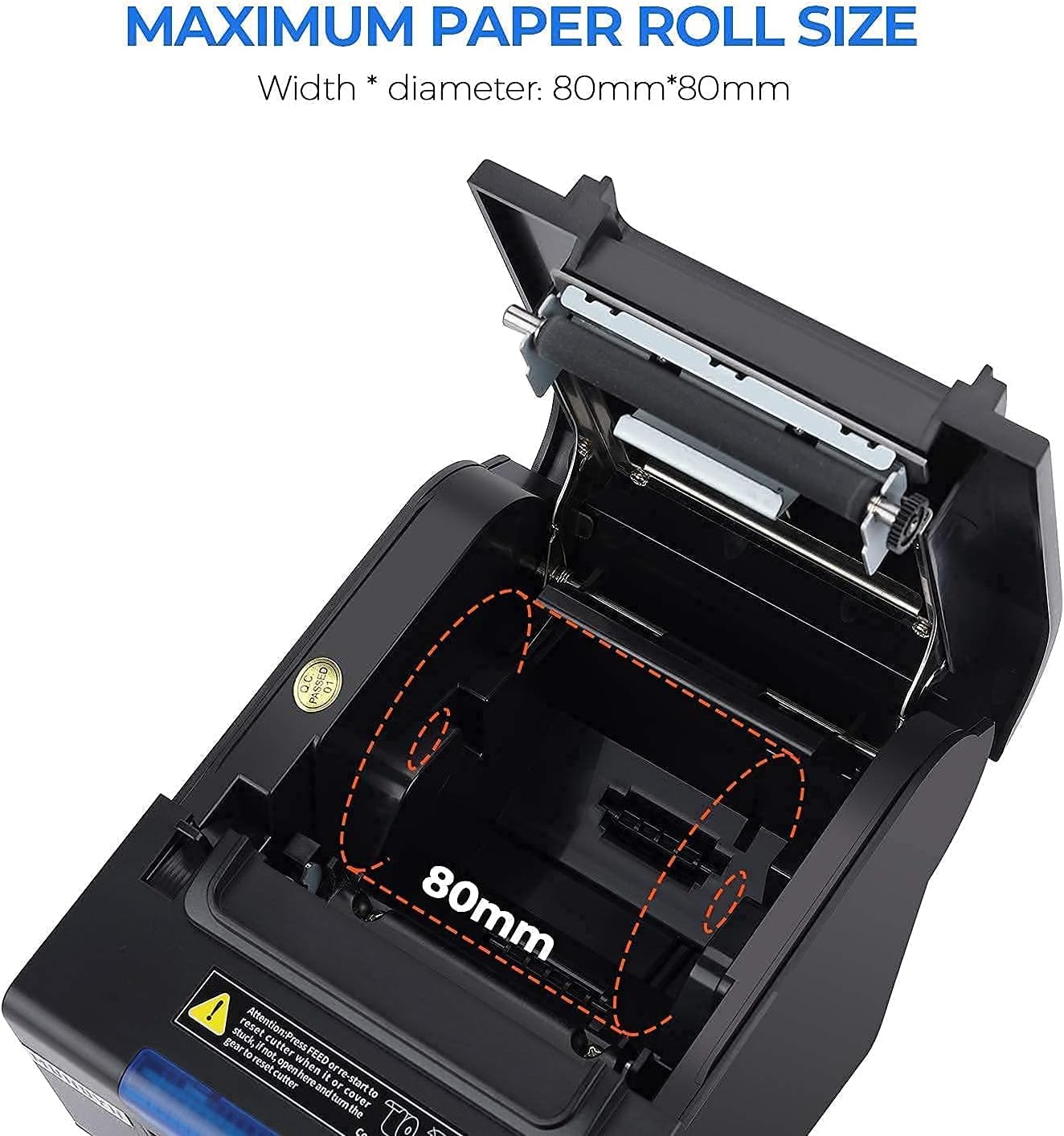
Figure 2.2: Maximum Paper Roll Size and Loading
2.5 Подешавања ДИП прекидача
The printer features DIP switches on the bottom for direct configuration of various functions without requiring software adjustments. These include settings for the auto-cutter, beeper, print density, and character codes.

Figure 2.3: DIP Switch Functions
Refer to the table in Figure 2.3 for specific switch functions and their corresponding ON/OFF positions. Use a small tool to adjust the switches.
2.6 Wall Hanging Design
The MUNBYN P068 printer supports wall mounting. Two hanging holes are located on the bottom of the printer for this purpose, allowing for space-saving installation in various environments such as kitchens or retail counters.

Figure 2.4: Wall Mount Design
3. Руковање штампачем
3.1 Укључивање/искључивање
To power on the printer, press the power switch located on the front or side of the unit. The indicator lights will illuminate. To power off, press the switch again.
3.2 Штампање рачуна
Once connected and drivers are installed, the printer will receive print commands from your POS software or application. Ensure the paper roll is correctly loaded before initiating print jobs.

Figure 3.1: High-Speed Printing Mechanism
3.3 Automatic Paper Cutter
The integrated auto-cutter will automatically cut receipts after each print job, ensuring clean and organized output. This feature can be enabled or disabled via the DIP switches.
3.4 Incoming Order Reminder
The printer is equipped with an incoming order reminder system, which includes a sound and light indicator. This feature alerts staff to new orders, helping to prevent missed transactions. The reminder system can be configured or closed using the DIP switches.
4. Одржавање
4.1 Чишћење штампача
Редовно чишћење помаже у одржавању квалитета штампе и продужава век трајања вашег штампача.
- Глава за штампање: Use a cotton swab lightly dampened with isopropyl alcohol to gently wipe the thermal print head. Allow it to dry completely before use. Clean the print head regularly, especially if print quality degrades.
- Путања папира: Уклоните прашину или остатке папира са путање папира помоћу меке четке или компримованог ваздуха.
- Екстеријер: Обришите спољашњост штампача меком,amp тканина. Избегавајте употребу јаких хемикалија или абразивних средстава за чишћење.
4.2 Replacing the Paper Roll
When the paper roll is nearing its end, a red line may appear on the receipt, or the printer may stop feeding paper. Follow the instructions in Section 2.4 to replace the paper roll.
КСНУМКС. Решавање проблема
This section addresses common issues you might encounter with your MUNBYN P068 printer.
| Проблем | Могући узрок | Решење |
|---|---|---|
| Штампач се не укључује | Power cable loose; power outlet faulty; printer switch off. | Check power connections; try a different outlet; ensure power switch is ON. |
| No printing / Blank receipts | Paper loaded incorrectly (upside down); out of paper; driver not installed; incorrect port selected. | Reload paper correctly (thermal side facing print head); replace paper roll; install/reinstall driver; verify port settings in software. |
| Receipts cut off / Incorrect margins | Incorrect paper size setting in driver; DIP switch settings. | Verify paper size (80mm) in printer driver settings. Check DIP switch settings for character per line or other print density options. |
| Рачунар не препознаје штампач | USB/Serial/Ethernet cable loose or faulty; driver not installed or corrupted. | Check cable connections; try a different cable or port; reinstall printer driver. |
| Auto-cutter not working | DIP switch for cutter is OFF; paper jam. | Check DIP switch settings (SW-1) to ensure auto-cutter is ON. Clear any paper jams. |
| Проблеми компатибилности | Printer not compatible with specific POS systems or operating systems. | Note: This printer is generally not compatible with iOS devices (iPad, iPhone), DoorDash, Square, or Ubereats. Always verify compatibility with your POS system before purchase. |
5.1 POS System Compatibility
It is important to note that the MUNBYN P068 printer has specific compatibility limitations. It is generally није компатибилан with iOS devices (such as iPad and iPhone), DoorDash, Square, or Ubereats. For other POS systems, please refer to the compatibility chart below or contact MUNBYN support for verification.

Figure 5.1: POS System Compatibility Chart
6. Спецификације
| Феатуре | Спецификација |
|---|---|
| Назив модела | ИТПП068 |
| Технологија штампе | Тхермал |
| Максимална брзина штампања (монохроматско) | 300 мм/сец |
| Максимална резолуција црно-беле штампе | 203 дпи |
| Технологија повезивања | УСБ, Етхернет, серијски |
| Посебна карактеристика | Auto-cutter |
| Максимална величина медија | 7.62cm x 22.86cm (3 1/8" x 230' Inches) |
| Димензије производа | 7.8 x 5.8 x 5.4 инча (5.8"Д x 7.8"Ш x 5.4"В) |
| Тежина артикла | 5.15 фунти |
| Боја | Црно |
| Компатибилни уређаји | Laptops (Windows OS) |
| Тип мастила за штампач | No Ink (Thermal) |
| УПЦ | 653334974457 |
7. Гаранција и подршка
7.1 Информације о гаранцији
The MUNBYN P068 Receipt Printer comes with a Full Warranty, typically covering the product for 2 years from the date of purchase. Please refer to your purchase documentation or the official MUNBYN webсајт за конкретне услове гаранције.
7.2 Корисничка подршка
MUNBYN offers comprehensive customer support to assist with any inquiries or issues you may encounter.

Figure 7.1: MUNBYN Support Services
- Услуга 24/7: Assistance is available around the clock.
- Даљинско подешавање: Support for setting up your printer remotely.
- Local Tech Support: Access to local technical assistance.
- Видео снимци са упутствима: Instructional videos are available to guide you through various processes.
For support, please visit the official MUNBYN website or contact their customer service directly using the contact information provided with your product or on their webсајту.


