1. Увод
This manual provides detailed instructions for the setup, operation, and maintenance of your Waveshare 13.3-inch Capacitive Touch Screen LCD (V1). This display features a 1920x1080 resolution, HDMI input, IPS panel for wide viewing angles, and a durable toughened glass cover. Please read this manual thoroughly before using the product to ensure proper functionality and longevity.
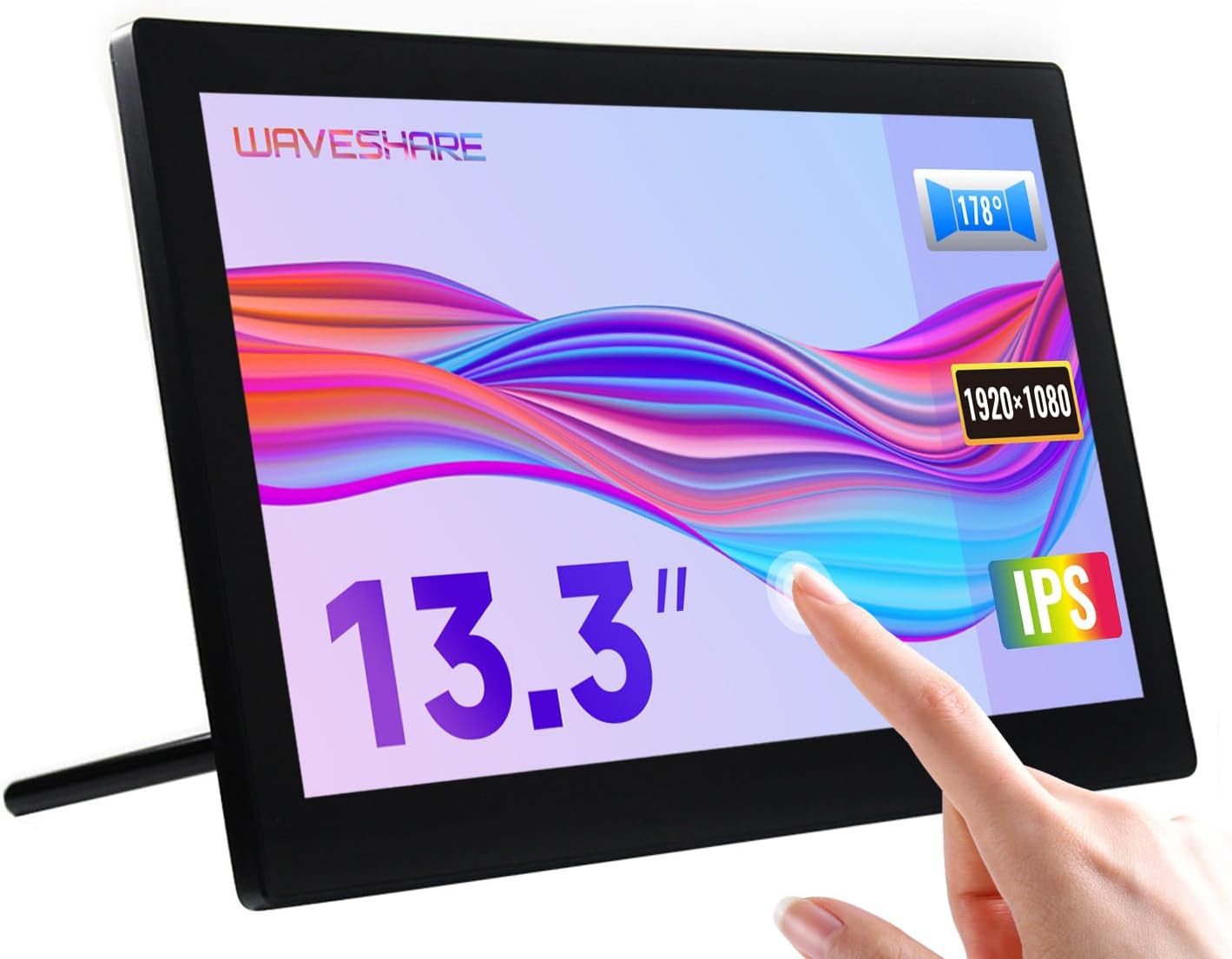
Image 1.1: The Waveshare 13.3-inch Capacitive Touch Screen LCD, showcasing its touch functionality and sleek design.
2. Безбедносне информације
- Уверите се да је напајање волtage matches the product's requirements to prevent damage.
- Avoid exposing the display to extreme temperatures, humidity, or direct sunlight.
- Не растављајте уређај. Сва сервисирања препустите квалификованом особљу.
- Keep the screen away from strong magnetic fields.
- Handle with care to avoid dropping or impacting the screen, especially the toughened glass panel.
3. Садржај пакета
Проверите да ли су све ставке присутне у пакету:
- Waveshare 13.3-inch HDMI LCD (H) Display
- Повер Адаптер
- ХДМИ кабл
- USB-A to Micro-USB Cable (for touch functionality)
- Кориснички приручник (овај документ)
4. Производ је готовview
4.1. Карактеристике
- 13.3-inch IPS panel with 1920x1080 resolution.
- Capacitive 10-point touch control (operating system dependent).
- Toughened glass panel with up to 6H hardness.
- HDMI and VGA display interfaces.
- Built-in Hi-Fi speakers and 3.5mm audio jack.
- Supports various devices including Raspberry Pi, Jetson Nano, PCs, and game consoles.
- Integrated case with a 75° back stand and VESA mounting holes (75x75mm).

Image 4.1: Detailed features and system compatibility of the display.
4.2. Физичке компоненте
The display includes various ports and control buttons:
- VGA Display Port: For video input via VGA.
- ХДМИ порт: For video input via HDMI.
- 3.5 мм аудио прикључак: За аудио излаз.
- Touch Port (USB): For connecting the touch functionality to your device.
- 12V Power Input: За повезивање адаптера за напајање.
- Back Buttons: Power, direction controls, and Menu/Enter/Return buttons for OSD navigation.

Слика 4.2: Позади view of the display with ports and a Raspberry Pi connection exampле.
5. Упутства за подешавање
5.1. Почетна веза
- Повежи видео: Use the provided HDMI cable to connect the display's HDMI port to your source device (e.g., Raspberry Pi, PC). If using VGA, connect a VGA cable.
- Connect Touch (USB): Connect the USB-A to Micro-USB cable from your source device's USB port to the display's Touch Port. This enables touch functionality.
- Прикључите напајање: Plug the power adapter into the display's 12V Power Input, then connect it to a power outlet.
- Укључено: Press the power button on the back of the display. The screen should illuminate and display content from your source device.

Image 5.1: Display showing a Windows desktop after successful connection.
5.2. Цоннецтион Екampлес
The display supports various connection configurations:
- Working with Raspberry Pi 4: Connect HDMI for video and USB for touch. Power the display with its 12V adapter.
- Working with Raspberry Pi Zero W: Requires additional mini HDMI adapter and USB cable. Connect mini HDMI for video and USB for touch. Power the display with its 12V adapter.
- Working with AI Computer Jetson Nano: Connect HDMI for video and USB for touch. Power the display with its 12V adapter.
- Working with Mini PC: Connect HDMI for video and USB for touch. Power the display with its 12V adapter.

Image 5.2: Visual guide for connecting the display to different devices.
6. Упутство за употребу
6.1. Он-Сцреен Дисплаи (ОСД) мени
The OSD menu allows you to adjust display settings such as brightness, contrast, and input source. Use the back buttons (direction controls and Menu/Enter/Return) to navigate and select options.
- Притисните тастер МЕНУ дугме да бисте отворили OSD мени.
- Користите Правац дугмад за навигацију кроз опције менија.
- Притисните МЕНУ again (or the designated Enter button) to select an option or confirm a setting.
- Користите Повратак button to go back or exit the menu.
6.2. Displaying Content
Once connected and powered on, the display will automatically detect the active video input. Ensure your source device is outputting video to the selected HDMI or VGA port.

Image 6.1: The display showing multimedia content from a web претраживач.
6.3. Додирните Контрола
The display features capacitive 10-point touch control. Ensure the USB touch cable is connected to your source device for touch functionality. Driver-free operation is supported on most compatible operating systems.

Image 6.2: Illustration of touch control and audio features.
6.4. Аудио излаз
The display includes built-in Hi-Fi speakers for audio output. Alternatively, you can connect external speakers or headphones to the 3.5mm audio jack for private listening or higher quality audio.
7. Device & System Support
The Waveshare 13.3-inch display offers broad compatibility:
- Raspberry Pi: Supports all versions of Raspberry Pi.
- Supports Raspberry Pi OS, 10-point touch, driver free.
- Supports Ubuntu / Kali / WIN10 IoT, single point touch, driver free.
- Supports Retropie, driver free.
- Jetson Nano: Supports Ubuntu, single point touch, driver free.
- ПЦ: Supports Windows 11 / 10 / 8.1 / 8 / 7, 10-point touch, driver free.
- Конзоле за игре: Supports Xbox360, PS4, Switch (display and sound only).

Слика 7.1: Готовоview of supported devices and operating systems.
8. Одржавање
- Чишћење екрана: Користите меку крпу која не оставља длачицеampводом или раствором за чишћење екрана. Избегавајте јаке хемикалије или абразивне материјале.
- Општа нега: Keep the display free from dust. When not in use for extended periods, consider covering it to prevent dust accumulation.
- Складиштење: Store the display in a cool, dry place, away from direct sunlight and extreme temperatures.
КСНУМКС. Решавање проблема
| Проблем | Могући узрок | Решење |
|---|---|---|
| Нема дисплеја/црни екран |
|
|
| Touch not working |
|
|
| Нема звука |
|
|
10. Спецификације
| Феатуре | Детаљ |
|---|---|
| Величина екрана | 13.3 инча |
| Резолуција | 1920x1080 (FHD 1080p) |
| Дисплеј Панел | ИПС |
| Viewинг Англе | 178° |
| Додирните Тип | Capacitive, 10-point touch |
| Touch Panel Hardness | Up to 6H Toughened Glass |
| Дисплаи Интерфаце | ХДМИ, ВГА |
| Аудио излаз | Built-in Hi-Fi Speakers, 3.5mm Audio Jack |
| Повер Инпут | 12В ДЦ |
| Димензије производа (ДкШкВ) | 7.09 x 3.94 x 3.54 инча (приближно 180 x 100 x 90 мм) |
| Тежина артикла | 2.2 pounds (1 kg approx.) |
| Материјал кућишта | Поликарбонат / АБС |

Image 10.1: Physical dimensions of the display.
11. Гаранција и подршка
Waveshare products are designed for reliability and performance. For warranty information, technical support, or further assistance, please visit the official Waveshare webсајт или директно контактирајте њихову корисничку службу. Сачувајте рачун као доказ о куповини за потребе гаранције.
Official Waveshare Webсајт: ввв.вавесхаре.цом


