1. Увод
This manual provides essential instructions for setting up, operating, and maintaining your PRITOM K7 7-inch Kids Tablet. Please read this guide thoroughly to ensure proper use and to maximize your child's learning and entertainment experience.
2. Шта је у кутији
- 1 x PRITOM 7-inch Tablet PC
- 1 к пуњач
- 1 к Упутство за употребу
- 1 к УСБ кабл
- 1 x OTG кабл
- 1 x Screen Film
- 1 x Silicone Kid-Proof Case
3. Девице Оверview
The PRITOM K7 tablet is designed with a durable, kid-friendly silicone case that includes a built-in stand and handles for easy carrying and viewing. It features a 7-inch IPS HD display and dual cameras.
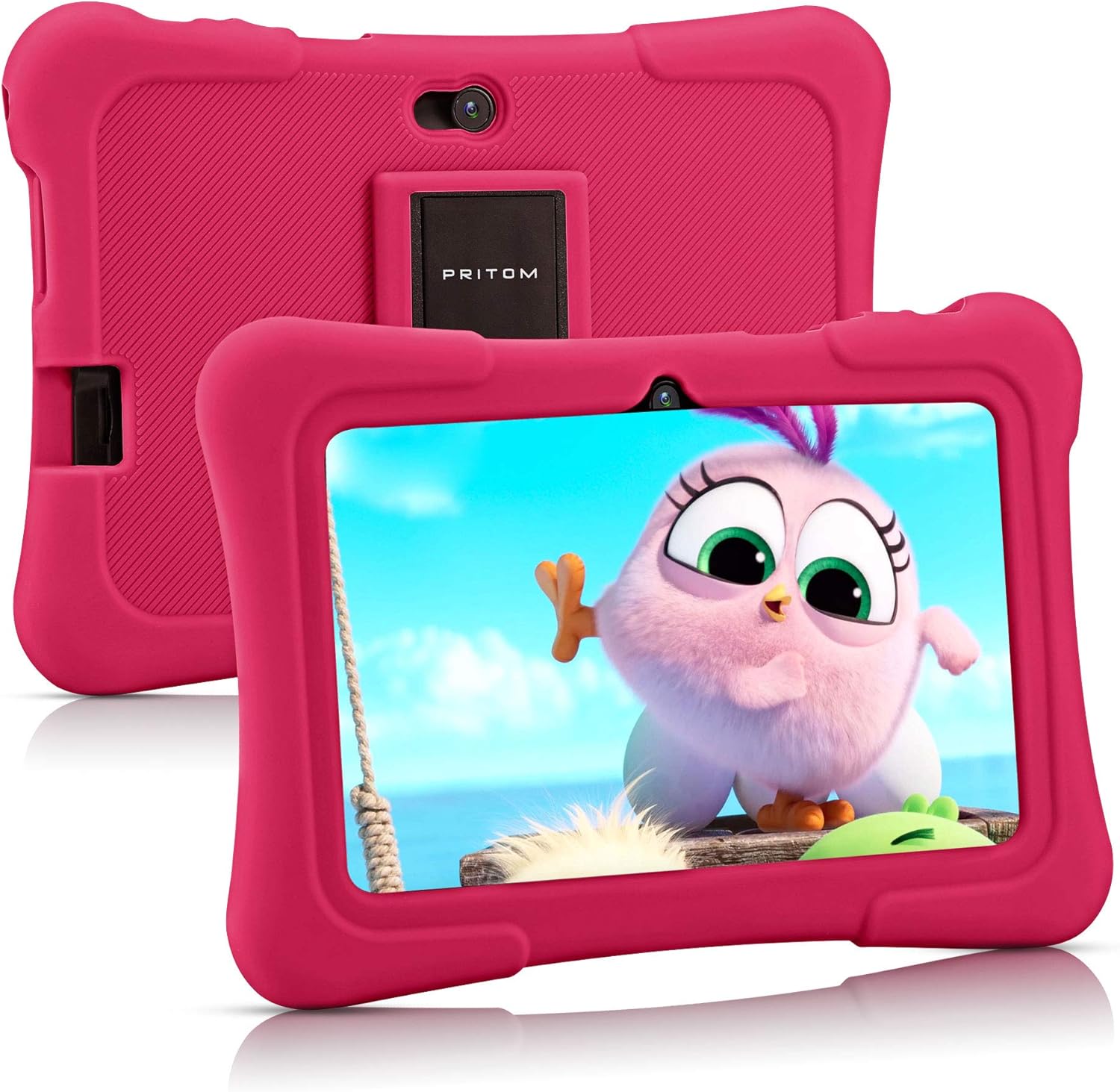
Image: PRITOM K7 7-inch Kids Tablet in its protective pink silicone case.

Image: Diagram illustrating the location of the power button, DC jack, Micro USB port, mic, 3.5mm earphone jack, volume buttons, Micro SD card slot, front camera, rear camera, and speaker.
4. Подешавање
4.1 Почетно укључивање
- Притисните и држите Дугме за напајање (located on the top edge) for a few seconds until the screen lights up.
- Пратите упутства на екрану да бисте изабрали језик и регион.
4.2 Повезивање на Ви-Фи
- From the home screen, tap the Подешавања икона.
- Изаберите Мрежа и Интернет, онда Ви-Фи.
- Укључи/искључи Wi-Fi On.
- Изаберите жељену Wi-Fi мрежу са листе.
- Унесите лозинку ако се то од вас затражи и додирните Повежите се.
4.3 Setting Up Parental Controls (iWawa Kids Software)
The PRITOM K7 comes with pre-installed iWawa Kid's software, offering a safe and controlled environment for children.
- Пронађите и додирните иВава app icon on the home screen.
- Follow the on-screen instructions to create a child profile. This typically involves setting up a password for parental access, defining screen time limits, and selecting age-appropriate content.
- Within the iWawa app, you can manage applications, set content filters, and monitor usage.

Image: The iWawa Kids Software interface, showing pre-installed educational and game applications.
5. Управљање таблетом
5.1 Навигација
- екран осетљив на додир: Navigate by tapping, swiping, and pinching on the screen.
- Хоме дугме: Враћа се на главни почетни екран.
- Дугме за назад: Враћа се на претходни екран.
- Дугме за недавне апликације: Приказује недавно коришћене апликације.
5.2 Downloading Apps
Beyond the pre-installed iWawa apps, you can download additional applications from the Google Play Store.
- Exit the iWawa app (if active) by entering the parental password.
- Пронађите и додирните Гоогле Плаи продавница icon on the main Android home screen.
- Тражи desired apps and follow the on-screen instructions to download and install them.
Функционалност камере за 5.3 степени
The tablet features a front-facing and rear-facing camera for photos and videos.
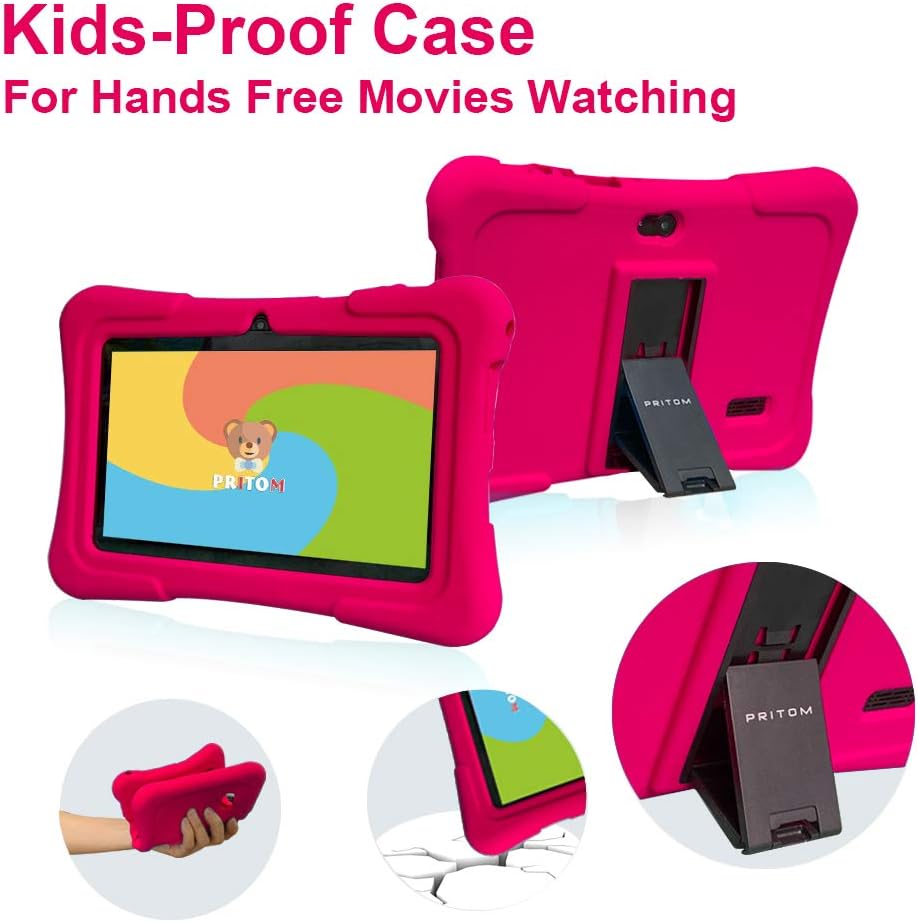
Image: The PRITOM K7 tablet displaying a family photo, highlighting its 7-inch IPS screen and camera capabilities.
- Додирните Камера app icon.
- Select between the front and rear camera using the toggle icon.
- Додирните дугме затварача да бисте снимили фотографију или покренули/зауставили снимање видеа.
5.4 Репродукција медија
The tablet supports various media formats for videos, music, and photos.
- видео: Use the pre-installed video player or download a third-party app from the Google Play Store.
- музика: Use the Music app to play audio files.
- Фотографије: View images in the Gallery app.
Видео: Оверview of the PRITOM 7-inch Kids Tablet, demonstrating its features and functionality, including the user interface and protective case.
Video: A short demonstration of the kids tablet, showcasing its design and some interactive elements.
Video: A brief look at the PRITOM Kids Tablet, highlighting its 7-inch screen and 32GB storage capacity.
6. Одржавање
6.1 Пуњење батерије
Connect the provided charger to the tablet's DC jack or Micro USB port and plug it into a power outlet. The battery indicator on the screen will show charging status.
6.2 Управљање складиштем
The tablet has 32 GB of internal storage, expandable up to 512 GB using a Micro SD card.
- Locate the Micro SD card slot (refer to Device Overview дијаграм).
- Gently insert a compatible Micro SD card until it clicks into place.
- Да бисте управљали складиштем, идите на Подешавања > Складиштење.
6.3 Чишћење
Use a soft, dry, lint-free cloth to clean the screen and exterior of the tablet. Avoid using harsh chemicals or abrasive materials.

Image: The PRITOM K7 tablet secured in its pink kid-proof silicone case, featuring a functional kickstand for hands-free viewинг.
КСНУМКС. Решавање проблема
- Таблет се не укључује: Уверите се да је батерија напуњена. Прикључите пуњач и покушајте поново.
- Екран не реагује: Извршите меко ресетовање држећи дугме за напајање 10-15 секунди.
- Проблеми са Ви-Фи везом: Check if Wi-Fi is enabled in settings. Restart your router and the tablet.
- Рушење апликација: Clear the app's cache (Settings > Apps > [App Name] > Storage > Clear Cache) or reinstall the app.
- Parental control issues: Verify the parental password and check settings within the iWawa app.
8. Спецификације
| Феатуре | Детаљ |
|---|---|
| Величина екрана | 7 инча |
| Резолуција екрана | 1024x600 Pixels (IPS HD) |
| Оперативни систем | Андроид 13 |
| Процесор | Quad-Core (1.5 GHz Unisoc) |
| РАМ | 2 GB SDRAM DDR3 |
| Интерна меморија | 32 GB (expandable up to 512 GB via Micro SD) |
| камере | Предња 2MP, задња 0.3MP |
| Повезивање | WiFi (802.11bgn), Bluetooth |
| Трајање батерије | Average 3 years (device lifespan) |
| Тежина артикла | 1.15 фунти |
| Димензије производа | 8.3 к 5.9 к 0.7 инча |
9. Гаранција и подршка
For warranty information and customer support, please refer to the documentation included with your purchase or visit the official PRITOM webсајт. Сачувајте доказ о куповини за евентуалне рекламације по гаранцији.


