Увод
Welcome to your new TERIOS Mobile Game Controller. This manual provides detailed instructions for setup, operation, and maintenance to ensure optimal performance and an enhanced gaming experience across various platforms including Android smartphones, Windows PCs, and PlayStation 3 consoles. Please read this manual thoroughly before using the device.
Кључне карактеристике
- Innovative Gaming: Designed to enrich your mobile gaming experience with precision and responsiveness.
- Широка компатибилност: Connects via Bluetooth 4.0 to Android smartphones, and is compatible with Windows PC and PlayStation 3. Supports popular games like PUBG, Call of Duty, and Mobile Legends.
- Gaming Joysticks: Features dual analog sticks for comprehensive and precise control.
- Ергономски дизајн: Comfortable grip with an integrated smartphone holder for extended gaming sessions.
- Турбо функција: Allows for rapid, continuous input with a single button press.
- Responsive Active Buttons: Includes 2 quick access buttons on the back and numerous action buttons for enhanced accuracy.
- Дуг век трајања батерије: Up to 12 hours of continuous play on a single charge.
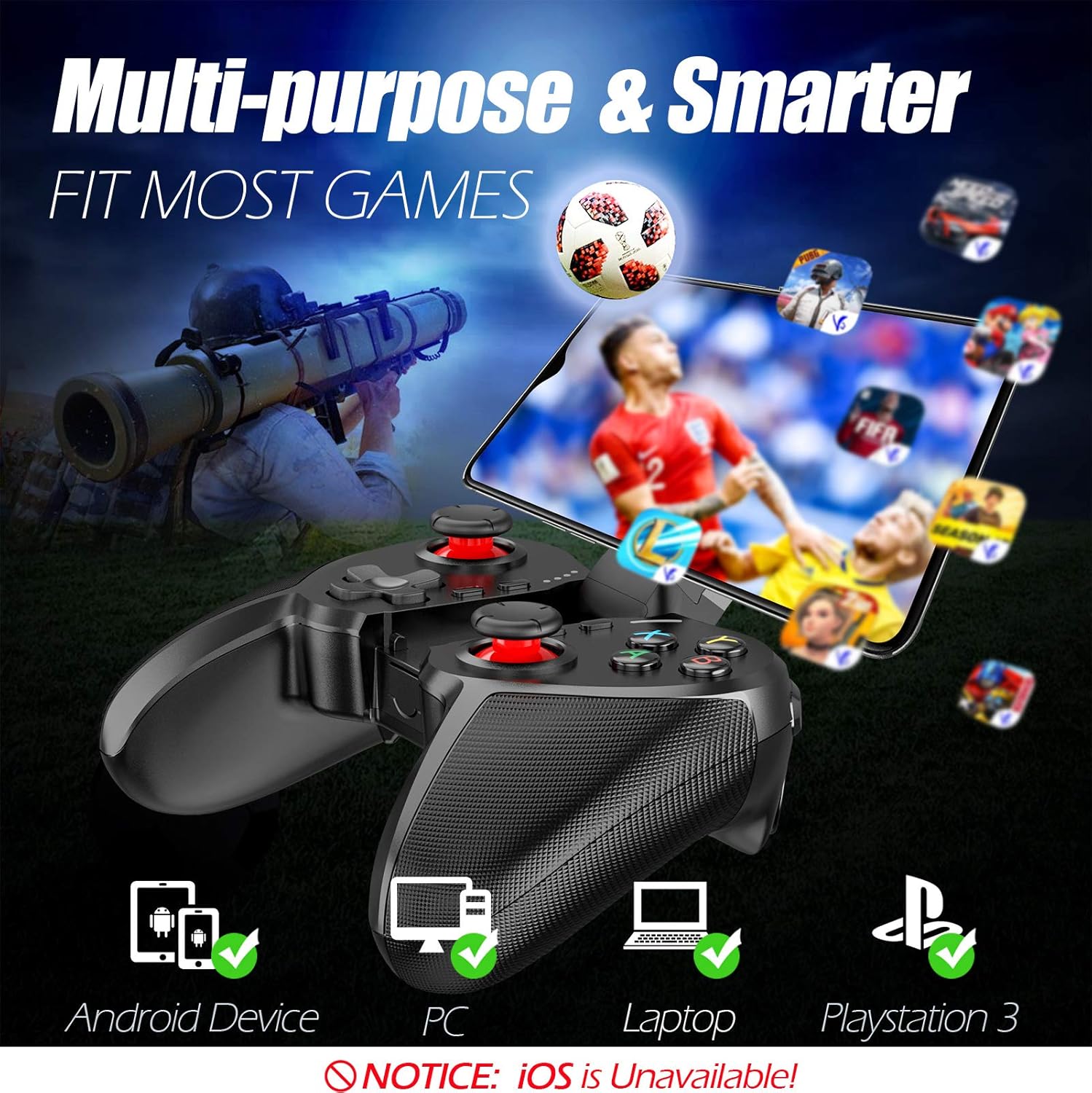
Figure 1: The TERIOS controller is compatible with Android devices, PCs, Laptops, and PlayStation 3.

Figure 2: Detail of the controller's built-in smartphone bracket, accurate buttons, and comfortable soft rubber grips.
Подешавање и повезивање
1. Пуњење контролера
Before first use, fully charge the controller. Connect the provided Micro USB cable to the controller's charging port and the other end to a USB power source (e.g., computer USB port, USB wall adapter). The indicator lights will show charging status and turn off when fully charged.

Figure 3: The controller features a 400mAh battery, providing 12-14 hours of playtime with a 2-3 hour charging time.
2. Укључивање/искључивање
- За укључивање: Притисните и држите ХОМЕ button for 2 seconds. The indicator lights will flash.
- За искључивање: Притисните и држите ХОМЕ button for 5 seconds until the indicator lights turn off. The controller will automatically power off after 5 minutes of inactivity.
3. Bluetooth Pairing (Android Smartphones / PS3)
- Уверите се да је контролер искључен из напајања.
- On your Android smartphone or PS3, enable Bluetooth.
- Притисните и држите ХОМЕ button on the controller until the indicator lights flash rapidly, indicating pairing mode.
- On your device, search for new Bluetooth devices. Select "TERIOS Gamepad" or similar from the list.
- Једном када се повеже, индикаторска лампица ће почети да светли континуирано.
4. Веза са рачунаром
For PC connection, the controller typically uses a USB dongle (often included). Insert the USB dongle into an available USB port on your PC. The controller should automatically connect. If not, press the ХОМЕ button to initiate connection.
5. Initial Setup and App (V3 App)
For optimal customization and compatibility with certain mobile games, it is recommended to download the V3 app from the Google Play Store. This app allows you to map virtual keys on your screen to the physical buttons of the controller.
- Download the "V3" app from the Google Play Store.
- Connect the TERIOS gamepad to your smartphone via Bluetooth.
- Open the V3 app and follow the on-screen instructions to customize key mappings for your desired games.

Figure 4: The V3 app allows for easy customization of virtual keys to match controller buttons, creating more combinations.
Упутство за употребу
1. Распоред и функције дугмади

Figure 5: The TERIOS Mobile Game Controller with a smartphone securely mounted in its integrated holder.
- Леви аналогни штап: Примарна контрола кретања.
- Десни аналогни штап: Контрола камере или секундарно кретање.
- D-Pad (смерни тастер): Precise directional input.
- АБКСИ дугмад: Standard action buttons (A, B, X, Y).
- L1/L2, R1/R2 Buttons: Дугмад на рамену и окидачу за разне радње у игри.
- Дугме СЕЛЕЦТ: Обично се користи за навигацију кроз мени или одређене функције игре.
- Старт дугме: Typically used for pausing games or accessing menus.
- Дугме ХОМЕ: Powers on/off, enters pairing mode, and returns to home screen on some devices.
- ТУРБО дугме: Activates the turbo function for other buttons.
- Дугме ЦЛЕАР: Деактивира турбо функцију.

Figure 6: The dual analog sticks are designed for precise control and execution in games.
2. Турбо функција
The Turbo function allows a button to be pressed repeatedly as long as you hold it down, which is useful for rapid-fire actions in games.
- Да активирате: Притисните и држите ТУРБО button, then press the desired action button (e.g., A, B, X, Y, L1, R1). Release both buttons. Now, holding down the action button will activate turbo fire.
- Да бисте деактивирали: Притисните и држите ЦЛЕАР button, then press the action button for which turbo was activated. Release both buttons.

Figure 7: The dedicated Turbo button enables rapid-fire functionality with one click.
3. Smartphone Holder Usage
The integrated smartphone holder can accommodate most smartphone sizes. Gently extend the holder and place your smartphone securely within the clamps. Ensure the phone is centered for balance.
Одржавање
- Чишћење: Користите меку, суву крпу за чишћење контролера. Не користите абразивна средства за чишћење или раствараче.
- Складиштење: Чувајте контролер на хладном и сувом месту, даље од директне сунчеве светлости и екстремних температура.
- Одржавање батерије: Да бисте продужили век трајања батерије, избегавајте често потпуно пражњење контролера. Редовно га пуните, чак и ако се не користи дуже време.
Решавање проблема
| Иссуе | Могући узрок | Решење |
|---|---|---|
| Контролер се не повезује преко Bluetooth-а. | Контролер није у режиму упаривања; Bluetooth уређаја је искључен; сметње. | Ensure controller is in pairing mode (rapid flashing lights). Check device Bluetooth settings. Move closer to the device. Try restarting both controller and device. |
| Дугмад не реагују или реагују са закашњењем. | Low battery; software glitch; interference. | Charge the controller fully. Restart the controller. Ensure no other strong wireless signals are nearby. For mobile games, check V3 app settings. |
| Контролер се често искључује. | Слаба батерија; предалеко од уређаја; сметње. | Charge the controller. Stay within the recommended Bluetooth range. Minimize wireless interference. |
| Турбо функција не ради. | Incorrect activation sequence; button not supported. | Ensure you press and hold TURBO, then press the desired action button, then release both. Some games or buttons may not fully support turbo. |
Спецификације производа
| Феатуре | Детаљ |
|---|---|
| Бранд | ТЕРИОС |
| Модел | Т-12 |
| Технологија повезивања | Блуетоотх 4.0 |
| Компатибилни уређаји | Android Smartphones, Windows PC, PlayStation 3 |
| Извор напајања | Напајање батеријом (литијум-полимер) |
| Капацитет батерије | 400mAh (approx. 1.48 Watt Hours) |
| Плаи Тиме | До 12-14 сати |
| Време пуњења | 2-3 сати |
| Број дугмади | 16 (including ABXY, D-pad, analog sticks, L/R triggers/bumpers, Select, Start, Home, Turbo, Clear) |
| Посебне карактеристике | Turbo Function, Dual Analog Sticks, In-built Smartphone Holder, Responsive Action Buttons |
| Димензије (пакет) | 17 к 12.4 к 7.7 цм |
| Тежина (пакет) | 310 г |
Информације о гаранцији и подршци
The TERIOS Mobile Game Controller is designed for durability and performance. For any product-related inquiries, technical support, or warranty claims, please refer to the contact information provided with your purchase or visit the official TERIOS support webсајт. Молимо вас да сачувате доказ о куповини ради гаранције.


