1. Увод
This manual provides comprehensive instructions for the setup, operation, and maintenance of your NETUM NT-8003 80mm Wireless Bluetooth Thermal Receipt Printer. Please read this manual carefully before using the printer to ensure proper functionality and to prevent damage.
The NETUM NT-8003 is a portable thermal receipt printer designed for various applications, including retail, restaurants, and mobile sales, offering connectivity via Bluetooth and USB.
2. Садржај пакета
Проверите да ли су све ставке присутне у пакету:
- NETUM NT-8003 Thermal Printer
- Rechargeable Lithium-ion Battery (7.4V DV / 2000mA)
- УСБ кабл
- Power Adapter (external 9V / 1.5-2A)
- Thermal Paper Roll (sampле)
- Кориснички приручник (овај документ)

Image: The NETUM NT-8003 thermal printer, showing its compact design and control panel.
3. Мере предострожности
- Do not expose the printer to water or moisture.
- Избегавајте испуштање или излагање штампача јаким ударцима.
- Use only the specified power adapter and battery.
- Do not attempt to disassemble or repair the printer yourself. Contact customer support for assistance.
- Чувати ван домашаја деце.
- Важна напомена: Remove the insulating tape from the battery before first use.
4. Подешавање
4.1 Инсталација и пуњење батерије
- Open the battery compartment cover on the back of the printer.
- Insert the rechargeable lithium-ion battery, ensuring correct polarity.
- Затворите поклопац одељка за батерије.
- Connect the power adapter to the printer's charging port and plug it into a power outlet. The "CHARGE" indicator light will illuminate.
- Charge the printer fully before first use. A full charge typically takes several hours.
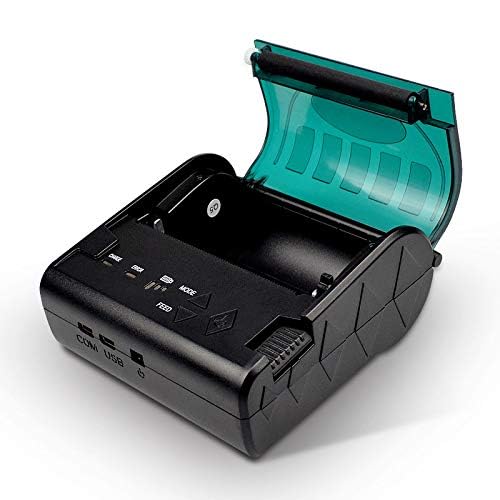
Image: The NETUM NT-8003 printer with its battery removed, illustrating the battery compartment.
4.2 Инсталација ролне папира
- Press the cover open button to open the paper compartment cover.
- Insert a new 80mm thermal paper roll into the compartment, ensuring the paper feeds from the bottom and the leading edge is straight.
- Pull a small amount of paper out past the cutting edge.
- Чврсто затворите поклопац одељка за папир док не кликне на место.
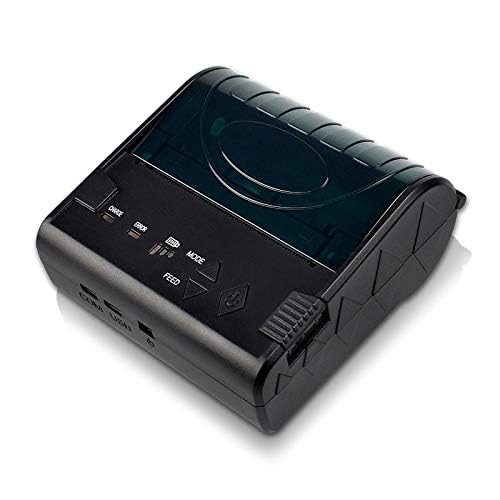
Image: The NETUM NT-8003 printer with its top cover open, ready for paper roll installation.
5. Упутство за употребу
5.1 Укључивање/искључивање
- To power on: Press and hold the power button (Симбол напајања) until the indicator lights illuminate.
- Да бисте искључили напајање: Притисните и држите дугме за напајање док се индикаторска светла не угасе.
5.2 Bluetooth Connection (Android/iOS)
The printer cannot be directly detected by the built-in Bluetooth function of Apple/Android devices. To connect and use the printer, you must use a compatible application for searching and connecting.
- Ensure the printer is powered on and within range of your device.
- Download a compatible POS printing application (e.g., "POS-Printer V1.0" or similar) from your device's app store.
- Open the application and navigate to its settings or printer connection section.
- Тражи available Bluetooth devices within the application.
- Select "NT-8003" or a similar name from the list of found devices.
- If prompted for a PIN, enter "0000" or "1234".
- Once connected, the application will indicate a successful connection, and you can proceed with printing.

Image: Visual guide demonstrating the process of connecting the printer via a mobile application, highlighting that direct Bluetooth pairing is not supported for printing.
5.3 USB Connection (PC/Windows/Linux)
- Повежите штампач са рачунаром помоћу приложеног УСБ кабла.
- Install the appropriate printer drivers for your operating system (Windows/Linux). Drivers are typically provided on a CD or available for download from the NETUM webсајту.
- Once drivers are installed, the printer should appear in your system's printer list.
- You can now print directly from compatible software on your computer.
5.4 Штампање
After successful connection via Bluetooth or USB, you can initiate printing from your application or software. Ensure the paper roll is correctly installed and the printer has sufficient battery charge.
- Дугме за унос: Press the "FEED" button to advance the paper manually.
- Дугме за режим: The "MODE" button may be used for self-test printing or changing printer settings, depending on the firmware version. Refer to specific application instructions for advanced settings.
6. Одржавање
6.1 Чишћење главе за штампање
Regular cleaning of the thermal print head ensures optimal print quality and extends the printer's lifespan.
- Turn off the printer and disconnect the power adapter.
- Отворите поклопац одељка за папир.
- Use a cotton swab lightly dampened with isopropyl alcohol to gently wipe the thermal print head (the dark strip inside the cover).
- Оставите главу за штампање да се потпуно осуши пре него што затворите поклопац и укључите штампач.
6.2 Cleaning the Roller
Clean the rubber roller to prevent paper jams and ensure smooth feeding.
- Turn off the printer and disconnect the power adapter.
- Отворите поклопац одељка за папир.
- Лагано користите меку крпу која не оставља длачице дampened with water to wipe the rubber roller.
- Allow it to dry completely before closing the cover.
6.3 Одржавање батерије
- Charge the battery regularly, even if the printer is not in use, to maintain battery health.
- Избегавајте често потпуно пражњење батерије.
- Штампач чувајте на хладном и сувом месту када га не користите дуже време.
КСНУМКС. Решавање проблема
| Проблем | Могући узрок | Решење |
|---|---|---|
| Штампач се не укључује. | Слаба батерија или нема напајања. | Charge the battery or connect the power adapter. Ensure insulating tape is removed from the battery. |
| Нема штампаног излаза. | No paper, paper jam, or print head issue. | Check paper roll. Clear any paper jams. Clean the print head. |
| Лош квалитет штампе. | Dirty print head or low battery. | Clean the print head. Ensure the battery is sufficiently charged. Use high-quality thermal paper. |
| Не могу се повезати преко Bluetooth-а. | Incorrect connection method, app issue, or printer not discoverable. | Ensure you are connecting via a compatible printing application, not directly through device settings. Restart both printer and device. Check app permissions. |
| Printer not recognized by PC via USB. | Missing or incorrect drivers. | Install the correct USB drivers for your operating system. Try a different USB port or cable. |
8. Спецификације
| Феатуре | Детаљ |
|---|---|
| Принтинг Метход | Термално штампање |
| Брзина штампања | 90мм/сец |
| Резолуција | 8 тачака/мм (203 ДПИ) |
| Папер Видтх | 80 ± 1 мм |
| Пречник ролне папира | 83 мм |
| Дебљина папира | 0.06-0.08 мм |
| Интерфејси | USB, Bluetooth 2.0 (4.0) |
| Цомманд Сет | ESC / POS / STAR compatible |
| Батерија | 7.4V DV / 2000mA Rechargeable Lithium-ion |
| Екстерни пуњач | 9V / 1.5-2A |
| Оперативни системи | Windows 7, Android, iOS, Linux |
| Димензије | 12 к 11 к 8 цм |
| Тежина | 322 грама |
| Поузданост | Живот главе штампача: 100 км |
9. Гаранција и подршка
NETUM products are designed for reliability and performance. This product comes with a warranty period of at least 12 months from the date of purchase.
For warranty claims, technical support, or service inquiries, please contact NETUM customer support through your retailer or the official NETUM website. Please have your purchase receipt and product model number (NT-8003) available when contacting support.
Сертификати: CE, FCC, CCC, ROHS, ISO9001:2008


