Увод
This manual provides comprehensive instructions for the NETUM NT-1698W Wireless Barcode Scanner. It covers setup, operation, maintenance, and troubleshooting to ensure optimal performance of your device. The NT-1698W offers both 2.4G wireless and USB wired connectivity for versatile use with computers and laptops.
Садржај пакета
Молимо вас да проверите да ли су све ставке присутне у пакету:
- NETUM NT-1698W Barcode Scanner
- Подесиво постоље
- УСБ кабл за пуњење/дата
- 2.4G Wireless USB Receiver
- Кориснички приручник (овај документ)

слика: The NETUM NT-1698W barcode scanner assembled with its adjustable stand, alongside the USB charging/data cable and the 2.4G wireless USB receiver.

слика: The NETUM NT-1698W barcode scanner in handheld mode, with the USB cable and 2.4G wireless receiver displayed.
Сетуп
1. Пуњење скенера
Before first use, fully charge the scanner. Connect the USB charging cable to the scanner's charging port and the other end to a USB power adapter or a computer's USB port. The indicator light will show charging status.
2. Начини повезивања
The NT-1698W supports two connection modes: 2.4G Wireless and USB Wired.

слика: Illustration of the two connection methods: wireless via a 2.4GHz USB receiver and wired via a USB cable.
2.1. 2.4Г бежична веза
- Insert the 2.4G wireless USB receiver into an available USB port on your computer.
- Turn on the barcode scanner. It will automatically attempt to pair with the receiver.
- A successful connection is indicated by a specific sound or light pattern on the scanner.

слика: Visual representation of the scanner's wireless range, showing effective distances for indoor and outdoor use.
2.2. Жична USB веза
- Повежите USB кабл директно са скенера на USB порт на рачунару.
- The scanner will be recognized as a HID keyboard device and will function immediately without driver installation.
3. Састављање постоља
The adjustable stand allows for hands-free scanning. Attach the scanner to the flexible arm of the stand, ensuring it is securely fastened. Adjust the angle as needed for comfortable operation.

слика: The adjustable stand component, designed to hold the barcode scanner for hands-free operation.
Упутство за употребу
1. Основно скенирање
Point the scanner's laser beam at the barcode you wish to scan. Press the trigger button. A successful scan will typically be indicated by a beep and the data appearing in your active application (e.g., a text editor, spreadsheet, or POS software).
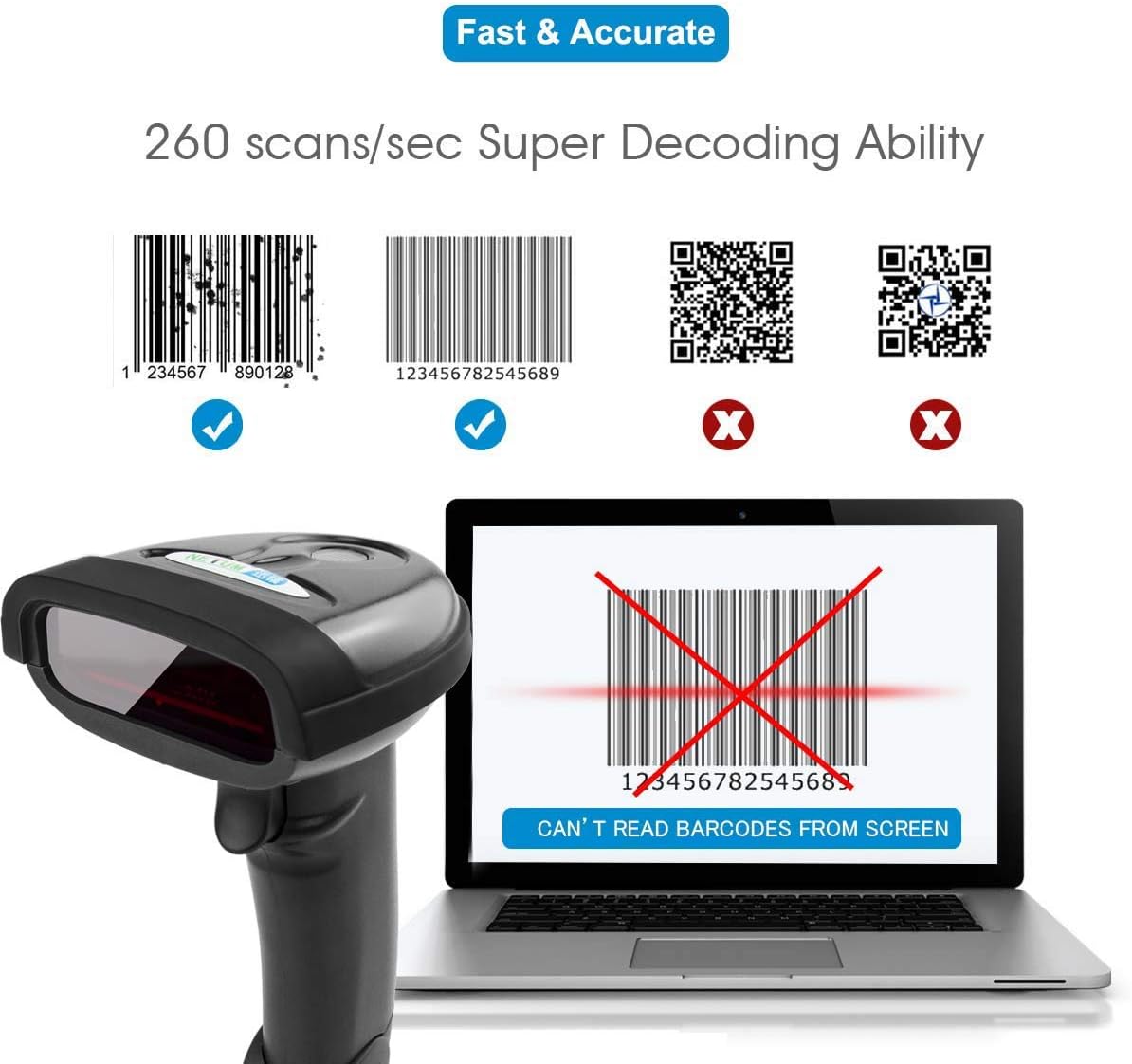
слика: This scanner is designed for 1D barcodes, demonstrating its capability to read common 1D formats like Code 128 and EAN-13 at a high speed. It does not support 2D barcodes such as QR codes or Data Matrix.
2. Upload Modes
The NT-1698W supports two data upload modes:
- Режим тренутног отпремања: Scanned data is transmitted to the connected device immediately. This is the default mode.
- Collection Upload Mode (Storage Mode): Scanned data is stored in the scanner's internal memory. You can upload the collected data in batches later by scanning a specific command barcode (refer to the full programming guide for details).

слика: Explanation of the scanner's two data upload modes: storing data for batch upload or transmitting it instantly, highlighting the wireless range for instant uploads.
3. Advanced Barcode Programming
The scanner can be configured using special programming barcodes to customize its behavior, including:
- Prefix & Suffix Settings: Додајте прилагођене знакове пре или после скенираних података.
- Insert/Delete Characters: Modify the scanned data by inserting or deleting specific characters at designated positions.
- Other settings such as volume, sleep time, and symbology enablement/disablement.
Refer to the complete programming manual (usually a separate document or available online) for a full list of configuration barcodes and instructions.

слика: The scanner in use, demonstrating its advanced programming capabilities such as adding prefixes/suffixes and modifying characters within scanned data.
Одржавање
- Чишћење: Користите меку, суву крпу за чишћење спољашњости скенера. За прозор за скенирање користите крпу за чишћење сочива како бисте избегли огреботине. Не користите абразивна средства за чишћење или раствараче.
- Складиштење: Чувајте скенер на хладном и сувом месту, даље од директне сунчеве светлости и екстремних температура.
- Одржавање батерије: To prolong battery life, avoid fully discharging the battery frequently. Charge the scanner regularly, even if not in constant use.
Решавање проблема
| Проблем | Могући узрок | Решење |
|---|---|---|
| Скенер не чита баркодове. |
|
|
| No data transmitted to computer. |
|
|
| Скенер звучно сигнализира, али се подаци не приказују. |
|
|
Спецификације
| Феатуре | Детаљ |
|---|---|
| Модел | НТ-1698В |
| Повезивање | 2.4Г бежични, УСБ жичани |
| Тип скенирања | 1D Laser Barcode Reader |
| Брзина скенирања | Up to 260 scans/second |
| Компатибилни уређаји | Desktop, Laptop (Windows, macOS) |
| Извор напајања | Rechargeable Battery, Corded Electric (via USB) |
| Домет | Up to 50m (164ft) indoors, 100m (330ft) outdoors (barrier-free) |
| ASIN | B08DCXLXTR |
Гаранција и подршка
NETUM products typically come with a standard manufacturer's warranty. Please refer to the warranty card included with your product or visit the official NETUM webсајт за детаљне услове гаранције.
For technical support, troubleshooting assistance, or inquiries regarding your NETUM NT-1698W barcode scanner, please contact NETUM customer service through their official webсајт или контакт информације које су наведене у паковању вашег производа.


