1. Увод
The Poly GC8 is an intuitive touchscreen interface designed to provide easy access and control for Poly video conferencing solutions. Its slim design and high-definition touchscreen ensure clear visibility and accessible control functions, enhancing the user experience in meeting environments.
2. Производ је готовview
The Poly GC8 serves as the central control unit for managing your video conferences. It features a responsive touchscreen display for navigating menus, initiating calls, and controlling meeting functions. The device is designed for desktop placement, offering a stable and accessible interface.

Слика 2.1: Фронт view of the Poly GC8 Touchscreen Controller, displaying a meeting schedule and various control icons such as 'New meeting', 'Dial pad', and 'Present'.
3. Подешавање
Follow these steps to properly set up your Poly GC8 Touchscreen Controller:
- Распакујте уређај: Carefully remove the Poly GC8 from its packaging. Ensure all components, including the device and any cables, are present.
- Поставите уређај: Place the Poly GC8 on a stable, flat surface, such as a conference table or desk, ensuring adequate ventilation around the unit.
- Прикључите напајање: Locate the power input port on the rear of the device. Connect the provided power adapter to the GC8 and then plug it into a suitable power outlet.
- Connect to Conferencing System: Use the appropriate cable (e.g., USB or Ethernet, depending on your Poly conferencing system) to connect the GC8 to your main video conferencing unit. Refer to your specific conferencing system's manual for connection details.
- Укључено: The device should power on automatically once connected to power. If not, locate and press the power button (if available) or refer to your system's documentation for power-on procedures.
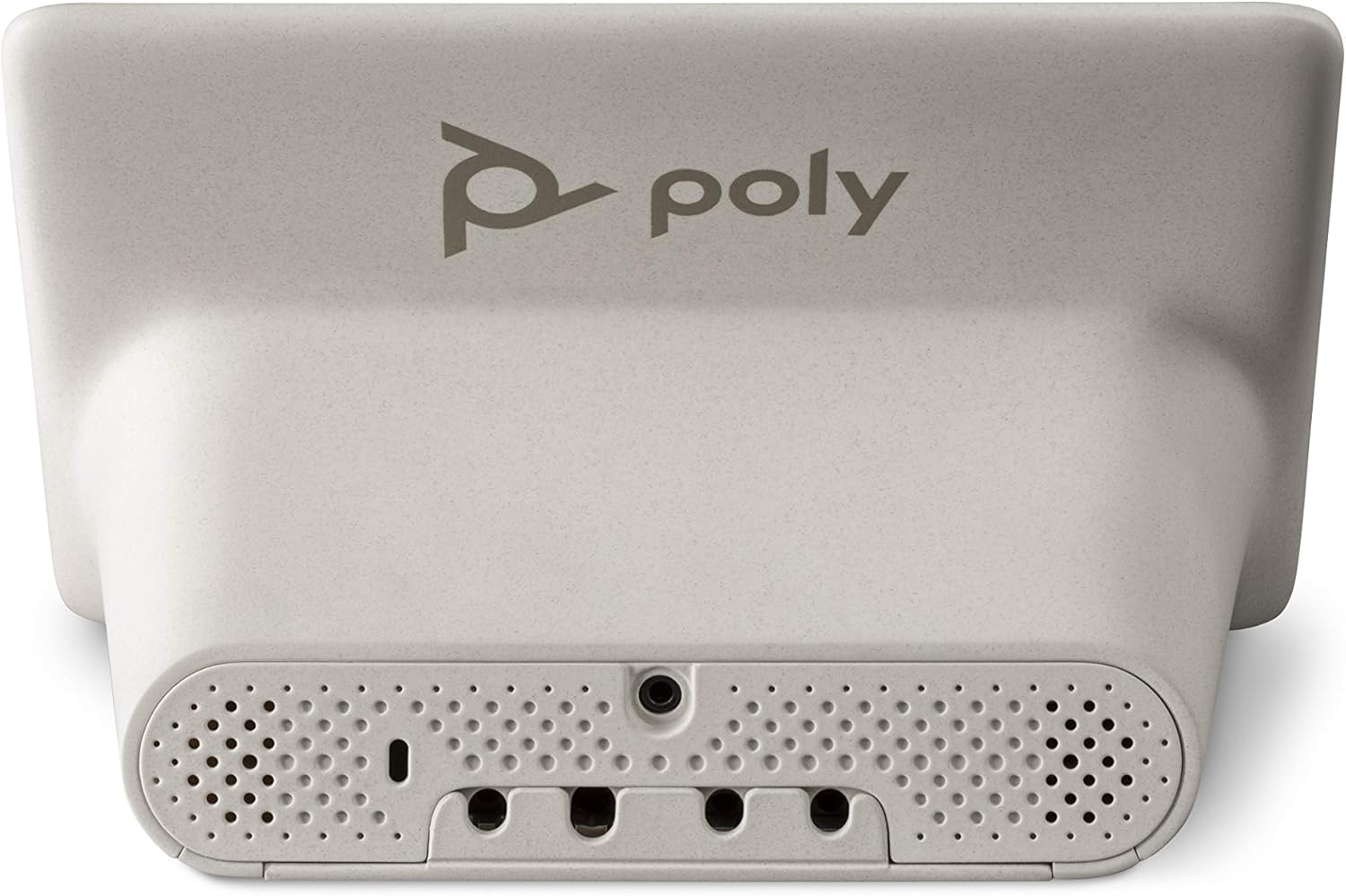
Слика 3.1: Позади view of the Poly GC8, highlighting the connectivity ports for power and integration with a conferencing system.
4. Упутство за употребу
The Poly GC8 provides a user-friendly interface for managing your meetings. Here are common operations:
4.1. Кретање кроз интерфејс
- Почетни екран: Displays upcoming meetings, quick access buttons for new meetings, dial pad, and content sharing.
- Покрети додиром: Use taps, swipes, and pinches as you would on any modern touchscreen device to navigate menus and control functions.
4.2. Joining a Meeting
Scheduled meetings will appear on the home screen. To join:
- Locate the desired meeting on the home screen.
- Tap the 'Join' button next to the meeting entry.
4.3. Starting a New Meeting
To initiate an ad-hoc meeting:
- Tap the 'New meeting' icon on the home screen.
- Follow the on-screen prompts to add participants or select meeting options.
4.4. Using the Dial Pad
For dialing into audio conferences or making direct calls:
- Tap the 'Dial pad' icon on the home screen.
- Enter the desired number using the on-screen keypad.
- Tap the call button to initiate the connection.
4.5. Presenting Content
To share content from your device:
- Tap the 'Present' icon on the home screen.
- Follow the on-screen instructions to connect your content source (e.g., laptop via HDMI or wireless sharing).
5. Одржавање
Proper maintenance ensures the longevity and optimal performance of your Poly GC8.
5.1. Чишћење уређаја
- Екран: Користите меку крпу која не оставља длачицеampводом или раствором за чишћење екрана. Избегавајте јаке хемикалије или абразивне материјале.
- Casing: Wipe the exterior with a soft, dry cloth. Do not use liquid cleaners directly on the device.
- Уверите се да је уређај искључен и искључен пре чишћења.
5.2. Ажурирања софтвера
Periodically check for and install software updates provided by Poly. These updates often include performance improvements, new features, and security enhancements. Refer to your Poly conferencing system's administration guide for instructions on managing GC8 software updates.
КСНУМКС. Решавање проблема
This section addresses common issues you might encounter with your Poly GC8.
6.1. Уређај се не укључује
- Проверите везу за напајање: Ensure the power adapter is securely connected to the GC8 and the power outlet. Verify the outlet is functional.
- Проверите адаптер за напајање: Confirm you are using the original Poly power adapter supplied with the device.
- Поново покрени: Disconnect and reconnect the power adapter to perform a hard reset.
6.2. Екран не реагује
- Поново покрените уређај: Perform a power cycle by unplugging and re-plugging the power adapter.
- Чист екран: Ensure the screen is clean and free of debris that might interfere with touch input.
6.3. Cannot Connect to Conferencing System
- Проверите каблове: Ensure all connection cables (e.g., USB, Ethernet) between the GC8 and the main conferencing unit are securely plugged in.
- Компатибилност система: Verify that your Poly GC8 is compatible with your specific Poly video conferencing system.
- Мрежна повезаност: If using an Ethernet connection, ensure the network is active and the GC8 has a valid IP address.
If issues persist after attempting these troubleshooting steps, contact Poly technical support for further assistance.
7. Спецификације
| Феатуре | Детаљ |
|---|---|
| Бранд | ПОЛИ |
| Сериес | ГЦ8 |
| Број модела | 2200-30780-001 |
| Хардверска платформа | Десктоп |
| Величина екрана на стојећем екрану | 2 Inches (Note: This value appears inconsistent with typical touchscreen controllers and may refer to a specific component or be an error in source data. The main image suggests a larger display.) |
| Тежина артикла | 3.08 фунти |
| Димензије производа (ДкШкВ) | 19.69 к 19.69 к 11.02 инча |
| Боја | Црно |
| Произвођач | Полицом Инц. |
| Датум првог доступног | 5. октобра 2020. године |
8. Гаранција и подршка
For information regarding the warranty coverage for your Poly GC8 Touchscreen Controller, please refer to the warranty documentation included with your purchase or visit the official Poly website. For technical support, product registration, or to access additional resources, please visit the Poly support portal or contact their customer service department directly.
Поли Суппорт Webсајт: www.poly.com/support


