1. Увод и крајview
The HP t430 Thin Client is a versatile, cloud-first device designed for desktop virtualization and cloud-based applications. It offers an intuitive experience for users and simplifies maintenance for IT administrators. Its compact design and efficient processing power contribute to a modern computing experience.
Кључне карактеристике укључују:
- Оптимизоване перформансе: Experience responsive performance with the Intel Celeron N4020 processor, operating at up to 2.8 GHz.
- Flexible Operating Systems: Available with Linux-based HP ThinPro or Windows 10 IoT Enterprise for Thin Clients.
- Efficient Memory: Equipped with 4 GB DDR4 SDRAM for smooth operation.
- Интегрисана графика: Features Intel UHD Graphics 600, supporting up to 4K display resolution.
- Свеобухватно повезивање: Includes USB-C for power, audio, and data, DisplayPort, HDMI, Gigabit Ethernet, and optional Wi-Fi.
- Компактан и прилагодљив дизајн: A sleek profile with a built-in VESA mount allows for flexible placement, including mounting behind a display.

Слика 1.1: Предња страна view of the HP t430 Thin Client, showcasing its compact design and front USB port.
2. Водич за подешавање
This section outlines the steps to set up your HP t430 Thin Client.
2.1. Распакивање и садржај
Carefully unpack your HP t430 Thin Client and verify that all components are present:
- HP t430 Thin Client unit
- Повер Адаптер
- HP USB Slim Business Keyboard
- Миш
2.2. Повезивање периферних уређаја
- Повежи екран: Use a DisplayPort or HDMI cable to connect your monitor to the corresponding port on the thin client. The device supports up to two displays simultaneously.
- Повежите тастатуру и миш: Plug the USB keyboard and mouse into any available USB ports on the thin client.
- Повежите мрежу: For a wired connection, connect an Ethernet cable from your network router or switch to the LAN port on the thin client. If using Wi-Fi (optional), ensure your device has the integrated Wi-Fi module.
- Прикључите напајање: Plug the power adapter into the thin client's power input, then connect the power adapter to an electrical outlet.

Слика 2.1: Позади view of the HP t430 Thin Client, illustrating the various connectivity ports including USB, DisplayPort, HDMI, and Ethernet.
2.3. Прво укључивање
After connecting all peripherals and power, press the power button on the thin client. The device will boot up, and you will be presented with the operating system interface (HP ThinPro or Windows 10 IoT Enterprise).

Image 2.2: The HP t430 Thin Client positioned on a desk, connected to a monitor, keyboard, and mouse, ready for use.
3. Упутство за употребу
Your HP t430 Thin Client is designed for efficient operation in virtualized and cloud environments.
3.1. Укључивање/искључивање
- За укључивање: Press the power button located on the front of the device.
- За искључивање: Use the shutdown option within your operating system (HP ThinPro or Windows 10 IoT Enterprise). Avoid direct power disconnection during operation to prevent data corruption.
3.2. Operating System Navigation
Depending on your configuration, your thin client will run either HP ThinPro or Windows 10 IoT Enterprise. Familiarize yourself with the respective operating system's interface for accessing applications, settings, and network resources.
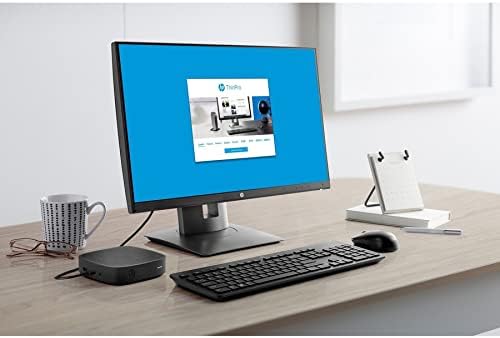
Image 3.1: A monitor connected to the HP t430 Thin Client, displaying the user interface of the HP ThinPro operating system.
3.3. Connecting to Virtual Desktops and Cloud Applications
The HP t430 Thin Client is pre-configured to connect to various virtualization platforms such as Citrix, VMware, and Microsoft RDP. Consult your IT administrator for specific connection details and credentials. Web browsers are also available for accessing cloud-based applications directly.
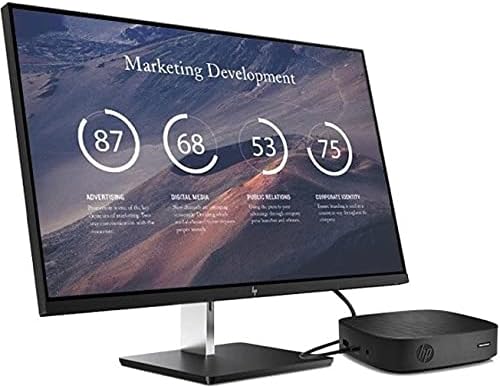
Image 3.2: The HP t430 Thin Client in a professional setting, connected to a monitor displaying a business-oriented dashboard with charts and data.
4. Одржавање
Proper maintenance ensures the longevity and optimal performance of your HP t430 Thin Client.
4.1. Чишћење
- Екстеријер: Лагано користите меку крпу која не оставља длачице дampОпрати спољашње површине водом или благим, неабразивним средством за чишћење. Избегавати јаке хемикалије.
- Портови: Ensure ports are free of dust and debris. Use compressed air if necessary, holding the can upright to prevent liquid discharge.
4.2. Ажурирања софтвера
Regularly apply operating system and security updates as recommended by HP or your IT department. HP manageability software can assist in deploying and managing these updates efficiently.
4.3. Разматрања животне средине
Operate the thin client in a well-ventilated area, away from direct sunlight, excessive heat, and moisture. Ensure proper airflow around the device to prevent overheating.
КСНУМКС. Решавање проблема
Овај одељак пружа решења за уобичајене проблеме на које можете наићи.
5.1. Нема снаге
- Verify the power adapter is securely connected to both the thin client and a working electrical outlet.
- Тестирајте електричну утичницу другим уређајем да бисте се уверили да је функционална.
- Ensure the power button on the thin client has been pressed.
5.2. Нема дисплеја
- Check that the display cable (DisplayPort or HDMI) is securely connected to both the thin client and the monitor.
- Уверите се да је монитор укључен и подешен на исправан улазни извор.
- Try connecting the thin client to a different monitor or using a different display cable if available.
5.3. Проблеми са мрежном повезивањем
- Жична веза: Verify the Ethernet cable is properly connected to the thin client and the network router/switch. Check the network status lights on the thin client and router.
- Ви-Фи веза: Ensure the Wi-Fi module is enabled in the operating system settings. Confirm you are connected to the correct network and have entered the password correctly.
- Restart the thin client and your network equipment (router/modem).
За сталне проблеме, обратите се HP подршци website or contact your IT administrator.
6. Спецификације
Detailed technical specifications for the HP t430 Thin Client.
| Феатуре | Спецификација |
|---|---|
| Бранд | HP |
| Назив модела | т430 |
| Број модела | 486Z0UT#ABA |
| Оперативни систем | HP ThinPro 64, Windows 10 IoT Enterprise for Thin Clients |
| Процесор | Intel Celeron N4020 Dual-core (2 Core) |
| Брзина процесора | 1.10 GHz (up to 2.8 GHz burst) |
| РАМ меморија | 4 ГБ ДДР4 СДРАМ |
| Складиштење | 32 ГБ ССД |
| Графика | Интел УХД графика 600 |
| Видео Оутпут | DisplayPort, HDMI, USB-C |
| Max Display Resolution | 3840 к 2160 пиксела (4К) |
| Повезивање | Gigabit Ethernet, Wi-Fi (optional) |
| УСБ портови | 5 Total (including USB-C) |
| Димензије (В к Ш к Д) | 19.6 к 8.7 к 5 инча (приближно) |
| Тежина | 4.3 фунти |
| Боја | Црно |
| Усклађеност | Energy Star, RoHS |
7. Информације о гаранцији
The HP t430 Thin Client comes with a Двогодишња гаранција произвођача. Please retain your proof of purchase for warranty claims. For detailed terms and conditions, refer to the warranty documentation included with your product or visit the official HP support webсајту.
8. Подршка
For further assistance, technical support, or to download drivers and documentation, please visit the official HP support webсајт:
You may also contact HP customer service directly through the contact information provided on their webсајту.