1. Увод
This manual provides essential information for setting up, operating, and maintaining your TECLAST X11 2-in-1 Laptop/Tablet. The TECLAST X11 is a versatile device designed to function as both a portable tablet and a compact laptop, running on Windows 10 Home. It features a 10.1-inch Full HD display, an Intel N4020 processor, 6GB RAM, and 128GB of internal storage.
2. Шта је у кутији
- TECLAST X11 Tablet
- Повер Адаптер
- УСБ кабл
- Кориснички приручник (овај документ)
Note: The keyboard and stylus pen are sold separately and are not included in the standard package.
3. Производ је готовview
3.1 Кључне карактеристике
- 2-у-1 дизајн: Seamlessly switch between tablet and laptop modes.
- Приказ: 10.1-inch IPS Full HD (1920x1200) touchscreen.
- процесор: Intel Gemini Lake Reflash N4020 CPU (up to 2.8GHz).
- Меморија и складиштење: 6GB RAM, 128GB eMMC ROM (expandable up to 256GB via TF card).
- Оперативни систем: Pre-installed Windows 10 Home.
- Повезивање: Dual-band 2.4G/5G WiFi, Bluetooth 4.2.
- камере: 5MP rear camera, 2MP front camera.
- Портови: USB 3.0, Mini-HDMI, Headphone Jack, DC Port.
- Ногара: Adjustable U-shaped kickstand (0° to 145°).
3.2 Изглед уређаја
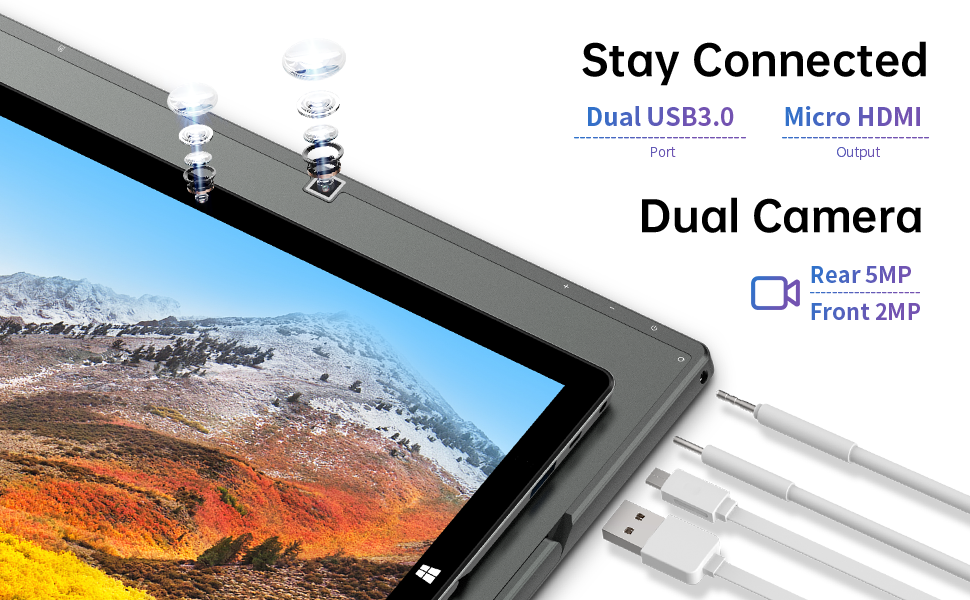
Слика: Са стране view of the TECLAST X11 tablet highlighting the USB 3.0 port, Micro HDMI output, and front/rear cameras.

Слика: Детаљна view of the TECLAST X11's side ports, including USB 3.0, Mini-HDMI, DC power input, and headphone jack.
4. Подешавање
4.1 Почетно пуњење
Before first use, fully charge your TECLAST X11 tablet. Connect the provided power adapter to the DC port on the device and plug it into a power outlet. The charging indicator will illuminate.
4.2 Укључивање/искључивање
- За укључивање: Притисните и држите дугме за укључивање док се екран не укључи.
- За искључивање: Press and hold the Power button, then select "Shut down" from the on-screen options. Alternatively, go to Start Menu > Power > Shut down.
- Режим спавања: Briefly press the Power button to put the device into sleep mode or wake it up.
4.3 Почетна инсталација Windows-а
Upon first power-on, follow the on-screen instructions to complete the Windows 10 setup process. This includes selecting your region, language, connecting to a Wi-Fi network, and creating a user account.
5. Упутство за употребу
5.1 Пребацивање између режима
The TECLAST X11 is designed for flexibility, allowing you to switch between tablet and laptop modes.
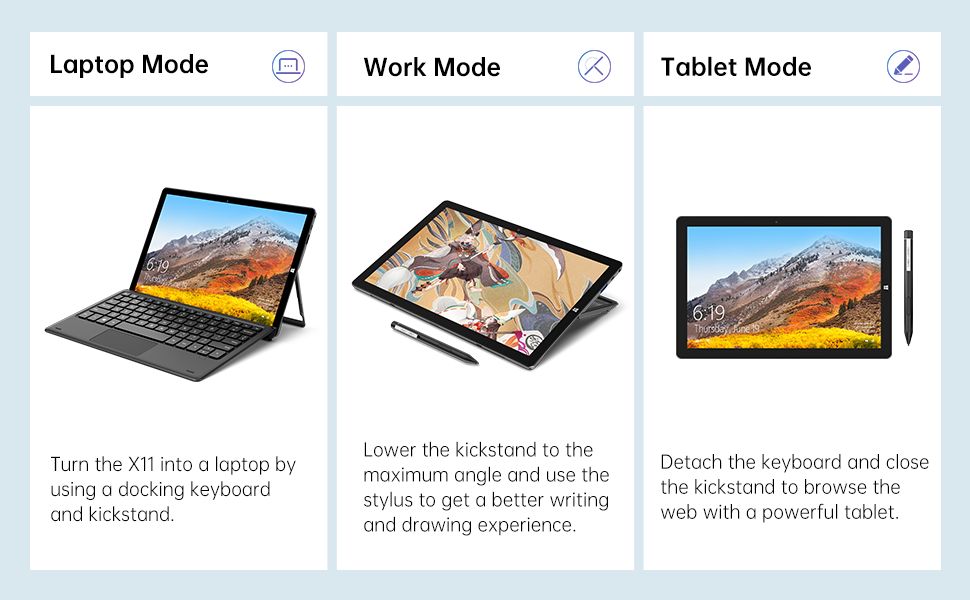
Image: The TECLAST X11 in laptop mode with the keyboard attached and kickstand deployed.
Режим лаптопа: Attach the magnetic docking keyboard and deploy the integrated kickstand. The device will automatically detect the keyboard and switch to laptop interface.

Image: A user holding the TECLAST X11 in tablet mode, interacting with the touchscreen.
Режим таблета: Detach the keyboard. The device will automatically switch to tablet mode, optimizing the interface for touch input.

Слика: Позади view of the TECLAST X11 showing the adjustable kickstand extended.
Употреба постоља: The integrated U-shaped kickstand can be adjusted from 0° to 145° for comfortable viewing or typing angles.
5.2 Коришћење екрана осетљивог на додир
The 10.1-inch IPS display supports 10-point multi-touch. Use standard touch gestures for navigation, zooming, and interaction with applications.
5.3 External Connectivity
- УСБ 3.0: Connect external devices such as USB drives, mice, or printers.
- Мини-HDMI: Повежите се са екстерним монитором или телевизором за већи приказ.
- Блуетоотх КСНУМКС: Pair with Bluetooth-enabled accessories like headphones or speakers.
- Ви-Фи: Connect to wireless networks for internet access. Supports 2.4G and 5G bands.
5.4 Видео демонстрација
Video: An official TECLAST video demonstrating the features and versatility of the X11 Windows tablet with its detachable keyboard and various usage scenarios.
6. Одржавање
6.1 Чишћење уређаја
- Користите меку крпу која не оставља влакна за чишћење екрана и спољашњих површина.
- За тврдокорне трагове, благо дampобришите крпу водом или средством за чишћење екрана.
- Избегавајте употребу јаких хемикалија, абразивних материјала или прекомерне влаге.
6.2 Одржавање батерије
- Да бисте продужили век трајања батерије, избегавајте екстремне температуре.
- Не остављајте уређај потпуно напуњен или потпуно испражњен дуже време.
- Користите само оригинални или сертификовани компатибилни пуњач.
6.3 Ажурирања софтвера
Regularly check for and install Windows updates to ensure optimal performance, security, and access to the latest features. Go to Start Menu > Settings > Update & Security > Windows Update.
КСНУМКС. Решавање проблема
| Иссуе | Могуће решење |
|---|---|
| Уређај се не укључује | Ensure the device is charged. Connect the power adapter and try again. If unresponsive, press and hold the Power button for 10-15 seconds to perform a hard reset. |
| Проблеми са Ви-Фи везом | Check if Wi-Fi is enabled in Windows settings. Restart your router and the tablet. Ensure you are within range of the Wi-Fi signal. |
| Тастатура не реагује | Ensure the keyboard is securely attached to the magnetic docking port. Restart the tablet. Verify that the keyboard was purchased separately and is compatible. |
| Споро перформансе | Close unnecessary applications. Check for Windows updates. Ensure sufficient free storage space. Run a disk cleanup. |
| Screen rotation not working | Check if auto-rotate is enabled in Windows Action Center (swipe in from the right edge of the screen or click the icon in the taskbar). |
8. Спецификације
| Феатуре | Детаљ |
|---|---|
| Назив модела | X11 2-in-1 Tablet |
| Величина екрана | 10.1 инча |
| Резолуција екрана | 1920 x 1200 пиксела (FHD IPS) |
| Процесор | Intel Gemini Lake Reflash N4020 (1.1GHz - 2.8GHz) |
| РАМ | 6 ГБ ДДР4 СДРАМ |
| Хард Дриве | 128 GB eMMC (expandable up to 256GB via TF card) |
| графичка картица | Интегрисана Интел УХД Грапхицс 600 |
| Оперативни систем | Виндовс 10 Хоме |
| Вирелесс Типе | Bluetooth 4.2, Dual-band WiFi (2.4G + 5G) |
| Позади Webцам Ресолутион | 5 МП |
| Фронт Webцам Ресолутион | 2 МП |
| Портс | USB 3.0, Mini-HDMI, Headphone Jack, DC Port |
| Тежина артикла | 2.31 фунте (приближно 1.05 кг) |
| Батерије | 1 литијум-полимерска батерија (укључена) |
9. Гаранција и подршка
TECLAST provides a 12-месечна гаранција for the X11 2-in-1 Laptop/Tablet. If you encounter any issues or have questions regarding your device, please contact TECLAST customer support. Refer to the contact information provided with your product packaging or visit the official TECLAST webсајт за детаље подршке.


