1. Увод
This manual provides comprehensive instructions for the setup, operation, and maintenance of your Tibuta 15.6 Inch WiFi Digital Photo Frame. Please read this manual thoroughly before using the device to ensure proper functionality and to maximize your user experience.

Image 1.1: Tibuta 15.6 Inch WiFi Digital Photo Frame in use, showing its touchscreen capabilities and companion app integration.
2. Безбедносне информације
Observe the following safety precautions to prevent damage to the device or personal injury:
- Не излажите уређај води или прекомерној влази.
- Избегавајте постављање уређаја у близини извора топлоте или на директној сунчевој светлости током дужег периода.
- Користите само испоручени адаптер за напајање.
- Не покушавајте сами да раставите или поправите уређај. Обратите се корисничкој подршци за помоћ.
- Држите уређај даље од деце и кућних љубимаца.
3. Садржај пакета
Проверите да ли су све ставке присутне у пакету:
- Tibuta 15.6 Inch WiFi Digital Photo Frame
- Повер Адаптер
- Кориснички приручник (овај документ)
- Стани
4. Производ је готовview
Упознајте се са компонентама вашег дигиталног фото рама.
4.1 Фронт View

Слика 4.1: Предња страна view and key features of the Tibuta 15.6 Inch Digital Photo Frame.
- 15.6 Inch HD Touch Screen: High-definition display with 1280x800 resolution and IPS technology for wide viewинг углова.
- Интерфејс екрана на додир: Allows for direct interaction with the frame's menus and settings.
4.2 Реар View и луке

Слика 4.2: Позади view of the Tibuta Digital Photo Frame with labeled ports and features.
- Прекидач: Укључује или искључује уређај.
- Зид: Mounting points for wall installation.
- Ampослободиоци: Интегрисани звучници за репродукцију звука.
- Утор за микро СД картицу: Supports Micro SD cards up to 128GB for expanded storage.
- Прикључак за слушалице: За повезивање спољних аудио уређаја.
- Type-A USB Port: For connecting USB drives or other peripherals.
- Мини УСБ порт: For data transfer (if applicable).
- ДЦ порт за напајање: Повезује се на адаптер за напајање.
- Сталак: Attachable stand for desktop placement.
5. Подешавање
5.1 Почетно укључивање
- Attach the stand to the back of the photo frame for stable placement on a flat surface.
- Connect the power adapter to the DC Power Port on the back of the frame.
- Укључите адаптер за напајање у зидну утичницу.
- Press the Power Switch to turn on the device.
- Follow the on-screen prompts to select your language, time zone, and connect to a Wi-Fi network.
5.2 Повезивање на Ви-Фи
- From the main menu, navigate to "Settings" and then "Wi-Fi".
- Изаберите жељену Wi-Fi мрежу са листе.
- Унесите лозинку за Wi-Fi помоћу тастатуре на екрану.
- Tap "Connect". Once connected, a Wi-Fi icon will appear on the screen.
5.3 Инсталирање пратеће апликације
To share photos and videos remotely, download the dedicated companion app.

Image 5.1: Download the Uhale App from Google Play or the App Store.
- On your smartphone or tablet, open the Гоогле Плаи продавница (за Андроид уређаје) или Аппле Апп Сторе (за iOS уређаје).
- Тражи "Uhale App" (or the specified app name in your frame's instructions).
- Преузмите и инсталирајте апликацију.
- Follow the in-app instructions to pair your device with the digital photo frame. This typically involves entering a unique code displayed on your photo frame.
6. Упутство за употребу
6.1 Sharing Photos and Videos via App
Once the frame is connected to Wi-Fi and paired with the app:
- Отворите пратећу апликацију на свом паметном телефону.
- Select the photos or videos you wish to share.
- Tap the "Send" or "Share" button within the app.
- The selected media will be transferred to your digital photo frame and displayed.
The frame supports various display modes, including timing, zooming, and cropping, which can often be adjusted via the app or directly on the frame's settings.
6.2 Using External Storage (Micro SD Card)
The frame has 16GB of built-in storage and supports Micro SD cards up to 128GB.
- Insert a Micro SD card into the designated slot on the back of the frame.
- The frame will automatically detect the card.
- Navigate to the "Gallery" or "Files" section on the frame to access content from the Micro SD card.
- Можете копирати files from the Micro SD card to the internal storage or play them directly.
6.3 Automatic Rotation (Gravity Sensing)
The frame features gravity sensing for automatic rotation, adjusting the display orientation based on how the frame is positioned (landscape or portrait).
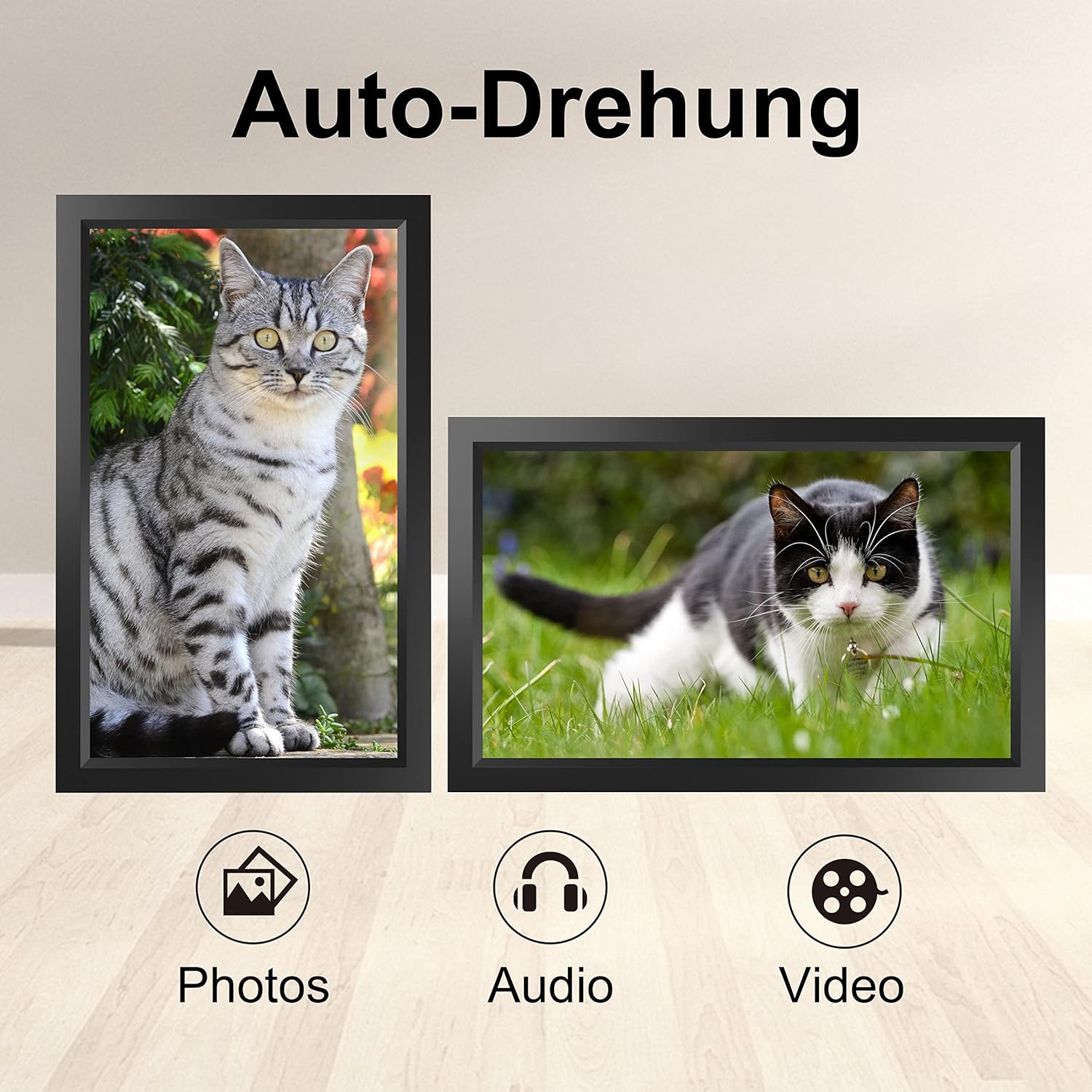
Image 6.1: Automatic display rotation based on frame orientation.
Ensure the gravity sensing feature is enabled in the frame's settings if you wish to utilize this functionality.
6.4 Подешавања екрана
Прилагодите свој viewing experience through the frame's settings menu:
- Интервал пројекције слајдова: Adjust how long each photo is displayed.
- Ефекти прелаза: Choose different effects between photos.
- Осветљеност: Подесите осветљеност екрана.
- Sleep Mode/Timer: Set schedules for the frame to turn on/off automatically.
- Zoom/Crop: Options to adjust how photos fit the screen.
7. Одржавање
7.1 Чишћење екрана
Да бисте очистили екран осетљив на додир, нежно га обришите меком крпом која не оставља влакна. За тврдокорне мрље, благо обришитеampОперите крпу водом или средством за чишћење екрана. Избегавајте употребу јаких хемикалија или абразивних материјала.
7.2 Општа нега
- Keep the frame in a dry environment.
- Protect it from dust by occasionally wiping the frame's body with a soft cloth.
- Избегавајте испуштање уређаја или излагање јаким ударима.
КСНУМКС. Решавање проблема
| Проблем | Могући узрок | Решење |
|---|---|---|
| Рам се не укључује. | Адаптер за напајање није повезан или је неисправан. | Ensure the power adapter is securely connected to both the frame and a working power outlet. Try a different outlet. |
| Повезивање на Ви-Фи није могуће. | Нетачна лозинка, ван домета или проблем са мрежом. | Verify the Wi-Fi password. Move the frame closer to the router. Restart your router. |
| Photos/videos not appearing. | App not paired, incorrect file format, or storage issue. | Ensure the app is correctly paired. Check if the media files are in a supported format. Verify sufficient storage space on the frame or SD card. |
| Екран осетљив на додир не реагује. | Привремени софтверски квар. | Restart the frame by holding the power button or unplugging and replugging the power adapter. |
| Automatic rotation not working. | Feature disabled or sensor issue. | Check the frame's settings to ensure gravity sensing/auto-rotation is enabled. |
9. Спецификације
| Феатуре | Детаљ |
|---|---|
| Број модела | ТИД15.6 |
| Величина екрана | 15.6 инча |
| Дисплаи Типе | ИПС екран осетљив на додир |
| Резолуција | 1280к800 |
| Интерна меморија | 16GB (approx. 20,000 photos) |
| Ектернал Стораге | Мицро СД картица до 128ГБ |
| Повезивање | Ви-Фи |
| Посебне карактеристике | Gravity Sensing Automatic Rotation, Touchscreen |
| Димензије (Д к Ш к В) | 39.12 к 24.64 к 2.51 цм |
| Тежина | 1.48 кг |
| Извор напајања | Battery Powered (includes 1 Lithium Ion battery) |
Напомена: Спецификације су подложне променама без претходне најаве.
10. Гаранција и подршка
10.1 Гаранција на производ
The Tibuta Digital Photo Frame comes with a one-year product warranty. This warranty covers manufacturing defects and operational issues arising from normal use. If any issues arise during this period, please contact our after-sales support team for assistance.
10.2 Корисничка подршка
For technical support, warranty claims, or any other inquiries, please refer to the contact information provided on the Tibuta official website or your purchase documentation. When contacting support, please have your model number (TID15.6) and purchase date available.


