Увод
This manual provides essential information for setting up, operating, maintaining, and troubleshooting your Acer Nitro 70 N70-130-UR13 Gaming Desktop. Please read these instructions carefully to ensure proper use and longevity of your device. Keep this manual for future reference.
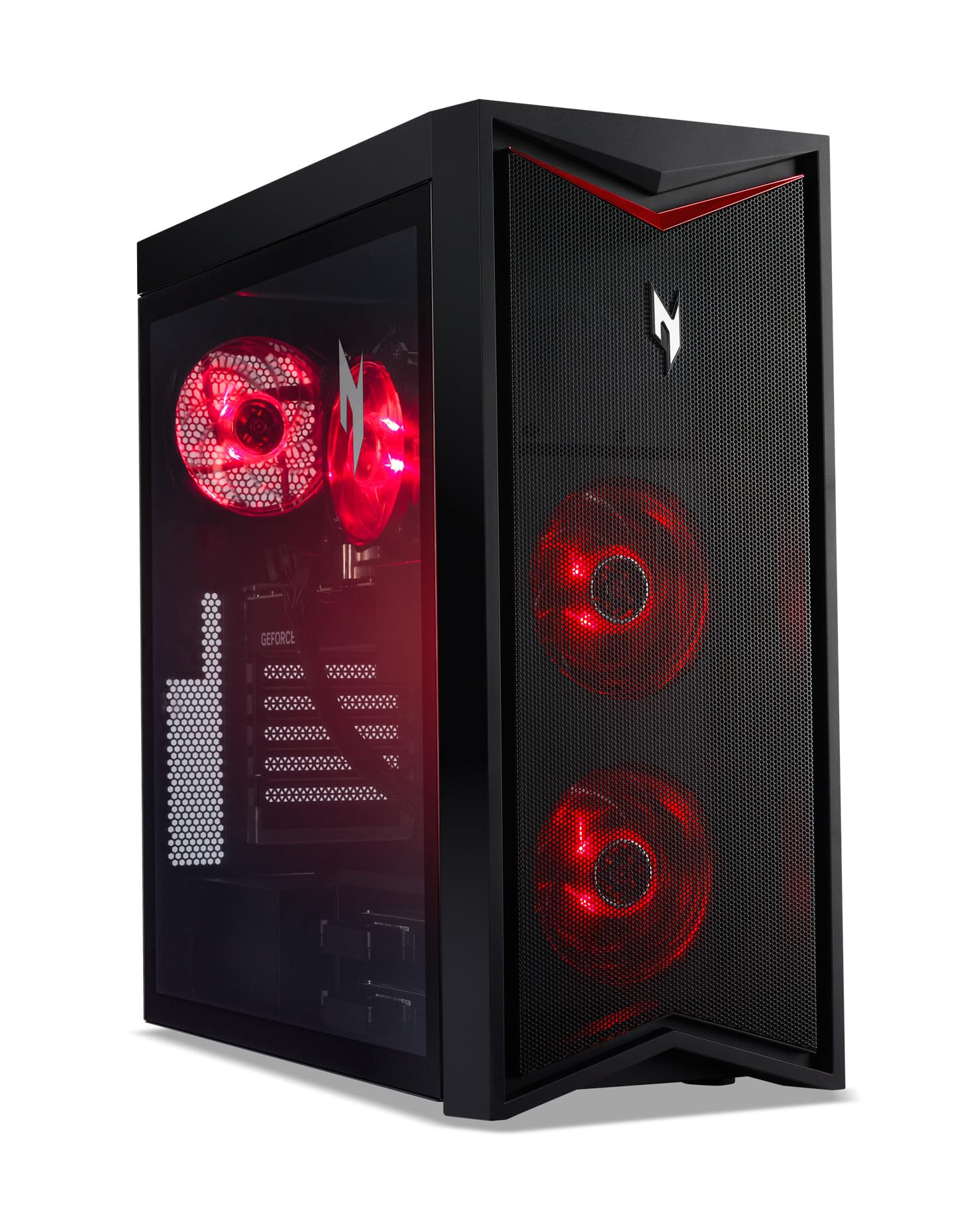
Слика: Фронт view of the Acer Nitro 70 N70-130-UR13 Gaming Desktop, showcasing its sleek black chassis with red accents and illuminated fans.
Шта је у кутији
Проверите да ли су сви предмети присутни у паковању:
- Ацер Нитро 70 Н70-130-УР13 Стони рачунар за игре
- Тастатура
- Миш
- Повер Цорд
Упутства за подешавање
- Распакивање: Carefully remove the desktop and all accessories from the packaging. Retain the packaging for future transport or service needs.
- Пласман: Place the desktop on a stable, flat surface with adequate ventilation around all sides. Avoid placing it in direct sunlight or near heat sources.
- Повежите периферне уређаје:
- Connect your monitor(s) to the graphics card ports (HDMI, DisplayPort) on the rear of the desktop.
- Повежите приложену тастатуру и миш на доступне УСБ портове.
- Повежите све остале периферне уређаје као што су звучници, слушалице или екстерни дискови.
- Прикључак за напајање: Прикључите кабл за напајање на улаз за напајање радне површине, а затим на уземљену електричну утичницу.
- Прво укључење: Press the power button located on the top of the desktop. The system will boot into Windows 11 Home. Follow the on-screen instructions for initial setup.

Image: A user seated at a desk, operating the Acer Nitro 70 desktop connected to a monitor, keyboard, mouse, and headset, illustrating a typical setup.
Упутство за употребу
Укључивање/искључивање
- За укључивање: Press the power button on the top of the desktop.
- Затворити: Кликните на дугме Старт у оперативном систему Windows, а затим изаберите Напајање > Искључи.
- Рестартовати: Кликните на дугме Старт у оперативном систему Windows, а затим изаберите Напајање > Поново покрени.
- За спавање: Кликните на дугме Старт у оперативном систему Windows, а затим изаберите Напајање > Спавање.
Using NitroSense
The NitroSense utility application allows you to monitor system performance, adjust fan speeds, and customize settings for optimal gaming and computing experience.
- Launch NitroSense: Locate the NitroSense icon in your Windows Start menu or desktop and click to open.
- Перформансе монитора: View real-time CPU and GPU temperatures, usage, and fan speeds.
- Adjust Fan Settings: Customize fan profiles (e.g., Auto, Max) to manage cooling performance.

Image: The Acer Nitro 70 desktop positioned next to a monitor displaying the NitroSense software interface, showing system performance metrics.
Кључне карактеристике
- процесор: AMD Ryzen 9 7900 12-Core Processor (Up to 5.4GHz)
- Графика: NVIDIA GeForce RTX 4070 with 12GB GDDR6X Video Memory
- Меморија: 32GB DDR5 4800MHz RAM
- Складиштење: 1TB M.2 2280 PCIe Gen 4 SSD
- Оперативни систем: Виндовс 11 Хоме
- Повезивање: Wi-Fi 6E, Bluetooth, Multiple USB 2.0 and 3.0 ports
- Шасија: 38L volume with optimized airflow and red LED lighting.

Image: The Acer Nitro 70 desktop with its side panel open, revealing the internal components including the M.2 PCIe Gen4 SSD and cooling fans.

Слика: Детаљна view of the internal cooling fans and the NVIDIA GeForce RTX 4070 graphics card within the Acer Nitro 70 desktop.
Одржавање
Regular maintenance helps ensure optimal performance and extends the lifespan of your desktop.
- Нека буде чисто: Regularly clean the exterior of the desktop with a soft, dry cloth. Use compressed air to clear dust from vents and fans to maintain proper airflow. Ensure the system is powered off and unplugged before cleaning.
- Ажурирања софтвера: Keep your operating system (Windows 11) and drivers (especially graphics drivers) updated to the latest versions for security and performance improvements.
- Резервна копија података: Периодично правите резервне копије важних fileна екстерни диск или складиште у облаку како би се спречио губитак података.
- Избегавајте препреке: Ensure that the desktop's ventilation openings are not blocked by objects or placed in enclosed spaces.
Решавање проблема
This section addresses common issues you might encounter with your desktop.
- Нема напајања / Систем се не укључује:
- Check if the power cord is securely connected to both the desktop and the electrical outlet.
- Проверите да ли је утичница функционална тако што ћете је тестирати са другим уређајем.
- If using a power strip or surge protector, ensure it is switched on and working.
- Нема приказа на монитору:
- Verify that the monitor is powered on and its video cable is securely connected to the graphics card ports on the desktop.
- Уверите се да је на вашем монитору изабран исправан улазни извор.
- Try connecting the monitor to a different video port on the graphics card, if available.
- System Running Slowly:
- Затворите непотребне апликације које раде у позадини.
- Проверите и инсталирајте све чекајуће надоградње за Windows или надоградње драјвера.
- Ensure there is sufficient free space on your primary drive (SSD).
- Покрените скенирање система за злонамерни софтвер или вирусе.
- прегревање:
- Ensure the desktop's vents are clear of obstructions and dust.
- Use the NitroSense application to monitor temperatures and adjust fan speeds.
- Ensure the desktop is placed in a well-ventilated area.
Спецификације
| Феатуре | Спецификација |
|---|---|
| Број модела | Н70-130-УР13 |
| Процесор | AMD Ryzen 9 7900 (12-Core, up to 5.4GHz) |
| графичка картица | NVIDIA GeForce RTX 4070 са 12GB GDDR6X меморије |
| РАМ | 32ГБ ДДР5 4800МХз |
| Складиштење | 1TB M.2 2280 PCIe Gen 4 SSD |
| Оперативни систем | Виндовс 11 Хоме |
| Бежично повезивање | Ви-Фи 6Е, Блутут |
| УСБ 2.0 портови | 2 |
| УСБ 3.0 портови | 8 |
| Видео Оутпут | 3 к ДисплаиПорт 1.4а, 1 к ХДМИ 2.1 |
| Димензије (ДкШкВ) | 19.87 к 8.62 к 19.09 инча |
| Тежина артикла | 13.6 фунти |
Производ је завршенview Видео
Видео: Званична видео презентација производаasing the design, internal components, and features of the Acer Nitro 70 N70-130-UR13 Gaming Desktop.
Гаранција и подршка
Your Acer Nitro 70 N70-130-UR13 Gaming Desktop comes with a standard manufacturer's warranty. For detailed warranty terms and conditions, please refer to the warranty card included with your product or visit the official Acer support webсајту.
За техничку подршку, преузимање драјвера или упите о услугама, посетите Acer подршку website or contact Acer customer service directly. Have your product model number (N70-130-UR13) and serial number ready when contacting support.
Ацер подршка Webсајт: www.acer.com/support


