1. Увод
The IPEVO VC-Z4K PTZ Camera is a high-performance 4K UHD camera designed for various applications including education, video conferencing, church services, and live streaming. Featuring a 1/2.8" HD CMOS sensor and 12X optical zoom, it delivers clear and detailed video. Its advanced AI auto-tracking capabilities minimize the need for manual operation, making it an efficient solution for dynamic environments.
This manual provides comprehensive instructions for setting up, operating, and maintaining your VC-Z4K camera to ensure optimal performance and longevity.

Figure 1: IPEVO VC-Z4K PTZ Camera and included remote control.
2. Шта је у кутији
Молимо вас да проверите садржај вашег пакета како бисте били сигурни да су сви предмети присутни:
- IPEVO VC-Z4K Camera
- Power adapter (8.2 ft / 2.5 m)
- USB 3.0 cable (4.9 ft / 1.5 m)
- RS232 cable (6.5 ft / 2 m)
- Даљински управљач (батерија није укључена)
- Упутство за употребу (овај документ)
3. Водич за подешавање
Follow these steps to set up your IPEVO VC-Z4K camera:
- Пласман: Position the camera on a stable surface or mount it securely in your desired location. Ensure it has a clear line of sight to the area you wish to capture.
- Прикључак за напајање: Connect the power adapter to the camera's power input port and then plug it into a power outlet. The camera will power on automatically.
- Video Output Connection:
- ДВИ: Connect an HDMI cable from the camera's HDMI OUT port to an HDMI input on your display or capture device.
- УСБ-Ц: Connect the USB 3.0 cable from the camera's USB-C port to a USB 3.0 port on your computer for video conferencing or streaming.
- LAN (PoE): For network connectivity and Power over Ethernet (PoE), connect an Ethernet cable from the camera's LAN port to a PoE-enabled network switch or injector.
- СДИ: Connect an SDI cable from the camera's SDI OUT port to an SDI input on your professional video equipment.
- Контролна веза (опционо):
- РС232: Use the RS232 cable to connect the camera to a control system for advanced PTZ control.
- Батерије за даљински управљач: Уметните две ААА батерије (нису укључене) у даљински управљач.

Слика 2: Задња страна view of the VC-Z4K camera illustrating various connectivity ports including USB 3.0, HDMI, LAN (PoE), and SDI. Compatible platforms like Zoom, OBS, and Microsoft Teams are also shown.
4. Упутство за употребу
4.1. Basic Camera Control
Use the included remote control to operate the camera's pan, tilt, and zoom functions.
- Пан: Use the left/right arrow buttons to rotate the camera horizontally (up to 340°).
- Нагиб: Use the up/down arrow buttons to adjust the camera vertically (from -30° to +90°).
- Зумирање: Use the "ZOOM +" and "ZOOM -" buttons to adjust the optical zoom (12X optical zoom).
- Фокус: Use the "FOCUS +" and "FOCUS -" buttons to manually adjust the focus. The camera also supports auto-focus.
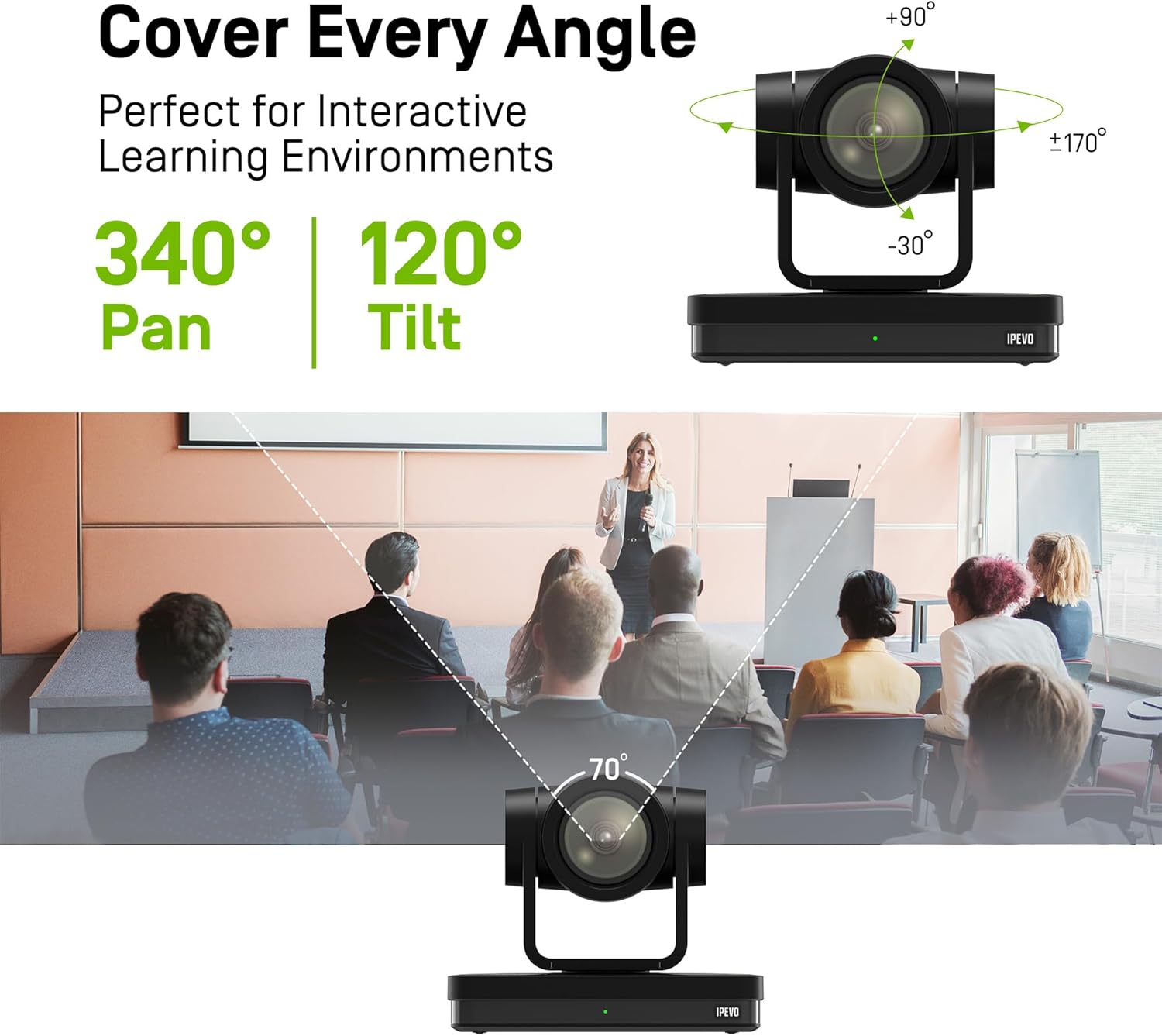
Figure 3: Illustration of the VC-Z4K camera's pan (340°) and tilt (-30° to +90°) capabilities, demonstrating its ability to cover a wide area.
4.2. AI Auto-Tracking
The VC-Z4K features advanced AI auto-tracking to automatically follow a presenter or track within defined zones, reducing the need for a dedicated camera operator.
- Праћење излагача: The camera can identify and follow a speaker as they move within the frame, keeping them centered and in focus.
- Zone Tracking: Define specific areas (zones) within the camera's view. The camera can automatically switch between these zones or focus on activity within them.
Refer to the detailed instructions in the full user manual (available online) for configuring AI tracking modes and settings.

Figure 4: Visual representation of the camera's AI auto-tracking and auto-focus features, showing a presenter being followed across different positions in a classroom.
4.3. Пресетс
The camera supports up to 255 preset positions, allowing you to quickly recall specific pan, tilt, and zoom settings. Ten presets can be easily managed via the remote control.
- Setting a Preset: Position the camera to your desired view, then press the "SET" button on the remote followed by a number (1-10).
- Позивање пресета: Press the desired number (1-10) on the remote. The camera will move to the saved position.
4.4. Компатибилност платформи
The VC-Z4K seamlessly integrates with popular video conferencing and streaming platforms, including:
- ИоуТубе
- ОБС Студио
- Зоом
- Мицрософт Теамс
- Скипе
- Гоогле Меет
- Иди на састанак
Ensure your chosen platform's settings are configured to recognize the IPEVO VC-Z4K as the video input device.
5. Одржавање
Proper maintenance ensures the longevity and optimal performance of your VC-Z4K camera.
- Чишћење: Use a soft, dry cloth to clean the camera body. For the lens, use a lens cleaning cloth and specialized lens cleaning solution if necessary. Avoid abrasive cleaners or solvents.
- Складиштење: Када се камера не користи дуже време, чувајте је на хладном и сувом месту, даље од директне сунчеве светлости и екстремних температура.
- Ажурирања фирмвера: Periodically check the IPEVO official website for any available firmware updates to ensure your camera has the latest features and performance enhancements.

Figure 5: The camera's advanced 2D/3D noise reduction capabilities, showing improved clarity in low-light or noisy environments, applicable across diverse settings like concerts, churches, and classrooms.
КСНУМКС. Решавање проблема
If you encounter issues with your IPEVO VC-Z4K camera, please refer to the following common troubleshooting steps:
- Нема напајања:
Ensure the power adapter is securely connected to both the camera and a working power outlet. Check if the power indicator light on the camera is on.
- Нема видео излаза:
Verify that the video cables (HDMI, USB-C, SDI, LAN) are correctly connected to both the camera and your display/computer/capture device. Confirm that the input source on your display or software is set to the correct input where the camera is connected.
- Праћење вештачком интелигенцијом не ради:
Ensure there are no obstructions in the camera's view. Check the lighting conditions; very low or very high contrast lighting can affect tracking performance. Refer to the detailed AI tracking setup guide in the full user manual for specific configuration steps.
- Даљински управљач не реагује:
Check if the batteries are correctly inserted and have sufficient charge. Ensure there are no obstructions between the remote control and the camera's IR receiver.
- Image Quality Issues (Blurry/Grainy):
Check the focus settings; try adjusting focus manually or ensure auto-focus is enabled. For grainy images, ensure adequate lighting in the environment. The camera features 2D/3D noise reduction for optimal performance in various lighting conditions.
For more detailed troubleshooting or persistent issues, please contact IPEVO customer support.
7. Спецификације
| Феатуре | Детаљ |
|---|---|
| Димензије производа | 7.1 к 5.9 к 4.5 инча |
| Тежина артикла | 2.64 фунти |
| Број модела | CDCU-06IP |
| Технологија фото сензора | CMOS (1/2.8" HD CMOS Sensor) |
| Резолуција снимања видео записа | 4К УХД |
| Формат видео снимања | МП4 |
| Технологија повезивања | USB, HDMI, LAN (PoE), SDI, RS232 |
| Боја | Бела |
| Посебне карактеристике | 12X Optical + 15X Digital Zoom, AI Tracking and Auto Focus, Low Noise and High SNR, Multiple Presets (up to 255) |
| Оптицал Зоом | 12 к |
| Цамцордер Типе | Webcam / PTZ Camera |
8. Гаранција и подршка
Информације о гаранцији: Your IPEVO VC-Z4K camera comes with a limited warranty. Please refer to the warranty card included with your purchase or visit the official IPEVO webсајт за детаљне услове гаранције.
Корисничка подршка: For technical assistance, troubleshooting beyond this manual, or any other inquiries, please contact IPEVO customer support. You can find contact information and additional resources on the official IPEVO webсајт: ввв.ипево.цом.
Please have your product model number (CDCU-06IP) and purchase details ready when contacting support.


