1. Увод
This manual provides detailed instructions for the Hyperkin Pixel Art Bluetooth Controller, Miraculous Cat Noir Edition. Please read this manual thoroughly before using the product to ensure proper operation and to maximize your gaming experience. This controller is designed for use with multiple platforms, offering wireless connectivity and a comfortable, ergonomic design.
2. Производ је готовview
The Hyperkin Pixel Art Bluetooth Controller combines a retro aesthetic with modern functionality. It features a unique Miraculous Cat Noir design, wireless Bluetooth connectivity, and a built-in turbo function.
2.1 Кључне карактеристике
- Бежична Блуетоотх веза: Enjoy gaming freedom up to 30 feet away.
- Турбо функција: Activate rapid-fire action for enhanced gameplay.
- Retro Design with Modern Ergonomics: A classic look combined with comfortable handling for extended play sessions.
- Погодно за путовања: Компактан дизајн омогућава лаку преносивост.
- High-Quality Symmetrical Sticks: Designed for precision and responsiveness.
2.2 Распоред контролера

Слика 2.2.1: Фронт view of the Hyperkin Pixel Art Bluetooth Controller, Miraculous Cat Noir Edition. This image displays the D-pad, left and right analog sticks with paw print designs, A/B/X/Y buttons, Start/Select buttons, and the Cat Noir character art.

Слика 2.2.2: Сиде view of the Hyperkin Pixel Art Bluetooth Controller, Miraculous Cat Noir Edition. This image shows the shoulder buttons (L1, R1) and triggers (L2, R2), along with the USB-C charging port and mode switch.

Слика 2.2.3: Цлосе-уп view emphasizing the controller's retro design combined with modern ergonomic features for comfortable handling.
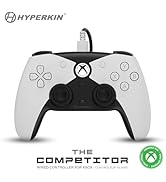
Слика 2.2.4: Цлосе-уп view изложбаasing the high-quality symmetrical analog sticks, designed for precise control during gameplay.
3. Подешавање
3.1 Пуњење контролера
The controller includes a built-in Lithium Polymer battery. To charge, connect the supplied Type-C cable to the controller's charging port and the other end to a USB power source (e.g., a computer USB port, a USB wall adapter). The LED indicator on the controller will show charging status and turn off when fully charged.
3.2 Упаривање путем Bluetooth-а
To pair the controller with your device:
- Уверите се да је контролер довољно напуњен.
- Укључите контролер притиском на дугме Home.
- Put the controller into pairing mode (refer to your device's specific instructions for Bluetooth pairing, as this may vary). Typically, this involves holding a small pairing button or a combination of buttons until the LED indicator flashes rapidly.
- On your device (Nintendo Switch, PC, Mac, Android, iOS, etc.), navigate to the Bluetooth settings.
- Тражи available devices and select "Hyperkin Pixel Art Controller" (or similar name) from the list.
- Once connected, the LED indicator on the controller will stabilize.
For Nintendo Switch, navigate to the 'Controllers' menu, then 'Change Grip/Order' to initiate pairing mode on the console.
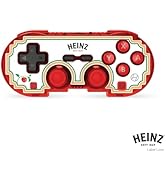
Слика 3.2.1: Illustration of the controller connecting wirelessly via Bluetooth, indicating a range of up to 30 feet.
3.3 Жична веза
The controller can also be used via a wired connection. Connect the Type-C cable from the controller to a compatible USB port on your device. This mode is often plug-and-play, requiring no additional pairing.
4. Упутство за употребу
4.1 Основне контроле
The controller features standard gaming buttons:
- Д-пад: Усмерени унос.
- Аналогни штапићи: Left and Right symmetrical sticks for precise movement and camera control.
- Дугмад за акције (A, B, X, Y): Primary interaction buttons.
- Shoulder Buttons (L, R) and Triggers (ZL, ZR): Additional input buttons, typically for actions like aiming, firing, or menu navigation.
- Дугмад за покретање/избор: За меније и опције у игри.
- Хоме дугме: Враћа се на почетни екран система.
4.2 Турбо функција
The turbo function allows for rapid, repeated input of a button press without continuously pressing the button. To activate or deactivate turbo for a specific button:
- Притисните и држите Турбо дугме.
- While holding the Turbo button, press the desired action button (e.g., A, B, X, Y, L, R, ZL, ZR) once to activate turbo for that button.
- Repeat the process (hold Turbo, press the same action button) to deactivate turbo for that button.
5. Компатибилност
The Hyperkin Pixel Art Bluetooth Controller is compatible with a wide range of gaming platforms:
- Нинтендо Свитцх
- Nintendo Switch OLED Model
- Нинтендо Свитцх Лите
- Виндовс 10/11 ПЦ
- Мац
- Цхромебоок
- Андроид уређаји
- Apple iOS уређаји
- Стеам
- Стеам Децк
- РОГ Алли
- Распберри Пи
- Amazon Games/Amazon Luna
- Тесла
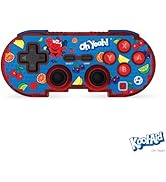
Слика 5.1: Visual representation of the controller's broad compatibility across multiple gaming platforms and operating systems.
6. Одржавање
Да бисте осигурали дуготрајност и оптималне перформансе вашег контролера, пратите ова упутства за одржавање:
- Чишћење: Користите меку, суву крпу за брисање контролера. За тврдокорну прљавштину, благо дampИсперите крпу водом. Избегавајте јаке хемикалије или абразивна средства за чишћење.
- Складиштење: Чувајте контролер на хладном и сувом месту, даље од директне сунчеве светлости и екстремних температура.
- Одржавање батерије: Избегавајте често потпуно пражњење батерије. Редовно пуните контролер, чак и ако се не користи дуже време, како бисте одржали здравље батерије.
- Избегавајте физички утицај: Do not drop or expose the controller to strong impacts, as this can damage internal components.
КСНУМКС. Решавање проблема
If you encounter issues with your Hyperkin Pixel Art Bluetooth Controller, refer to the following common problems and solutions:
| Проблем | Могуће решење |
|---|---|
| Контролер се не укључује. | Ensure the controller is charged. Connect it to a power source using the Type-C cable. |
| Контролер се не повезује преко Блутут-а. |
|
| Дугмад не реагују или реагују са закашњењем. |
|
| USB charging port does not work. |
|
| Vibration is too strong or loud. | Some games or systems may offer an option to adjust or disable vibration feedback within their settings. Consult your game or system's options menu. |
8. Спецификације
| Феатуре | Детаљ |
|---|---|
| Број модела | M01328-MTCN |
| Повезивање | Bluetooth (Wireless), USB Type-C (Wired) |
| Домет | До 30 стопа |
| Тип батерије | 1 литијум-полимерска батерија (укључена) |
| Димензије пакета | 7.4 к 5.2 к 2.4 инча |
| Тежина артикла | 9.9 унци |
| Произвођач | Хиперкин |
9. Гаранција и подршка
This product is covered by the manufacturer's standard warranty. For specific warranty terms and conditions, please refer to the documentation included with your purchase or visit the official Hyperkin website. For technical support or further assistance, please contact Hyperkin customer service through their official channels.


