1. Увод
This manual provides essential information for the proper setup, operation, and maintenance of your NexiGo NG17QH 4K Portable Monitor. Please read this manual thoroughly before using the device to ensure optimal performance and to prevent damage. Keep this manual for future reference.

Image: The NexiGo NG17QH 4K Portable Monitor, showcasing its sleek design and smart cover.
2. Садржај пакета
Verify that all items listed below are included in your package. If any items are missing or damaged, please contact NexiGo customer support.
- NexiGo NG17QH 4K Portable Monitor
- Smart Cover / Stand
- УСБ-Ц на УСБ-Ц кабл
- Мини ХДМИ на ХДМИ кабл
- УСБ-А на УСБ-Ц кабл за напајање
- Повер Адаптер
3. Производ је готовview
Familiarize yourself with the ports and controls on your NexiGo NG17QH portable monitor.
Слика: Детаљна view of the monitor's ports and controls.
Портови и дугмад:
- УСБ-Ц порт са свим функцијама: Used for power, video, and audio transmission with compatible devices.
- Мини ХДМИ порт: Used for video and audio transmission with HDMI-compatible devices.
- Дугме за напајање: Press and hold to power the monitor on or off. Short press to access the OSD menu.
- Индикаторска лампица напајања: Indicates the monitor's power status.
- Multi-Function Key: Used to navigate the OSD menu and adjust settings.
- OTG Interface (USB-C): Allows connection of USB peripherals like keyboards or mice when the monitor is connected via the full-featured USB-C port.
- 3.5 мм прикључак за слушалице: За повезивање спољних аудио уређаја.
4. Подешавање
Follow these steps to set up your NexiGo NG17QH portable monitor.
4.1 Напајање монитора
- Using a single USB-C cable (Full-Featured): If your device (laptop, smartphone) supports full-featured USB-C output, connect the monitor to your device using the provided USB-C to USB-C cable. This single cable can provide both power and display signal.
- Using an external power adapter: If your device does not provide sufficient power or if you are using the Mini HDMI port, connect the provided USB-A to USB-C power cable to the monitor's full-featured USB-C port and plug the USB-A end into the power adapter, then into a wall outlet.
4.2 Повезивање са уређајима
- Laptop/PC (USB-C): Connect the monitor to your laptop/PC using the USB-C to USB-C cable. Ensure your laptop's USB-C port supports DisplayPort Alternate Mode.
- Laptop/PC (HDMI): Connect the monitor to your laptop/PC using the Mini HDMI to HDMI cable. Ensure the monitor is powered externally via the USB-C power cable.
- Gaming Consoles (PS5, Xbox, Switch): Connect the monitor to your console using the Mini HDMI to HDMI cable. Ensure the monitor is powered externally via the USB-C power cable.
- паметни телефон: Connect the monitor to your smartphone using the USB-C to USB-C cable. Ensure your smartphone's USB-C port supports video output.
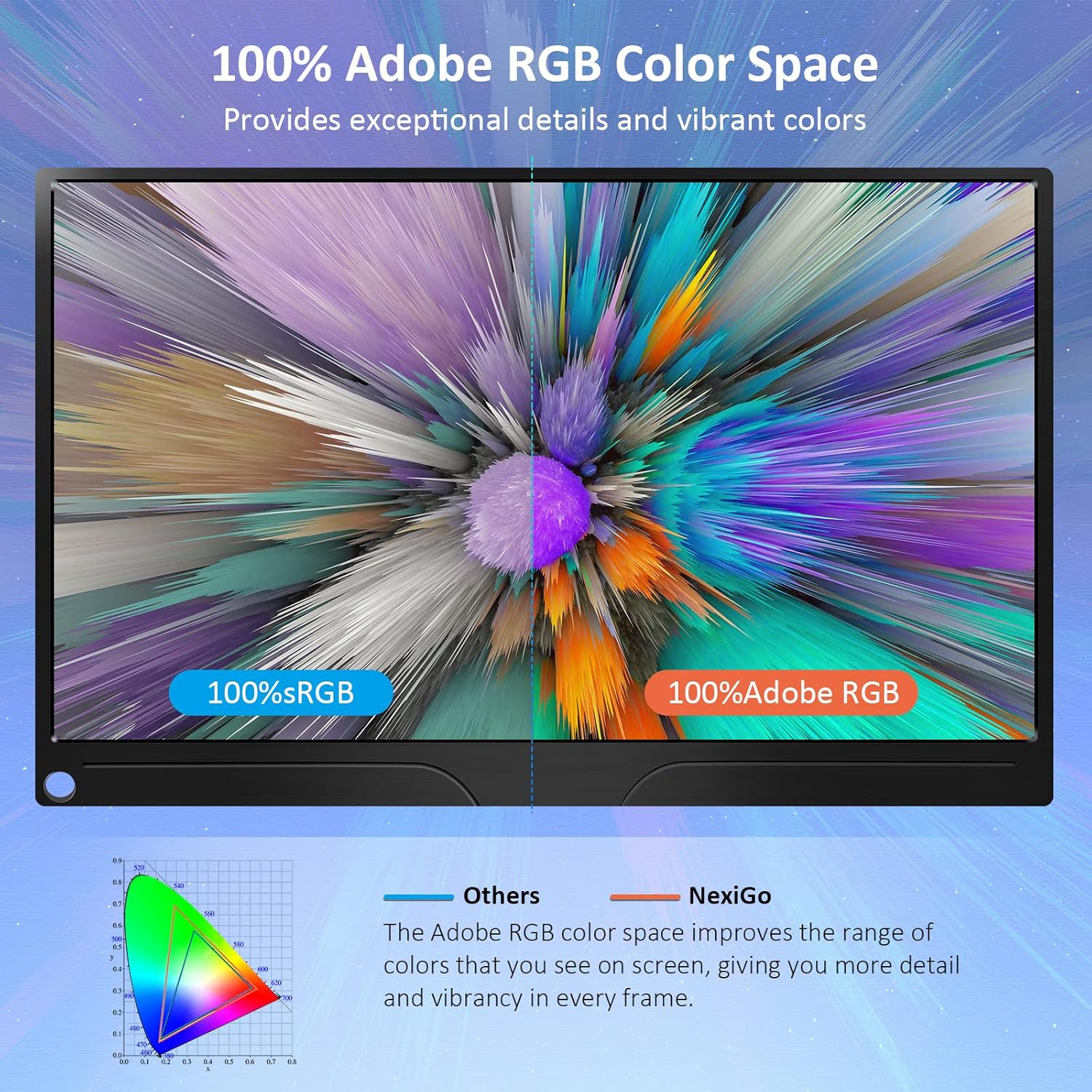
Image: The portable monitor connected to a laptop, demonstrating an extended display setup.
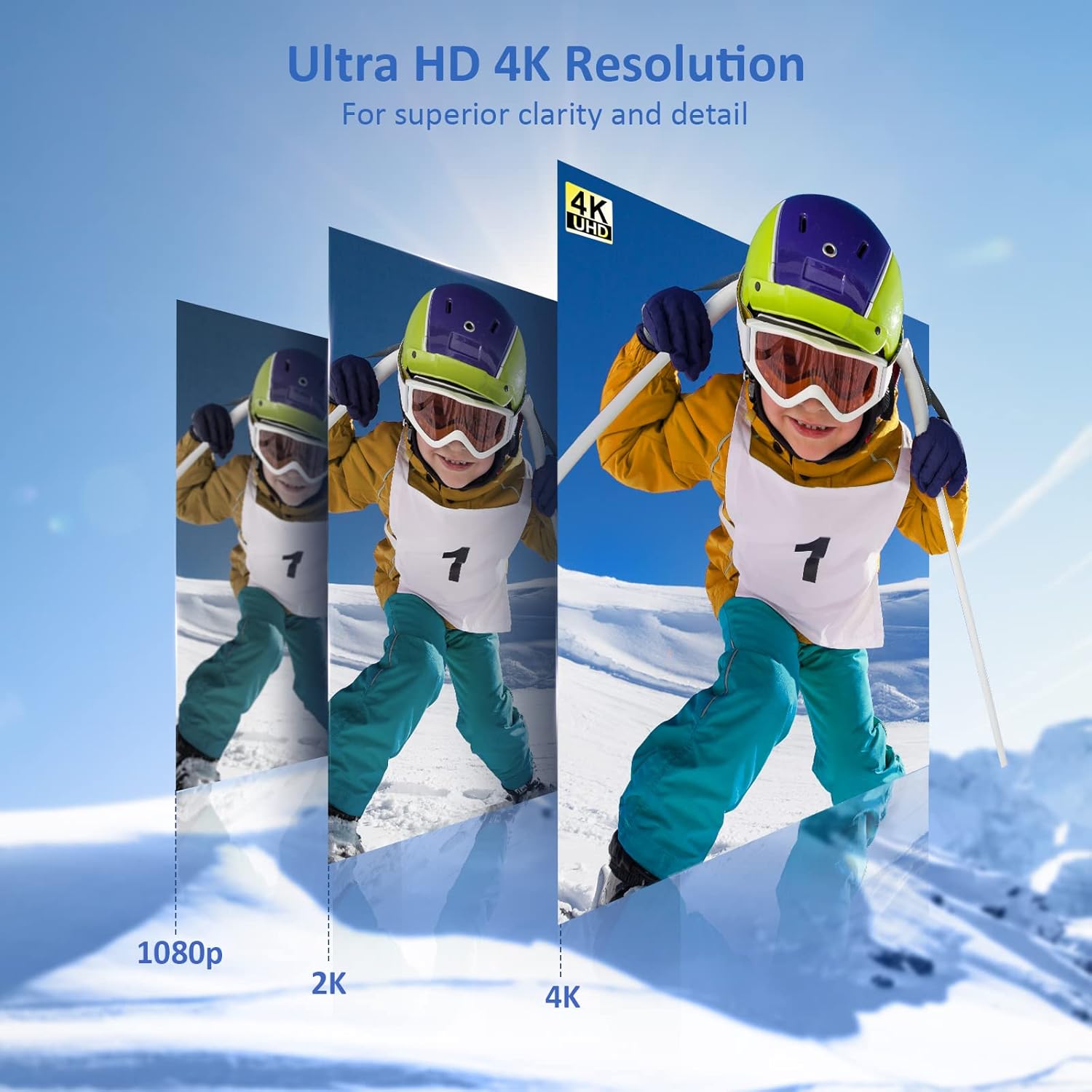
Image: The portable monitor connected to a smartphone, displaying content.
4.3 ВЕСА монтажа
The monitor is compatible with VESA mounts (75x75mm). To mount the monitor, remove the smart cover and attach it to a compatible VESA arm or wall mount using appropriate screws (not included).
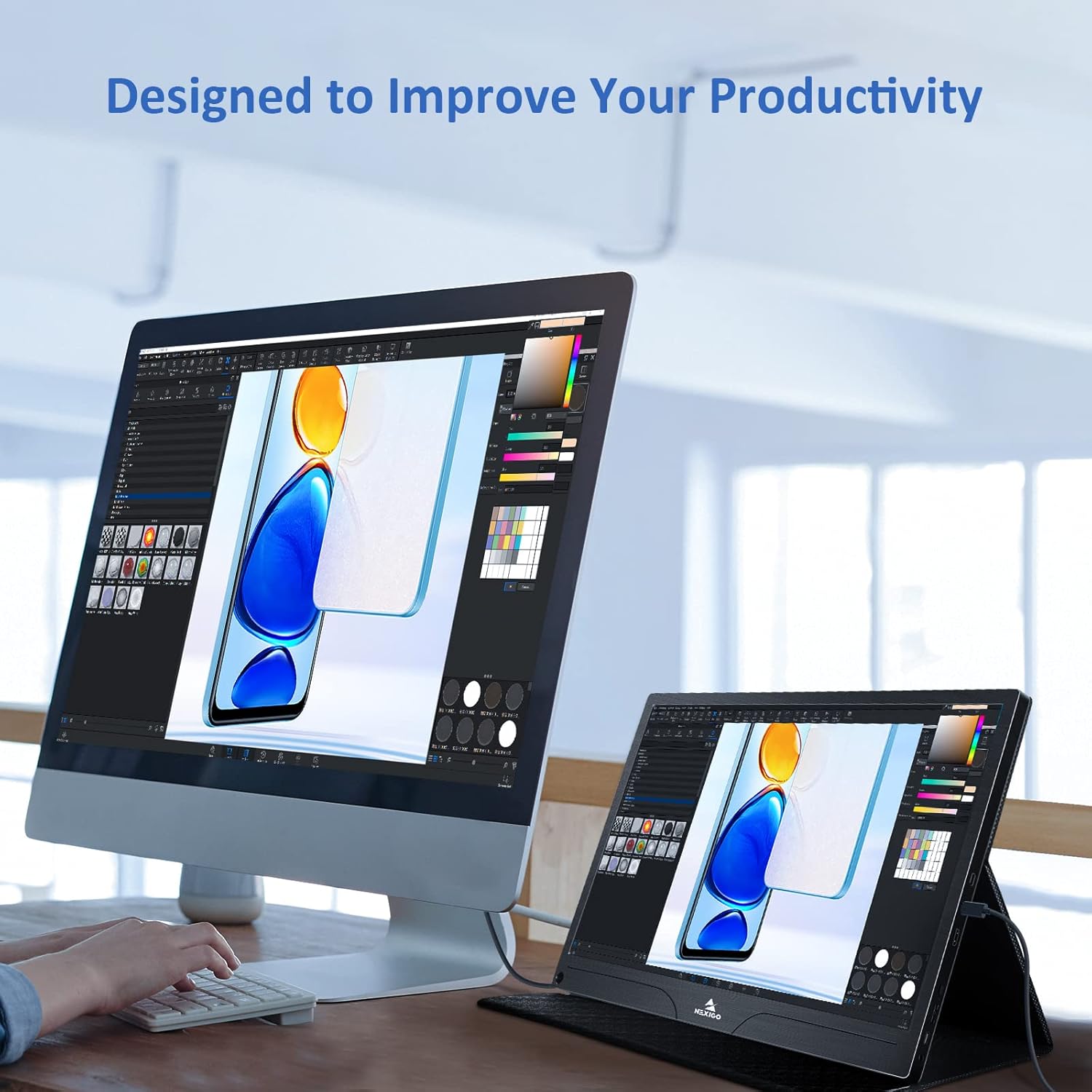
Image: The monitor mounted on a VESA-compatible desk arm.
5. Руковање монитором
5.1 Укључивање/искључивање
Притисните и држите Дугме за напајање for approximately 3 seconds to turn the monitor on or off.
5.2 Приказ на екрану (ОСД) мени
The OSD menu allows you to adjust various display settings. Short press the Дугме за напајање to open the OSD menu. Use the Мулти-Фунцтион Кеи to navigate and select options.
- Горе доле: Move the Multi-Function Key up or down to navigate through menu options.
- Унесите: Press the Multi-Function Key inward to select an option or confirm a setting.
- Излаз: Press the Power Button to exit the current menu or the OSD.
5.3 Подешавања екрана
- Осветљеност/контраст: Подесите укупну осветљеност и контраст екрана.
- Подешавања боја: Промените температуру боје, нијансу и засићеност.
- ХДР режим: Enable or disable High Dynamic Range for enhanced visual quality with compatible content.
- ФрееСинц: Enable FreeSync for smoother gaming experiences by synchronizing the monitor's refresh rate with your GPU's frame rate.
- Размера: Adjust the display aspect ratio (e.g., 16:9, 4:3).
5.4 Аудио подешавања
Adjust the volume of the built-in dual speakers or connected headphones through the OSD menu.
6. Одржавање
- Чишћење екрана: Лагано користите меку крпу која не оставља длачице дampводом или неабразивним средством за чишћење екрана. Не прскајте течност директно на екран.
- Чишћење Цasing: Обришите монитор цasing with a soft, dry cloth. Avoid using harsh chemicals or solvents.
- Складиштење: When not in use, store the monitor in a cool, dry place, preferably in its original packaging or smart cover to protect it from dust and scratches.
- Избегавајте екстремне услове: Do not expose the monitor to extreme temperatures, humidity, or direct sunlight.
КСНУМКС. Решавање проблема
Ако наиђете на проблеме са монитором, погледајте следећу табелу за уобичајене проблеме и решења.
| Проблем | Могући узрок | Решење |
|---|---|---|
| Нема дисплеја / порука „Нема сигнала“ | Incorrect cable connection, insufficient power, incorrect input source. | Ensure cables are securely connected. Verify external power is supplied if needed. Check the input source setting in the OSD menu. |
| Монитор се не укључује | No power supply, faulty cable. | Ensure the power adapter is connected and working. Try a different USB-C cable or power source. |
| Треперећи екран | Faulty cable, unstable power, incompatible resolution/refresh rate. | Replace the cable. Ensure stable power. Adjust the display resolution or refresh rate on your connected device. |
| Нема звука | Volume too low, incorrect audio output setting, faulty cable. | Increase volume via OSD or connected device. Ensure the monitor is selected as the audio output device on your source. Check cable connections. |
| OTG port not working | Monitor not powered via full-featured USB-C, device incompatibility. | Ensure the monitor is connected to a device via the full-featured USB-C port that supports OTG functionality. |
8. Спецификације
Detailed technical specifications for the NexiGo NG17QH 4K Portable Monitor.
| Феатуре | Спецификација |
|---|---|
| Број модела | НГ17КХ |
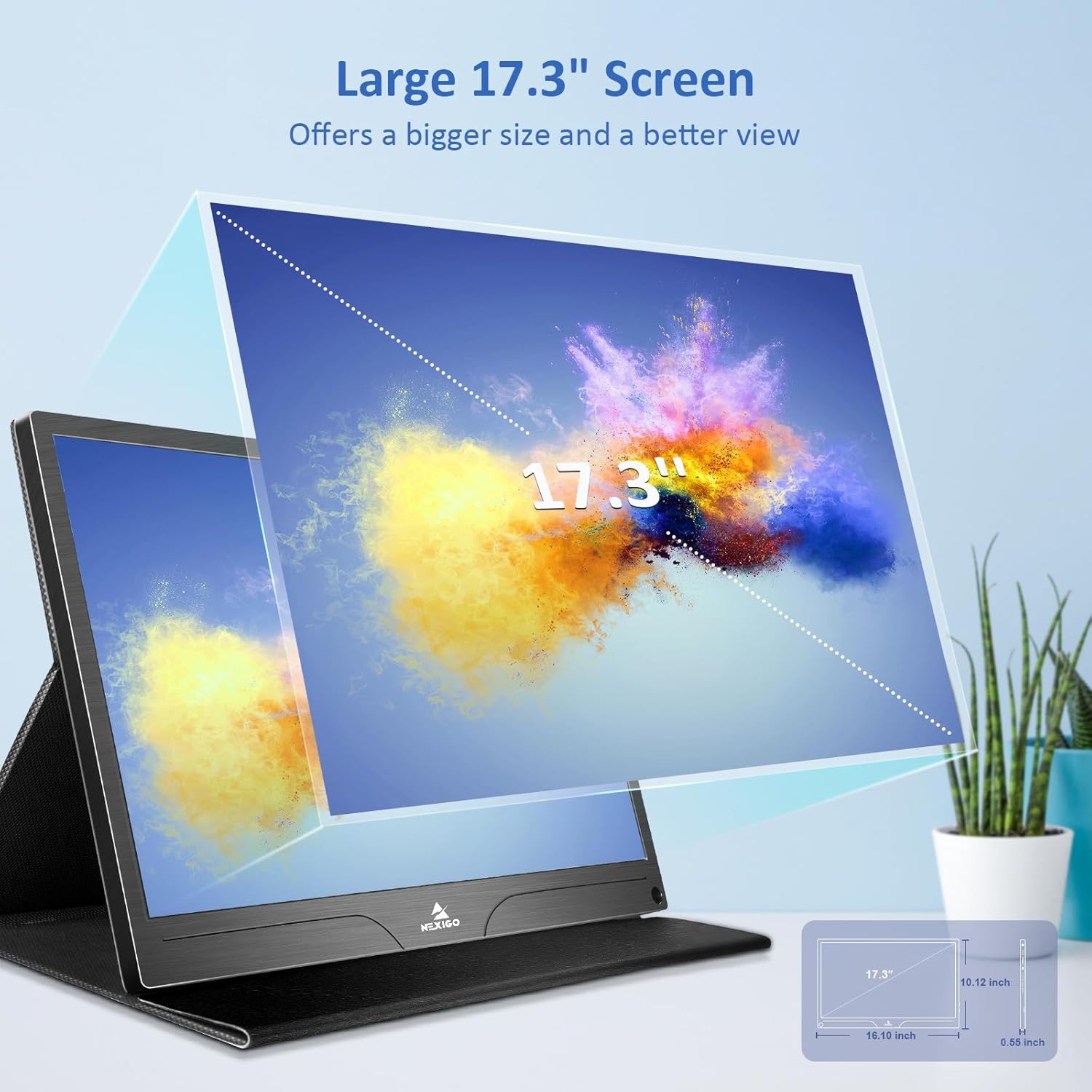
| Величина екрана | 17.3 инча |
| Резолуција | 3840 к 2160 (4К УХД) |
| Панел Типе | ИПС |
| Осветљеност | 400 цд/м² |
| Гамут боја | КСНУМКС% Адобе РГБ |
| Аспецт Ратио | 16:9 |
| Viewинг Англе | 178° |
| Карактеристике | FreeSync, HDR, Eye Care Screen |
| Звучници | Dual Built-in Speakers |
| Повезивање | Full-Featured USB-C (x1), Mini HDMI (x1), OTG USB-C (x1), 3.5mm Audio Jack (x1) |
| ВЕСА компатибилност | 75 к 75 мм |
| Димензије производа | 16.1 к 10.12 к 0.55 инча |
| Тежина артикла | 6.39 фунти |

Image: Visual comparison of 1080p, 2K, and 4K resolutions, demonstrating the clarity of the 4K display.
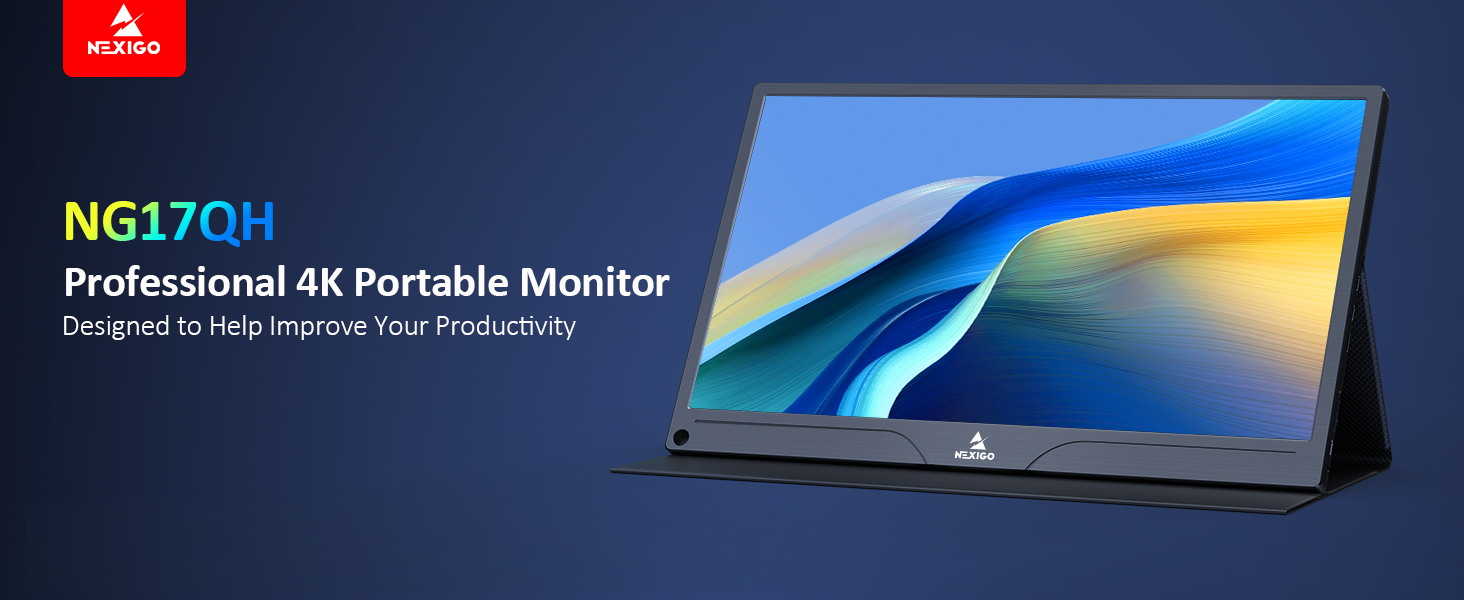
Image: A visual representation of 100% Adobe RGB color space coverage, indicating vibrant and detailed color reproduction.
9. Гаранција и подршка
Your NexiGo NG17QH Portable Monitor comes with a manufacturer's warranty. For detailed warranty information, product registration, or technical support, please visit the official NexiGo webсајт или директно контактирајте њихову корисничку службу. Сачувајте рачун као доказ о куповини за потребе гаранције.
NexiGo Official Webсајт: ввв.некиго.цом


