1. Подешавање
This section guides you through the initial setup of your DOOGEE U10 tablet.
1.1 Садржај пакета
Уверите се да су све ставке присутне у кутији:
- DOOGEE U10 таблет
- УСБ Типе-Ц кабл
- Повер Адаптер
- SIM Eject Tool (if applicable)
- Водич за брзи почетак
- Гарантни лист
1.2 Изглед уређаја
Упознајте се са физичким карактеристикама вашег таблета.
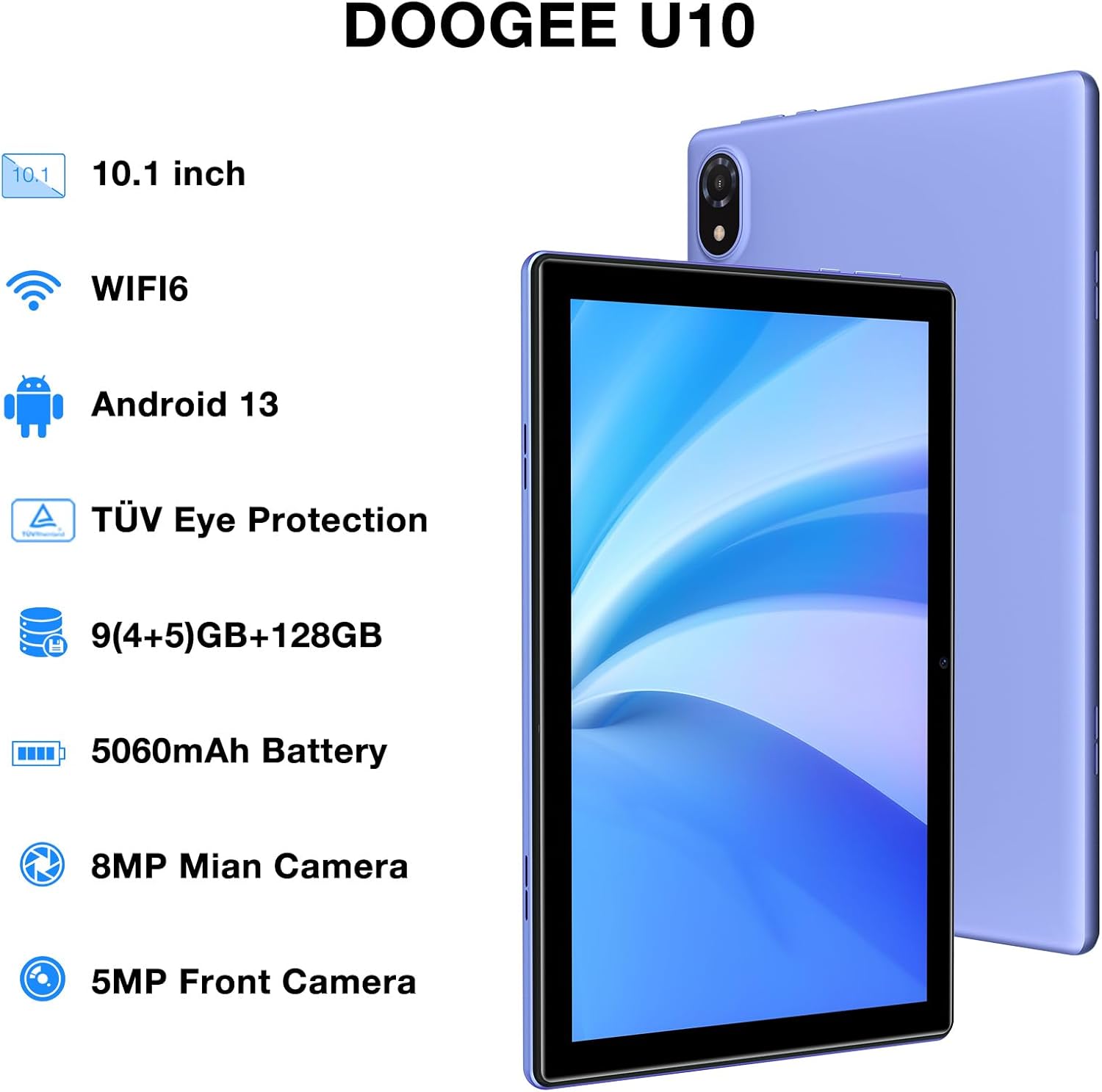
Figure 1: DOOGEE U10 Tablet Overview. This image highlights the tablet's 10.1-inch display, WiFi 6 capability, Android 13 operating system, TÜV Eye Protection, 9GB RAM, 128GB ROM, 5060mAh battery, 8MP main camera, and 5MP front camera.
- Дугме за напајање: Located on the side, press and hold to power on/off or restart.
- Дугмад за јачину звука: Adjust media volume and notification sounds.
- УСБ Типе-Ц порт: За пуњење и пренос података.
- 3.5 мм прикључак за слушалице: Повежите жичане слушалице.
- Предња камера: За видео позиве и селфије.
- Задња камера: За снимање фотографија и видео записа.
- говорници: Два стерео звучника за аудио излаз.
1.3 Прво укључивање и пуњење
Before first use, fully charge your tablet. Connect the USB Type-C cable to the tablet and the power adapter to a wall outlet. The battery indicator will show charging status.
- Press and hold the Power Button until the DOOGEE logo appears.
- Пратите упутства на екрану да бисте изабрали језик, повезали се на Wi-Fi и подесили свој Google налог.
2. Управљање таблетом
Learn how to navigate and use the core features of your DOOGEE U10 tablet.
2.1 Приказ и навигација
The DOOGEE U10 features a 10.1-inch IPS HD display with a resolution of 1280x800 pixels, providing clear visuals for various tasks.

Figure 2: Vivid IPS HD Display. This image illustrates the tablet's 10.1-inch screen with 800x1280 HD+ resolution, ideal for media consumption.
- Покрети додиром: Додирните да бисте изабрали, превуците прстом да бисте се померали, уштипните да бисте зумирали.
- Почетни екран: Прилагодите помоћу виџета и пречица апликација.
- Обавештења: Превуците прстом надоле одозго да бисте приступили обавештењима и брзим подешавањима.
- Препознавање лица: Unlock your tablet using facial recognition for convenience.
2.2 Перформансе и складиштење
The tablet is powered by a Quad-Core RK3562 processor clocked at up to 2.0GHz, ensuring smooth performance. It comes with 9GB RAM (5GB physical + 4GB expansion) and 128GB internal storage, expandable up to 1TB via a microSD card.

Figure 3: Powerful Processor and Memory. This image details the tablet's Rockchip RK3562 Quad-Core processor, 9GB RAM, 128GB ROM, and support for 1TB TF card expansion.
2.3 Повезивање
- Ви-Фи 6: Connect to high-speed Wi-Fi networks for faster browsing and streaming. Go to Settings > Network & internet > Wi-Fi.
- Блуетоотх КСНУМКС: Pair with wireless headphones, speakers, or other Bluetooth devices. Go to Settings > Connected devices > Bluetooth.
- OTG (У покрету): Connect USB peripherals like flash drives or keyboards using an OTG adapter (sold separately).
2.4 Функције камере
The tablet is equipped with an 8MP main camera and a 5MP front camera for photos and video calls.

Figure 4: Dual Camera System. This image showcases the tablet's 8MP main camera and 5MP front camera, suitable for capturing moments and video conferencing.
- Отворите апликацију Камера са почетног екрана или из фиоке апликација.
- Додирните дугме затварача да бисте снимили фотографију.
- Пребацујте се између предње и задње камере помоћу иконе камере.
2.5 Управљање батеријом
The 5060mAh battery provides extended usage. To optimize battery life, adjust screen brightness, close unused apps, and enable power-saving modes.

Figure 5: Large Capacity Battery. This image highlights the 5060mAh battery, Type-C charging, 5V2A fast charging, and 3.5mm headphone jack, along with estimated usage times for gaming, movies, and music.
2.6 Мултимедијално искуство
Enjoy an immersive audio experience with dual stereo speakers. The tablet supports Widevine L1, allowing for high-quality streaming from various video platforms.

Figure 6: Immersive Audio and DRM L1. This image illustrates the tablet's support for WiFi 6, Bluetooth 5.0, dual speakers, and DRM L1 for enhanced multimedia playback.
2.7 Режим заштите очију
The DOOGEE U10 is TÜV SÜD blue light certified, reducing harmful blue light emissions to protect your eyes during prolonged use.

Figure 7: TÜV Certified Eye Protection. This image shows the TÜV Rheinland certification, indicating the tablet's low blue light feature for eye comfort.
2.8 Званични видео снимци производа
DOOGEE U10 Tablet Showcase
Овај видео пружа општи прегледview and showcase of the DOOGEE U10 tablet's features and design.
DOOGEE U10 Fantastic Experience for Kids
This video demonstrates how the DOOGEE U10 tablet can be used by children, highlighting its suitability for educational and entertainment purposes for younger users.
3. Одржавање
Proper care ensures the longevity and optimal performance of your tablet.
3.1 Чишћење таблета
- Користите меку крпу која не оставља влакна за чишћење екрана и кућишта.
- Избегавајте употребу јаких хемикалија, абразивних средстава за чишћење или аеросолних спрејева.
- За тврдокорне мрље, благо дampОперите крпу водом или средством за чишћење екрана намењеним за електронику.
3.2 Ажурирања софтвера
Regularly check for and install software updates to enhance performance, security, and add new features.
- Идите на Подешавања > Систем > Ажурирање система.
- Connect to a stable Wi-Fi network before downloading updates.
КСНУМКС. Решавање проблема
Овај одељак се бави уобичајеним проблемима са којима се можете сусрести са вашим DOOGEE U10 таблетом.
4.1 Уређај се не укључује
- Ensure the battery is charged. Connect the tablet to the charger for at least 30 minutes.
- Притисните и држите дугме за напајање 10-15 секунди да бисте присилно поново покренули рачунар.
4.2 Проблеми са повезивањем (Wi-Fi/Bluetooth)
- Toggle Wi-Fi or Bluetooth off and on in Quick Settings or Settings menu.
- Restart your tablet and the router/Bluetooth device.
- Заборавите мрежу/уређај и поново се повежите.
4.3 Рушење или замрзавање апликација
- Затворите проблематичну апликацију и поново је отворите.
- Clear the app's cache: Settings > Apps > [App Name] > Storage & cache > Clear cache.
- Уверите се да је апликација ажурирана на најновију верзију.
- Ако проблем и даље постоји, размислите о деинсталирању и поновној инсталацији апликације.
5. Техничке спецификације
Key technical details of the DOOGEE U10 tablet.
| Феатуре | Спецификација |
|---|---|
| Назив модела | У10 |
| Оперативни систем | Андроид 13 |
| Величина екрана | 10.1 инча |
| Резолуција екрана | 1280 к 800 пиксела (ХД+) |
| Процесор | Quad-Core (Rockchip RK3562, up to 2.0GHz) |
| РАМ | 9 ГБ (5 ГБ физичке + 4 ГБ проширења) |
| Интерна меморија | 128ГБ |
| Екпандабле Стораге | Up to 1TB (microSD/TF card) |
| Главна камера | 8МП |
| Предња камера | 5МП |
| Капацитет батерије | 5060мАх |
| Повезивање | Wi-Fi 6, Bluetooth 5.0, OTG |
| Димензије (ДкШкВ) | 9.6 к 6.4 к 0.4 инча |
| Тежина | Приближно 1.13 фунти (427 г) |
| Заштита очију | TÜV SÜD Low Bluelight Certified |
| ДРМ подршка | Widevine L1 |
6. Гаранција и подршка
Информације о гаранцији вашег производа и начину добијања подршке.
6.1 Ограничена гаранција
The DOOGEE U10 tablet typically comes with a 2-year limited warranty. This warranty covers manufacturing defects and workmanship under normal use. Please refer to the warranty card included in your package for specific terms and conditions, including coverage details and exclusions.
Сачувајте доказ о куповини за гаранцијске захтеве.
6.2 Корисничка подршка
Ако наиђете на било какве проблеме који нису обухваћени одељком за решавање проблема или вам је потребна додатна помоћ, обратите се корисничкој подршци DOOGEE-а.
- Подршка на мрежи: Посетите званични DOOGEE website for FAQs, support resources, and contact options.
- Подршка путем е-поште: Refer to your warranty card or quick start guide for specific email addresses.
- Сервисни центри: Information on authorized service centers may be available on the DOOGEE webсајту.
When contacting support, please have your tablet's model number (U10) and purchase information ready.


