1. Увод
This manual provides essential information for setting up, operating, and maintaining your Tibuta A70W 10.1-inch Kids Tablet. Designed specifically for children, this tablet features a durable design, parental controls, and a user-friendly Android 13 operating system. Please read this manual thoroughly to ensure proper use and to maximize your child's learning and entertainment experience.

Image: The Tibuta 10.1-inch Kids Tablet, highlighting its 1280x800 display, Android 13 OS, Quad-core 1.8GHz processor, 4GB+32GB memory, 2MP+5MP cameras, and 5000mAh battery.
2. Производ је готовview
2.1 Кључне карактеристике
- Приказ: 10.1-inch 1280x800 IPS Full HD touchscreen.
- Оперативни систем: Android 13 with GMS certification.
- процесор: 1.8 GHz Quad-core.
- Меморија: 4GB RAM (2+2GB), 32GB ROM, expandable up to 128GB via Micro SD.
- камере: Dual cameras (Front 2MP, Rear 5MP).
- батерија: 5000 mAh for extended use.
- Повезивање: Wi-Fi (802.11b/g/n) and Bluetooth.
- Трајност: Food-grade silicone shockproof case with an integrated stand.
- Родитељски надзор: Built-in features for screen time limits and content filtering.
- Унапред инсталиране апликације: Includes YouTube, Kids Space, and more.
2.2 Компоненте таблета
Упознајте се са физичким компонентама вашег таблета:

Image: A diagram illustrating the tablet's functional details, including the front camera, speakers, power ON/OFF button, volume buttons, reset button, rear camera, 3.5mm headphone port, TF Card slot, and USB 2.0 OTG port.
- Предња камера: За видео позиве и селфије.
- говорници: За аудио излаз.
- Дугме за укључивање/искључивање: To turn the tablet on or off, or to put it to sleep.
- Дугмад за јачину звука: За подешавање нивоа звука.
- Дугме за ресетовање: For system reset in case of unresponsiveness (use a pin).
- Задња камера: За снимање фотографија и видео записа.
- 3.5 мм прикључак за слушалице: За повезивање слушалица.
- Слот за ТФ картицу: For inserting a Micro SD card to expand storage.
- USB 2.0 OTG Port: За пуњење и пренос података.
3. Подешавање
3.1 Почетно пуњење
Before first use, fully charge the tablet. Connect the provided USB-C cable to the tablet's USB port and the other end to a power adapter. The battery indicator on the screen will show charging status.
3.2 Укључивање/искључивање
- За укључивање: Press and hold the Power ON/OFF button until the screen lights up.
- За искључивање: Press and hold the Power ON/OFF button, then select "Power off" from the options.
- За спавање/буђење: Кратко притисните дугме за укључивање/искључивање.
3.3 Почетна конфигурација
Upon first startup, follow the on-screen prompts to configure basic settings:
- Изаберите жељени језик.
- Повежите се на Ви-Фи мрежу.
- Пријавите се помоћу свог Google налога или креирајте нови. Ово је неопходно за преузимање апликација из Google Play продавнице.
- Set up parental controls as desired (refer to Section 5 for details).
3.4 Уметање Мицро СД картице
To expand storage, insert a Micro SD card (up to 128GB) into the TF Card slot. Ensure the tablet is powered off before inserting or removing the card.
4. Упутство за употребу
4.1 Основна навигација
- Додирните: Да бисте изабрали ставку или отворили апликацију.
- Превуците: За кретање кроз екране или листе.
- Прстохват: Да бисте увећали или умањили слике и web странице.
- Дуго притисните: За приступ контекстуалним менијима или померање икона.
4.2 Ви-Фи веза
- Иди на Подешавања > Мрежа и интернет > Ви-Фи.
- Укључите Ви-Фи.
- Изаберите жељену мрежу са листе и унесите лозинку ако се то од вас затражи.
4.3 Преузимање апликација
The tablet runs on Android 13 and supports the Google Play Store. You can download a wide range of educational and entertainment apps.

Image: The tablet screen displaying the Google Android 13 interface with various app icons, indicating access to a wide range of applications from the Google Play Store.
- Отворите Гоогле Плаи продавница апп.
- Тражи жељену апликацију.
- Додирните „Инсталирај“ да бисте преузели и инсталирали апликацију.
4.4 Коришћење камера
The tablet features a front (2MP) and rear (5MP) camera.
- Отворите Камера апп.
- Додирните икону прекидача камере да бисте пребацивали између предње и задње камере.
- Додирните дугме затварача да бисте снимили фотографију или покренули/зауставили снимање видеа.
4.5 Управљање батеријом
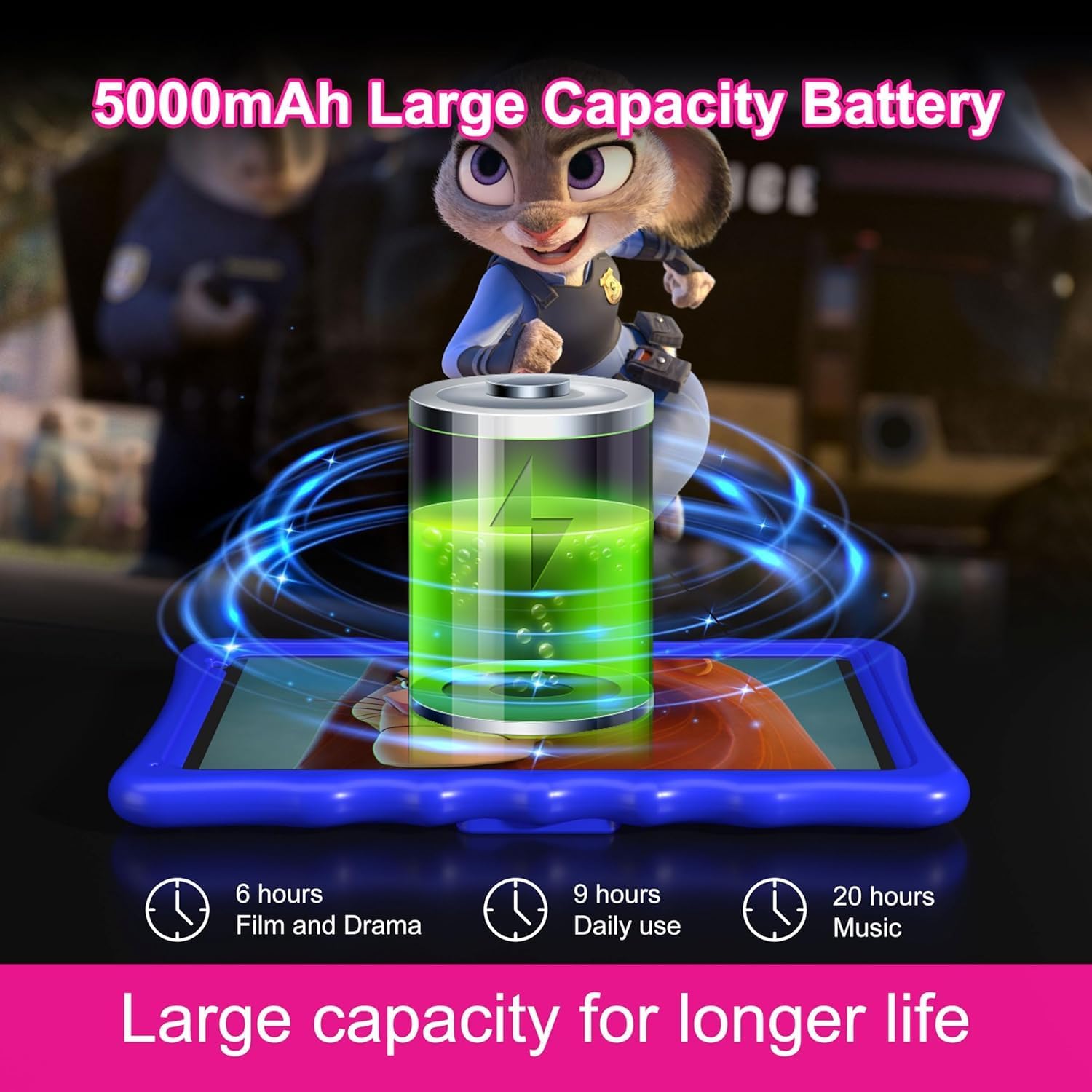
Image: An illustration of the tablet's 5000mAh battery capacity, showing estimated usage times: 6 hours for film/drama, 9 hours for daily use, and 20 hours for music.
Батерија од 5000 mAh омогућава продужено коришћење. Да бисте оптимизовали век трајања батерије:
- Смањите осветљеност екрана.
- Искључите Wi-Fi и Bluetooth када их не користите.
- Затворите неискоришћене апликације које раде у позадини.
- Charge the tablet regularly, avoiding complete discharge.
5. Родитељски надзор
The Tibuta A70W tablet includes robust parental control features to ensure a safe and educational environment for children. You can switch between normal and child modes.
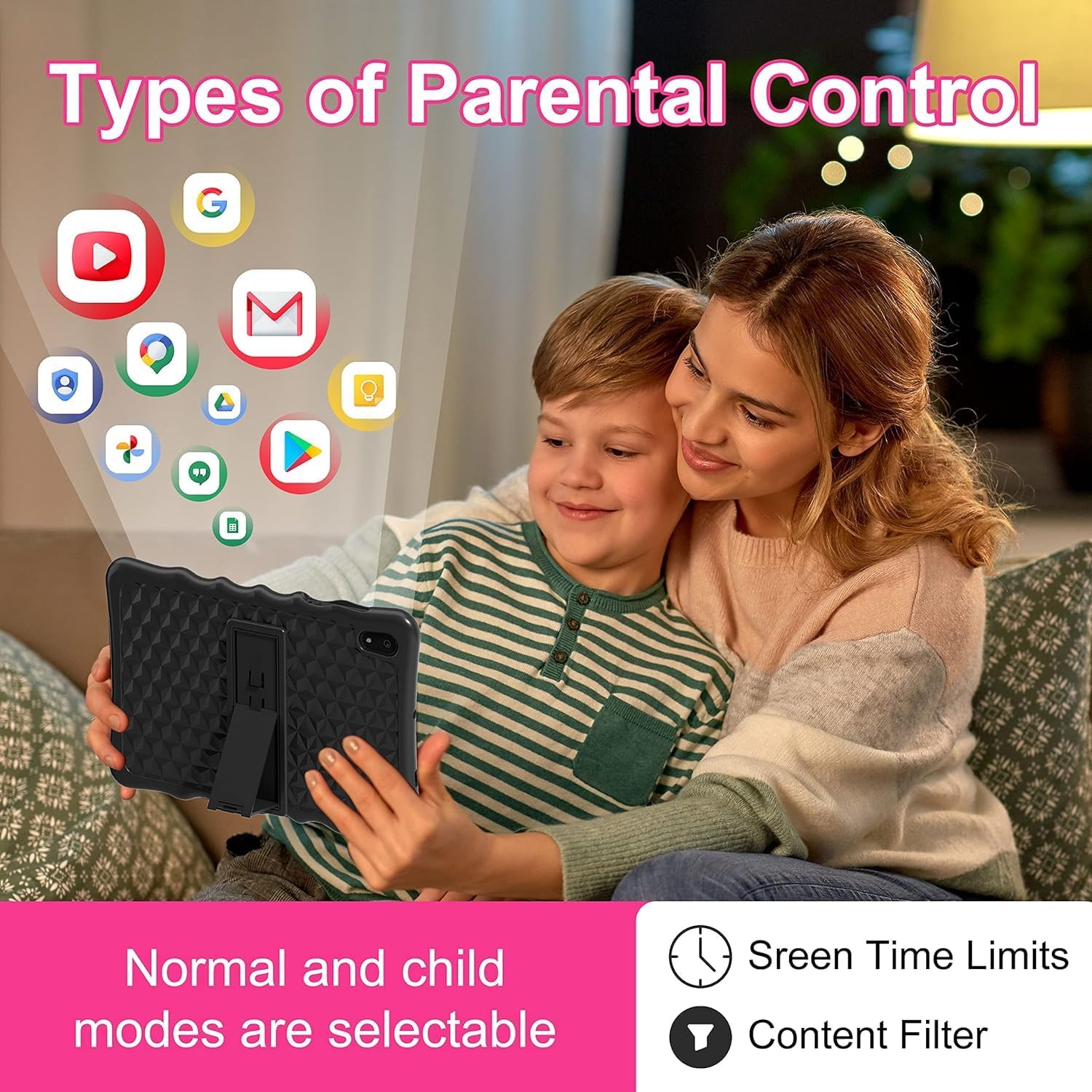
Image: A visual representation of parental control features, including options for setting screen time limits and applying content filters, with various app icons floating above the tablet.
5.1 Setting Up Parental Controls
Access parental control settings through the dedicated "Kids Space" app or via the tablet's main settings menu. Here you can:
- Поставите ограничења времена проведеног испред екрана: Define daily usage limits for the tablet.
- Управљање садржајем: Filter inappropriate content and approve specific apps, websites, and videos.
- Control App Access: Select which applications your child can use.
- Monitor Activity: Review your child's tablet usage.

Image: The tablet displaying the interface for pre-installed Kids Apps like YouTube and Kids Space, showing various educational and entertainment content categories within Google Kids Space.
The tablet comes with pre-installed educational apps and access to Google Kids Space, offering a curated selection of age-appropriate content.
6. Одржавање
6.1 Чишћење таблета
- Користите меку крпу која не оставља влакна за чишћење екрана и кућишта.
- Избегавајте употребу јаких хемикалија или абразивних материјала.
- Ensure the tablet is powered off before cleaning.
6.2 Ажурирања софтвера
Периодично проверавајте да ли постоје ажурирања софтвера како бисте осигурали оптималне перформансе и безбедност. Идите на Подешавања > Систем > Ажурирање система.
6.3 Shockproof Case Care
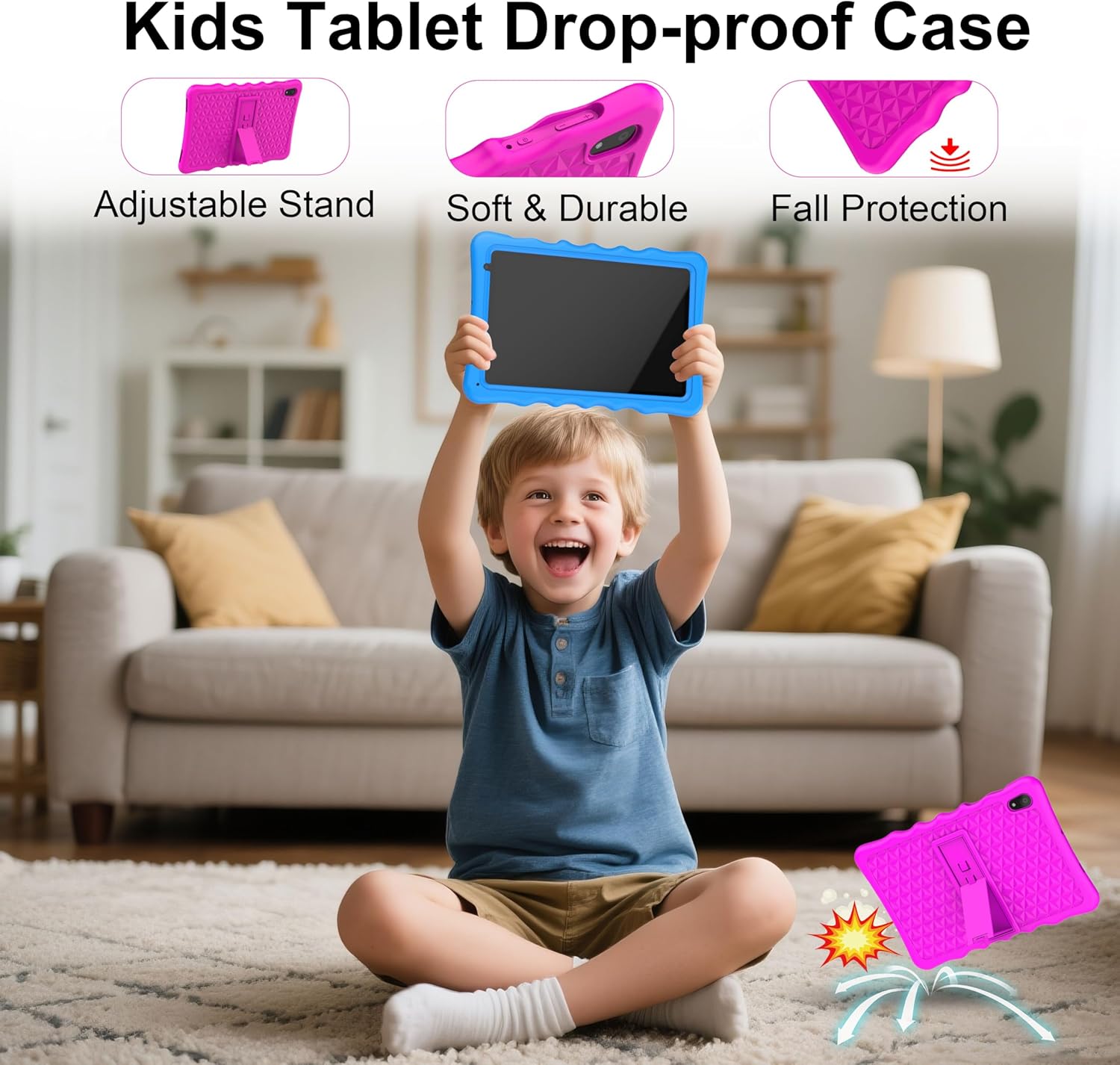
Image: A child happily holding the tablet in its blue shockproof case, with insets illustrating the case's adjustable stand, soft and durable material, and fall protection features.
The food-grade silicone case provides protection. Clean it with mild soap and water if necessary. Ensure it is completely dry before reattaching it to the tablet.
КСНУМКС. Решавање проблема
| Проблем | Могући узрок | Решење |
|---|---|---|
| Таблет се не укључује. | Слаба батерија; пад система. | Charge the tablet for at least 30 minutes. If unresponsive, press the reset button with a pin. |
| Проблеми са Wi-Fi везом. | Нетачна лозинка; ван домета; проблем са рутером. | Verify password. Move closer to the router. Restart the router and tablet. |
| Апликације су споре или се руше. | Превише апликација је покренуто; мало меморије; застарела апликација. | Close background apps. Clear app cache. Update apps. Free up storage. |
| Екран не реагује. | Привремени софтверски квар. | Perform a soft reset by holding the power button for 10-15 seconds, or use the reset pinhole. |
| Parental controls not working as expected. | Incorrect settings; app not configured. | Review parental control settings in the Kids Space app or tablet settings. Ensure all apps are managed. |
8. Спецификације
| Феатуре | Детаљ |
|---|---|
| Бранд | Тибута |
| Број модела | А70В |
| Оперативни систем | Андроид 13 |
| Марка процесора | Аллвиннер |
| Брзина процесора | 1.5 GHz (Note: Feature bullets state 1.8 GHz, using 1.5 GHz from specifications for consistency) |
| Величина екрана | 10.1 инча |
| Резолуција екрана | 1280 к 800 пиксела |
| Величина инсталиране РАМ меморије | 4 ГБ |
| Капацитет меморије | 32 GB (Expandable up to 128GB via Micro SD) |
| Бренд графичког чипсета | PowerVR GE8300 |
| Тип повезивања | Bluetooth, Wi-Fi (802.11b/g/n) |
| Батерија | 1 Lithium-polymer (included) - 5000 mAh |
| Димензије артикла (Д к Ш к В) | 24.2 к 16.1 к 0.84 цм |
| Тежина артикла | 1.04 килограма |
| Посебне карактеристике | Shockproof case, pre-installed educational apps, parental control |
9. Гаранција
The Tibuta A70W Kids Tablet comes with a Двогодишња гаранција произвођачаОва гаранција покрива недостатке у материјалу и изради при нормалној употреби. Молимо вас да сачувате доказ о куповини за потребе подношења захтева за гаранцију.
For detailed warranty terms and conditions, please refer to the documentation included with your product or contact customer support.
10. Корисничка подршка
If you encounter any problems with your Tibuta A70W Kids Tablet or require technical assistance, please do not hesitate to contact us. Our support team is ready to help.
- Начин контакта: You can reach us via our official store email or through Amazon's messaging system.
- Време одговора: We aim to respond quickly and provide comprehensive technical support.
Please provide your product model (A70W) and a detailed description of the issue when contacting support to facilitate a faster resolution.


