1. Увод
This manual provides instructions for the NYXI Striker Retro Mechanical Gaming Keyboard (Model: CA01). This keyboard features multi-device connectivity, hot-swappable switches, RGB backlighting, and a customizable display screen. It is compatible with Windows, macOS, and iOS systems.

Image 1.1: The NYXI Striker Retro Mechanical Gaming Keyboard, showcasing its GameCube-inspired design and full layout.
2. Садржај пакета
Проверите да ли су све ставке присутне у пакету:
- NYXI Striker Retro Mechanical Gaming Keyboard
- Кеицап Пуллер
- USB кабл (USB-C на USB-A)
- Additional Switches (5x Red, 5x Blue)
- 2.4GHz Wireless Receiver (stored in keyboard compartment)

Image 2.1: All components included with the NYXI Striker Retro Mechanical Gaming Keyboard.
3. Производ је готовview
The NYXI Striker keyboard features a 97-key layout with several distinct components:
- Тастери: Dual-color keycaps for a comfortable typing experience.
- Механички прекидачи: Hot-swappable switches for customization.
- RGB позадинско осветљење: Per-key RGB illumination with various effects.
- Екран: A pixelated dot matrix screen for animations and status.
- Ролер за јачину звука: A dedicated roller for audio adjustment.
- Connectivity Switch: Located on the side/back for switching between wired, 2.4G, and Bluetooth modes.
- УСБ-Ц порт: За жично повезивање и пуњење.
- 2.4GHz Receiver Compartment: A dedicated slot to store the wireless receiver.
- Подесива стопала: Три-сtage tilt stands for ergonomic positioning.

Слика 3.1: Врх view of the keyboard, showing the full key layout and integrated display screen.

Слика 3.2: Бочни професионалацfile тастатуре.

Image 3.3: Location of the 2.4GHz wireless receiver compartment.

Image 3.4: Three-level adjustable tilt stand for ergonomic comfort.
4. Подешавање
4.1 Почетно пуњење
Before first use, connect the keyboard to a USB power source using the provided USB-C cable to ensure it is fully charged. The keyboard can be used while charging in wired mode.
4.2 Режими повезивања
The NYXI Striker keyboard supports three connection modes: Bluetooth 5.0, 2.4GHz wireless, and USB wired. Use the switch located on the keyboard to select your desired mode.
- УСБ жичани режим:
- Set the mode switch on the keyboard to the wired (USB) position.
- Повежите USB-C крај кабла са тастатуром, а USB-A крај са рачунаром.
- Ваш оперативни систем ће аутоматски препознати тастатуру.
- 2.4 ГХз бежични режим:
- Retrieve the 2.4GHz USB receiver from its compartment on the keyboard.
- Set the mode switch on the keyboard to the 2.4G wireless position.
- Укључите УСБ пријемник од 2.4 ГХз у слободан УСБ порт на рачунару.
- Тастатура би требало да се аутоматски повеже.
- Режим Bluetooth 5.0:
- Set the mode switch on the keyboard to the Bluetooth position.
- The keyboard supports up to 5 Bluetooth channels. Press Fn + 1/2/3/4/5 to select a Bluetooth channel. The display screen will indicate the selected channel.
- Да бисте ушли у режим упаривања, притисните и држите Fn + 1/2/3/4/5 for 3-5 seconds until the indicator light flashes rapidly or the display screen shows a pairing icon.
- На свом уређају (рачунару, таблету, телефону) идите на подешавања Bluetooth-а и потражите нове уређаје.
- Select "NYXI Striker" from the list of available devices to pair.
- Once paired, the indicator light will become solid, and the display screen will confirm the connection.

Image 4.1: Compatible operating systems for the keyboard.
5. Упутство за употребу
5.1 Укључивање/искључивање
The keyboard powers on automatically when connected via USB or when a wireless mode is selected and the battery has charge. To conserve battery, ensure the keyboard is switched off when not in use for extended periods.
5.2 Switching Between Devices/Modes
To switch between connected Bluetooth devices, press Fn + 1/2/3/4/5 to select the desired paired channel. To switch between wired, 2.4G, and Bluetooth modes, use the physical switch on the keyboard.
5.3 RGB контрола позадинског осветљења
The keyboard features 22 RGB lighting modes. Use the following key combinations to control the backlighting:
- Фн + леви Цтрл: Cycle through different RGB lighting effects.
- Fn + стрелица горе/доле: Подесите нивое осветљености.
- Fn + стрелица лево/десно: Adjust lighting effect speed.

Image 5.1: RGB Hybrid Underglow lighting in action.
5.4 Рад на екрану
The integrated display screen can show various animations and status indicators. Use the NYXI Driver App for advanced customization of the display screen content.
5.5 Volume Roller
Rotate the dedicated roller on the top right of the keyboard to adjust the system volume. Pressing the roller typically mutes/unmutes audio.
6. Кључне карактеристике
The NYXI Striker keyboard is designed with several advanced features to enhance your user experience:
- Веза са више уређаја: Supports Bluetooth 5.0, 2.4GHz wireless, and USB wired modes. It also features a built-in five-channel mode for seamless switching between multiple devices (Windows, Android, macOS, iOS, iPad systems).
- Hot-Swappable and Gasket Structure: The keyboard supports hot-swappable switches, allowing for easy replacement without soldering. Its gasket structure, constructed with PC+ABS material, provides a soft and elastic typing feel, reducing noise and improving overall acoustics.
- Personalized Aesthetics: Features 22-color RGB backlighting with various glow modes and effects. The display screen supports 4 dynamic matrix display modes, which can be customized further via software.
- NYXI Driver App - Macro Customization: A dedicated software application allows for extensive macro customization, key remapping, and lighting management. This app supports wired, 2.4G, and Bluetooth connections for flexible setup.
- Удобан дизајн: Integrates a precision volume roller, anti-slip silicone pads for stability, and a three-stage tilt stand for adjustable ergonomic comfort during extended use.

Image 6.1: Gasket structure for enhanced typing experience.

Image 6.2: Hot-swappable PCB for easy switch replacement.
6.1 Using the NYXI Driver App
The NYXI Driver App provides advanced customization options for your keyboard. Download the application from the official NYXI webсајту.
- Прилагођавање макроа: Create and assign complex macros to keys.
- Подешавања осветљења: Fine-tune RGB effects, colors, and animations.
- Display Screen Customization: Upload custom images or animations to the dot matrix display.

Image 6.3: NYXI Driver App interface for macro customization.
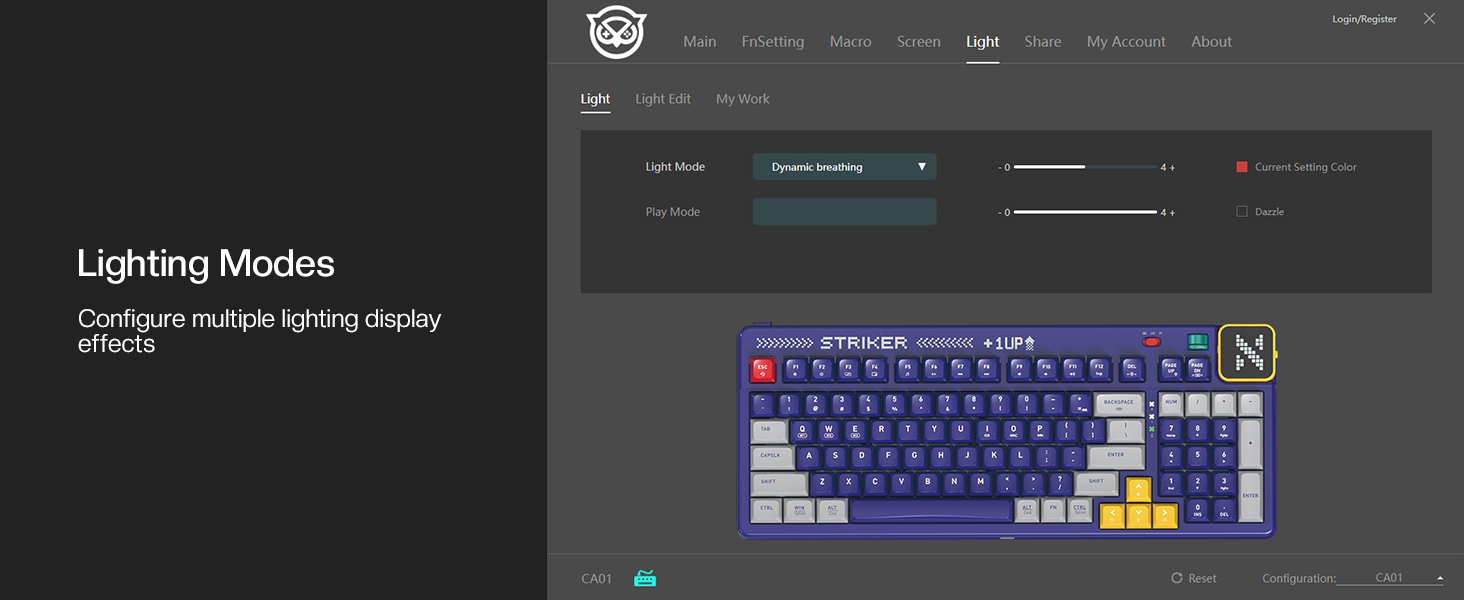
Image 6.4: NYXI Driver App interface for lighting mode configuration.

Image 6.5: NYXI Driver App interface for dot matrix screen customization.
7. Одржавање
7.1 Чишћење
- Користите меку, суву крпу да обришете површину тастатуре.
- For deeper cleaning, use the provided keycap puller to remove keycaps and clean dust or debris with compressed air.
- Avoid using harsh chemicals or abrasive materials that could damage the keyboard finish or keycap legends.
7.2 Складиштење
Store the keyboard in a cool, dry place away from direct sunlight and extreme temperatures. If storing for an extended period, ensure the keyboard is fully charged and then powered off.
КСНУМКС. Решавање проблема
- Тастатура не реагује:
- Ensure the keyboard is powered on and the correct connectivity mode (wired, 2.4G, or Bluetooth) is selected.
- For wireless modes, check battery level. Recharge if necessary.
- For 2.4GHz, ensure the receiver is properly plugged into a USB port.
- For Bluetooth, ensure it is paired correctly and the selected channel (Fn + 1-5) matches the paired device. Try re-pairing.
- Try connecting via USB wired mode to rule out wireless issues.
- RGB lights not working/displaying correctly:
- Ensure RGB is enabled (check the NYXI Driver App if installed).
- Прелазите кроз режиме осветљења користећи Фн + леви Цтрл.
- Подесите осветљеност помоћу Fn + Arrow Up.
- Кључеви се не региструју:
- If a specific key is not working, the switch might be faulty. Utilize the hot-swappable feature to replace the switch with one of the spares provided.
- Уверите се да нема остатака испод тастера или прекидача.
- Проблеми са повезивањем (кашњење, прекиди везе):
- For wireless modes, ensure the keyboard is within range of the receiver/device and there are no significant obstructions.
- Минимизирајте сметње од других бежичних уређаја.
- Ensure the keyboard's battery is sufficiently charged.
If issues persist, please refer to the Warranty & Support section for further assistance.
9. Спецификације
| Феатуре | Детаљ |
|---|---|
| Број модела | ЦА01 |
| Технологија повезивања | 2.4G бежично, Bluetooth 5.0, USB-C жично |
| Опис тастатуре | Механички |
| Број кључева | 97 Кеис |
| Компатибилни уређаји | macOS, Windows 7 or later, iOS |
| Посебне карактеристике | Backlit (RGB), Customizable Display Keys, Gasket Structure, Hot-Swappable |
| Подршка бојама позадинског осветљења тастатуре | RGB (22 режима) |
| Стиле | NGC Retro |
| Димензије производа | 38.91 x 15.44 x 3.3 цм |
| Тежина артикла | 3.56 фунте (1.61 кг) |
| Произвођач | НИКСИ |
10. Гаранција и подршка
10.1 Информације о гаранцији
NYXI products are covered by a limited warranty against defects in materials and workmanship. Please refer to the official NYXI website or your purchase documentation for specific warranty terms and conditions, including duration and coverage details.
10.2 Корисничка подршка
For technical assistance, troubleshooting, or warranty claims, please contact NYXI customer support through their official website. You may need to provide your product model number (CA01) and proof of purchase.
Thank you for choosing the NYXI Striker Retro Mechanical Gaming Keyboard.


