1. Увод
The Microsoft Surface Pro 10 is a versatile 2-in-1 device designed to adapt to various work styles, offering the functionality of both a tablet and a laptop. It features an Intel Core Ultra 5 processor, providing robust performance for daily tasks and advanced applications. This manual provides essential information to help you set up, operate, and maintain your device, ensuring optimal performance and longevity.
2. Шта је у кутији
Carefully unpack your Surface Pro 10 and ensure all items are present. The standard package includes:
- Мајкрософт Сурфаце Про 10 уређај
- Повер Суппли Унит
- Microsoft Surface Pro Keyboard
- Microsoft Surface Pro Slim Pen
- Водич за брзи почетак
- Документи о безбедности и гаранцији
3. Девице Оверview
Familiarize yourself with the physical components of your Surface Pro 10.

Слика 3.1: Фронт view of the Surface Pro 10 with the keyboard attached, showcasinраспоред екрана и тастатуре.

Слика 3.2: Сиде view of the Surface Pro 10 in laptop configuration, highlighting the adjustable kickstand and connected keyboard.
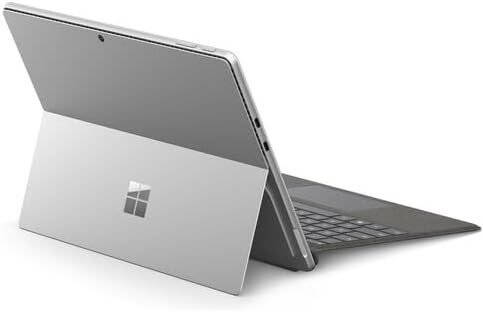
Слика 3.3: Позади view of the Surface Pro 10 with the kickstand deployed, revealing the device's sleek design and the iconic Microsoft logo.
Кључне компоненте:
- 13-inch PixelSense Flow Display: High-resolution touchscreen for vibrant visuals and touch interaction.
- Предња камера: For video calls and facial recognition (Windows Hello).
- Задња камера: За снимање фотографија и видео записа.
- Дугме за напајање: Налази се са стране, користи се за укључивање/искључивање уређаја или његово стављање у режим спавања.
- Дугмад за јачину звука: Located on the side, for adjusting audio levels.
- УСБ-Ц портови: For charging, data transfer, and connecting external displays or accessories.
- Сурфаце Цоннецт порт: За пуњење и повезивање са додатном опремом Surface Dock-а.
- Ногара: Integrated into the back, allows for multiple viewинг углова.
- микрофони: For voice commands and audio recording.
4. Подешавање
4.1 Почетно пуњење
- Connect the power supply to the Surface Connect port or one of the USB-C ports on your Surface Pro 10.
- Укључите напајање у зидну утичницу.
- Оставите уређај да се пуни најмање 30 минута пре прве употребе или док индикатор батерије не покаже довољно напуњености.
4.2 Укључивање/искључивање
- За укључивање: Притисните и држите дугме за напајање док се на екрану не појави Microsoft лого.
- За искључивање: From the Windows desktop, select Почни > Повер > Искључи се. Alternatively, press and hold the Power button for a few seconds, then slide down to shut down.
- За спавање: Briefly press the Power button. Press it again to wake the device.
4.3 Почетна инсталација Windows-а
Upon first power-on, you will be guided through the Windows 11 setup process. Follow the on-screen prompts to:
- Изаберите свој језик и регион.
- Повежите се на Ви-Фи мрежу.
- Прихватите услове лиценце.
- Пријавите се са својим Microsoft налогом или креирајте нови.
- Set up Windows Hello (facial recognition or fingerprint, if available).
- Конфигуришите подешавања приватности.
4.4 Attaching the Surface Pro Keyboard
Align the magnetic connector on the keyboard with the corresponding port at the bottom edge of your Surface Pro 10. The keyboard will snap into place magnetically. You can adjust the keyboard to lie flat or tilt it slightly for a more ergonomic typing experience.
4.5 Pairing the Surface Pro Slim Pen
The Surface Pro Slim Pen typically pairs automatically when first used with your Surface Pro 10. If not, follow these steps:
- Иди на Почни > Подешавања > Блуетоотх и уређаји > Додајте уређај > Блуетоотх.
- Press and hold the top button on your Slim Pen for 5-7 seconds until the LED light flashes white.
- Select your Surface Slim Pen from the list of available devices and follow any on-screen prompts.
5. Управљање вашим Surface Pro 10
5.1 Switching Between Tablet and Laptop Modes
- Режим лаптопа: Attach the Surface Pro Keyboard and adjust the kickstand for a traditional laptop experience.
- Режим таблета: Detach the keyboard or fold it back completely. Windows will automatically switch to Tablet Mode, optimizing the interface for touch input.
5.2 Коришћење екрана осетљивог на додир
The PixelSense Flow Display supports multi-touch gestures:
- Додирните: Изаберите ставку или отворите апликацију.
- Додирните и задржите: Access context menus (right-click equivalent).
- Увећавање прстима: Увећајте или умањите слике и web странице.
- Превуците од ивица: Access quick settings, notifications, or switch between apps.
5.3 Using the Surface Pro Slim Pen
The Slim Pen allows for precise input and creative tasks:
- Писање/цртање: Use the pen directly on the screen in compatible apps like Microsoft Whiteboard or OneNote.
- Избор: Tap with the pen to select items.
- гумица: Use the eraser button on the pen to erase digital ink.
- Горње дугме: Customizable for quick access to apps like OneNote or screenshots.
5.4 Basic Windows 11 Navigation
- Старт мени: Access apps, settings, and power options.
- Трака задатака: Pin frequently used apps and view отворене апликације.
- Акциони центар: Swipe in from the right edge (or click the icon) for quick settings and notifications.
- Додаци: Swipe in from the left edge (or click the icon) for personalized information.
6. Одржавање
6.1 Чишћење уређаја
- Користите меку крпу која не оставља длачицеampводом или одобреним средством за чишћење екрана да бисте обрисали екран.
- For the body of the device and keyboard, use a soft, dry cloth.
- Избегавајте јаке хемикалије, абразивна средства за чишћење или прекомерну влагу.
6.2 Одржавање батерије
- Избегавајте често потпуно пражњење батерије.
- Чувајте уређај на хладном и сувом месту када се не користи дуже време.
- Use only the official Microsoft power supply or certified compatible chargers.
6.3 Ажурирања софтвера
Редовно проверавајте и инсталирајте ажурирања за Windows како бисте били сигурни да ваш уређај има најновије безбедносне закрпе, функције и побољшања перформанси. Идите на Почни > Подешавања > Виндовс Упдате.
КСНУМКС. Решавање проблема
7.1 Уређај се не укључује
- Уверите се да је уређај напуњен. Прикључите напајање и сачекајте неколико минута пре него што покушате да га укључите.
- Perform a force restart: Press and hold the Power button for 15-20 seconds, then release and press it again briefly to turn on.
7.2 Проблеми са екраном (нема приказа, треперење)
- Поново покрените уређај.
- Ensure display drivers are up to date via Windows Update.
- If connected to an external display, try disconnecting it.
7.3 Проблеми са повезивањем преко Wi-Fi или Bluetooth мреже
- Check if Wi-Fi or Bluetooth is enabled in Quick Settings or Windows Settings.
- Restart your Surface Pro 10 and your router/modem.
- Forget the network/device and try reconnecting.
- Update network drivers via Windows Update.
7.4 Performance Issues (Slowdowns, Freezes)
- Затворите непотребне апликације које раде у позадини.
- Check for and install all available Windows updates.
- Run a disk cleanup and optimize drives.
- Обезбедите довољно слободног простора за складиштење.
8. Спецификације
The following table outlines the key technical specifications for the Microsoft Surface Pro 10 (Intel Core Ultra 5, 16GB RAM, 256GB SSD) model:
| Феатуре | Спецификација |
|---|---|
| Назив модела | Surface Pro 10 (ZEA-00001) |
| Величина екрана на стојећем екрану | 13 инча |
| Резолуција екрана | 2880 к 1920 пиксела |
| Максимална резолуција екрана | 2880к1920 |
| Процесор | 1.4 GHz Intel Core Ultra 5 |
| Хард Дриве | 256 ГБ ССД |
| Величина инсталиране РАМ меморије | 16 ГБ ДДР5 РАМ |
| Оперативни систем | Виндовс 11 Про |
| Марка чипса | Интел |
| Опис графичке картице | Интегрисано |
| Вирелесс Типе | КСНУМКСак |
| Боја | Платинум |
| Димензије производа | 11.3 к 8.2 к 0.4 инча |
| Батерије | 1 литијум-јонска батерија (укључена) |
9. Гаранција и подршка
Your Microsoft Surface Pro 10 comes with a limited hardware warranty. For detailed warranty information, please refer to the documentation included with your device or visit the official Microsoft Support webсајт. За техничку помоћ, водиче за решавање проблема и преузимање драјвера, посетите support.microsoft.com/surface.


