1. Увод
The TobenONE USB-C Docking Station (Model: XYY-PD100CL) is a versatile 16-in-1 solution designed to expand the connectivity of your USB-C enabled laptop. It provides comprehensive port expansion, multi-monitor support, high-speed data transfer, and power delivery, enhancing productivity for both professionals and students.

Image: The TobenONE USB-C Docking Station, showcasing its compact design alongside a laptop and the included 100W GaN III charger.
2. Кључне карактеристике
- Универзална компатибилност: Seamlessly works with Windows 10+ and Chromebook devices featuring USB-C DisplayPort Alt Mode, Thunderbolt 4/3, and USB4. Compatible with HP, Dell, and Lenovo laptops. (Note: Not recommended for Mac users.)
- 16-у-1 повезивање: Offers extensive port options including dual HDMI, one DisplayPort, multiple USB-C and USB-A ports, 2.5Gbps Ethernet, 100W Power Delivery, and SD/TF card slots.
- Blazing-Fast Data Transfer: Equipped with 10Gbps USB-C and USB-A ports, enabling data transfers up to 20 times faster than traditional USB 2.0.
- 2.5Gbps Ethernet: Provides stable and high-speed internet connectivity, ideal for video calls, streaming, and large file Преузимања.
- 100В ПД пуњење: Features a robust 100W GaN power supply to keep your laptop charged during intensive work sessions, eliminating the need for a separate charger.
- Запањујући визуелни прикази: Supports up to 4K@60Hz resolution for dual or triple monitor setups. A single display can achieve 8K@30Hz or 4K@120Hz for razor-sharp clarity.
- Sleek Cooling Stand Design: Ergonomically designed to elevate your laptop, promoting better airflow and heat dissipation.
3. Садржај пакета
Молимо вас да проверите да ли су све ставке присутне у вашем пакету:
- TobenONE USB-C Docking Station (Model: XYY-PD100CL)
- Адаптер за напајање 100В
- 60CM (1.96 Feet) USB-C Cable

Image: The package includes the UDS041W Laptop Dock Stand, a 100W Power Adapter, and a 60CM USB-C Cable.
4. Водич за подешавање
Follow these steps to set up your TobenONE USB-C Docking Station:
- Прикључите напајање: Plug the 100W power adapter into the DC-IN port on the docking station, then connect the adapter to a wall outlet.
- Повезивање са лаптопом: Use the provided 60CM USB-C cable to connect the "HOST" USB-C port on the docking station to your laptop's USB-C port. Ensure your laptop supports USB-C DisplayPort Alt Mode, Thunderbolt 4/3, or USB4.
- Повежите екране:
- For single display: Connect your monitor to either HDMI 1, HDMI 2, or DisplayPort.
- For dual or triple displays: Connect your monitors to the available HDMI 1, HDMI 2, and DisplayPort outputs.

Image: A laptop connected to two external 4K monitors, demonstrating a dual display setup for enhanced productivity.
- Повежите периферне уређаје: Plug your USB devices (keyboard, mouse, external drives, etc.) into the available USB 3.0, USB 3.2 (10Gbps), or USB-C (10Gbps) ports.

Слика: Детаљна view of the docking station's rear and side ports, including Ethernet, HDMI, DisplayPort, various USB types, SD/MicroSD slots, audio, and power button.

Image: An external hard drive connected to one of the 10Gbps USB ports, highlighting the high-speed data transfer capabilities.
- Повежите Етернет: For a stable wired internet connection, plug an Ethernet cable into the 2.5Gbps Ethernet port on the docking station.
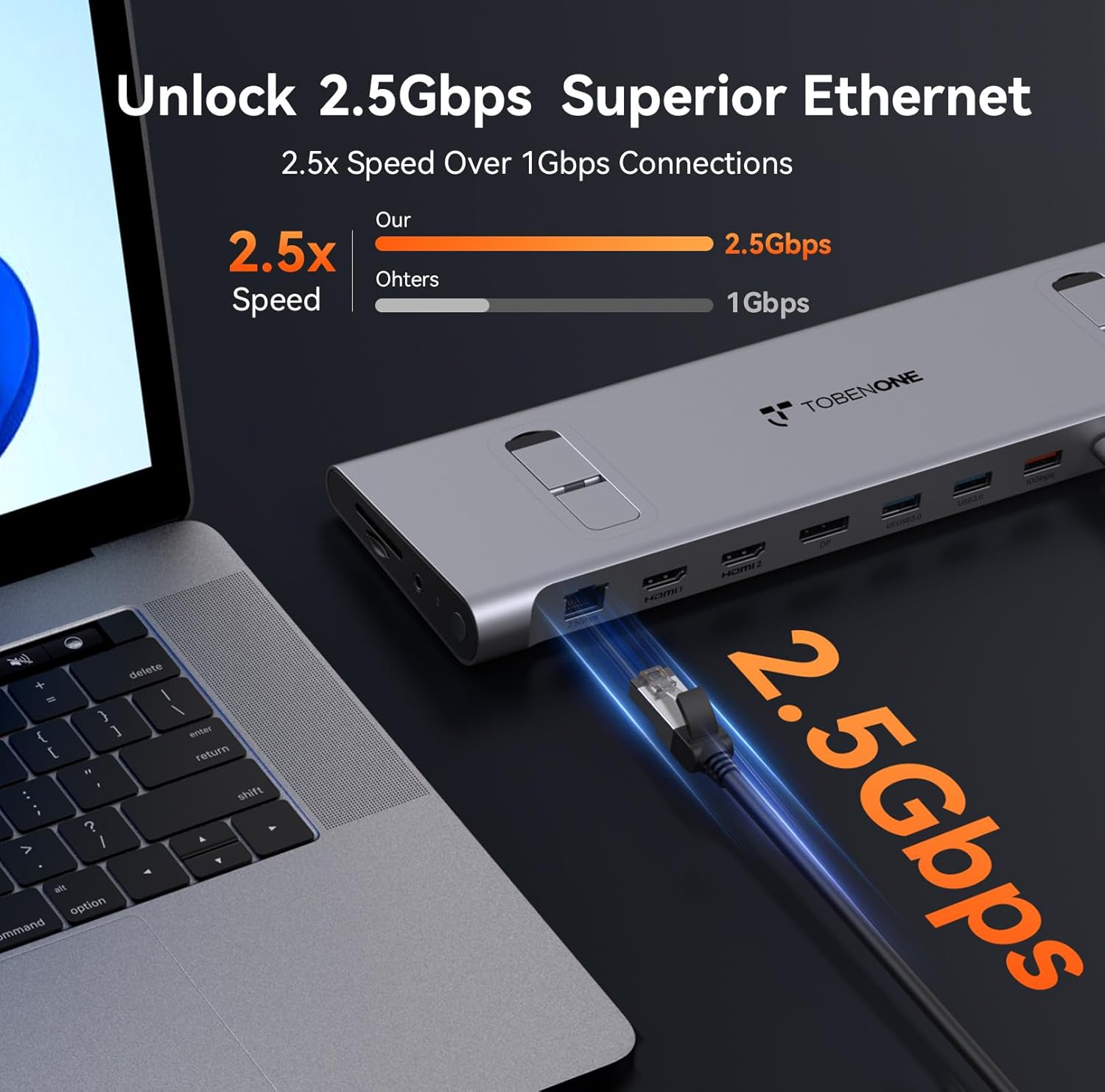
Image: An Ethernet cable connected to the 2.5Gbps Ethernet port on the docking station, ensuring a fast and reliable network connection.
- Insert SD/TF Cards: If needed, insert your SD or MicroSD cards into the dedicated slots on the side of the docking station.
- Аудио веза: Connect headphones or speakers to the 3.5mm audio port for audio output.
- Укључено: Press the power button on the side of the docking station to turn it on.
5. Упутство за употребу
Display Configuration (Windows/Chromebook)
The docking station supports various display configurations. Your laptop's capabilities (e.g., Thunderbolt 4/DP 1.4 with DSC vs. DP 1.2) will determine the maximum resolution and refresh rates.
| Интерфаце Стандард | Thunderbolt 4/DP 1.4 (support DSC) | ДП 1.2 | ||||
|---|---|---|---|---|---|---|
| ХДМИКСНУМКС | ХДМИКСНУМКС | DP | ХДМИКСНУМКС | ХДМИКСНУМКС | DP | |
| Појединачни екран | 8К@30Хз | 8К@30Хз | 8К@30Хз | 4К@30Хз | 4К@30Хз | 4К@30Хз |
| 4К@60Хз | 4К@60Хз | 4К@60Хз | 1080П@60Хз | 1080П@60Хз | 1080П@60Хз | |
| Дуал Дисплаи | 4К@60Хз | 1080П@60Хз | ||||
| 4К@60Хз | 4К@60Хз | 1080П@60Хз | 1080П@60Хз | |||
| Троструки приказ | 4К@60Хз | 1080П@60Хз | ||||
Table: This table outlines the supported display resolutions and refresh rates for single, dual, and triple monitor setups, depending on your laptop's DisplayPort interface standard.
Laptop Placement and Cooling
The docking station is designed to function as a sleek cooling stand. Place your laptop directly on top of the docking station, aligning it with the integrated supports. This ergonomic design helps improve airflow and prevent overheating during extended use.

Image: A laptop positioned on the docking station, illustrating how the design facilitates airflow for efficient cooling.
6. Одржавање
- Keep the docking station clean by wiping it with a soft, dry cloth. Avoid using abrasive cleaners or solvents.
- Осигурајте одговарајућу вентилацију око уређаја како бисте спречили прегревање.
- Чувајте докинг станицу на хладном и сувом месту када се не користи.
- Пажљиво рукујте кабловима и конекторима како бисте спречили оштећења.
КСНУМКС. Решавање проблема
Уобичајени проблеми и решења:
- Нема излаза на екран:
- Ensure the docking station is powered on and properly connected to your laptop's USB-C port.
- Verify that your laptop's USB-C port supports DisplayPort Alt Mode, Thunderbolt 3/4, or USB4.
- Check all display cables (HDMI, DisplayPort) for secure connections.
- Try updating your laptop's graphics drivers.
- Confirm your laptop supports Display Stream Compression (DSC) for higher resolutions (e.g., 8K@30Hz or 4K@120Hz single display).
- Нема напајања лаптопа:
- Уверите се да је адаптер за напајање од 100 W безбедно повезан са базном станицом и исправном утичницом.
- Verify the USB-C cable connecting the dock to your laptop is capable of power delivery.
- USB уређаји нису препознати:
- Reconnect the USB device to a different port on the docking station.
- Уверите се да је докинг станица укључена.
- Try connecting the device directly to your laptop to confirm it functions independently.
- Проблеми са етернет везом:
- Проверите везу Етернет кабла и са базном станицом и са рутером/модемом.
- Проверите мрежна подешавања на лаптопу.
8. Спецификације
| Атрибут | Детаљ |
|---|---|
| Број модела | XYY-PD100CL |
| Димензије производа | 11.81 cm D x 3.14 cm Š x 0.86 cm V |
| Тежина артикла | 2.27 фунти |
| Укупно УСБ портова | 6 (including 10Gbps USB-A and USB-C) |
| Укупни ХДМИ портови | 2 |
| ДисплаиПорт | 1 |
| Етхернет порт | 2.5Гбпс |
| Повер Деливери | 100W (Input), 87W (Output) |
| Читач картица | СД/ТФ слотови |
| Аудио Порт | 3.5 мм аудио |
| Компатибилни уређаји | Supports full-featured USB-C, USB4, and Thunderbolt 3 / Thunderbolt 4 systems running Windows 10 / 11 & ChromeOS 100 or newer (e.g., HP ProBook/EliteBook/Spectre x360, Dell XPS/Latitude, Lenovo ThinkPad/IdeaPad/Yoga, Microsoft Surface Pro/Go/Book/Laptop, LG Gram). |
9. Гаранција и подршка
TobenONE is committed to providing professional office connectivity solutions. For any questions, technical support, or warranty inquiries regarding your docking station, please refer to the official TobenONE webсајт или директно контактирајте њихову корисничку службу. Сачувајте рачун за куповину за потребе гаранције.
Visit the official TobenONE Store: TobenONE Amazon Store


