1. Увод
Welcome to the CyberpowerPC Gamer Xtreme GXi3200BSTV10 Gaming Desktop PC. This manual provides essential information for setting up, operating, maintaining, and troubleshooting your new gaming system. Designed for high-performance gaming and demanding applications, this PC features an Intel Core i5-14400F processor, NVIDIA GeForce RTX 5060 graphics, 16GB DDR5 RAM, and a 1TB PCIe SSD, all running on Windows 11 Home.
For optimal performance and longevity, please read this manual thoroughly before using your computer.
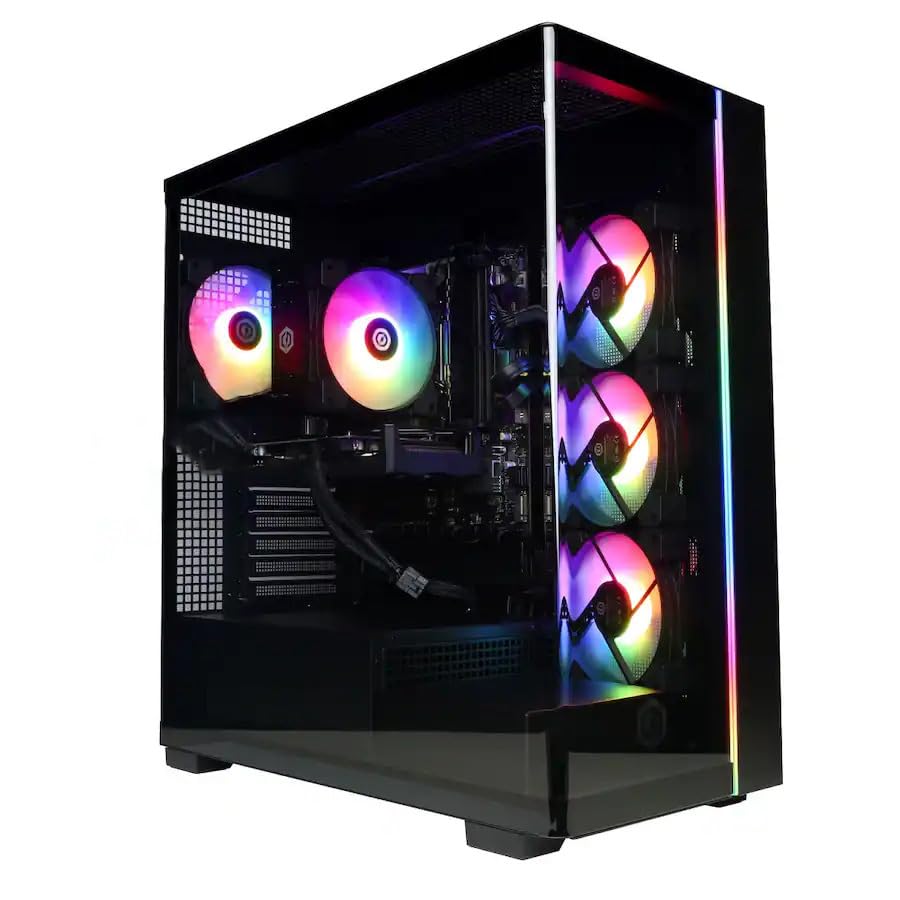
Слика: Фронт view of the CyberpowerPC Gamer Xtreme GXi3200BSTV10 Gaming Desktop PC, showcasing its sleek design and RGB lighting elements.
2. Шта је у кутији
Upon unpacking your CyberpowerPC Gamer Xtreme GXi3200BSTV10, please ensure all the following items are present:
- CyberpowerPC Gamer Xtreme GXi3200BSTV10 Desktop PC
- Повер Цабле
- РГБ тастатура за игре
- РГБ миш за играње
- Документација (укључујући и овај приручник)

Image: The included CyberpowerPC NOHI 2 Black Wired RGB 104-Key Keyboard and CyberPowerPC Elite M2 Black Wired RGB 4-Button Mouse.
3. Водич за подешавање
Follow these steps to set up your new CyberpowerPC Gamer Xtreme desktop:
3.1 Распакивање и постављање
- Пажљиво извадите рачунар и сву додатну опрему из паковања. Сачувајте паковање за будући транспорт или рекламације.
- Поставите рачунар на стабилну, равну површину са одговарајућом вентилацијом. Уверите се да има слободног простора око отвора за усис и издув ваздуха.
- Remove any protective films or internal packing materials from the PC case.
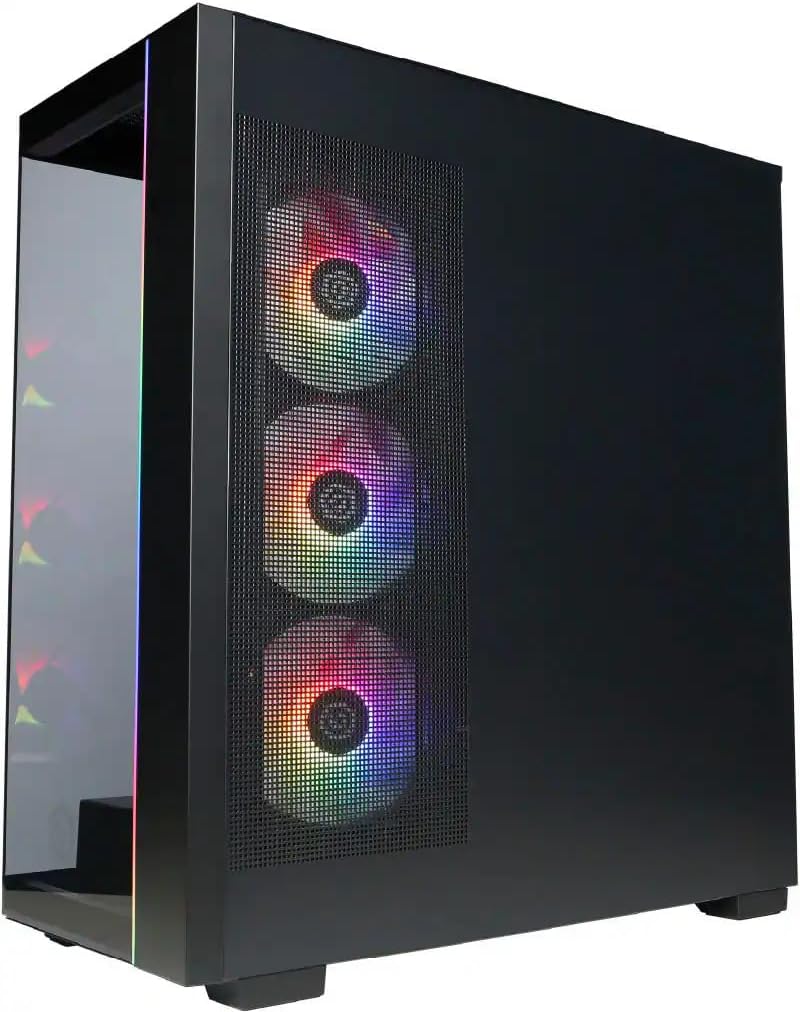
Слика: Са стране view of the PC case, highlighting the mesh panel for airflow and the RGB fans visible through it.
3.2 Повезивање периферних уређаја
Connect your monitor, keyboard, mouse, and other devices to the appropriate ports on the back of the PC.
- Монитор: Connect your monitor to one of the graphics card's display outputs (DisplayPort or HDMI). Ensure it's connected to the dedicated graphics card (NVIDIA GeForce RTX 5060), not the motherboard's integrated graphics ports.
- Тастатура и миш: Connect the included RGB keyboard and mouse to any available USB ports.
- Мрежа: For wired internet, connect an Ethernet cable to the RJ-45 port. For wireless internet, ensure the Wi-Fi antennas (if provided) are attached.
- аудио: Повежите звучнике или слушалице на аудио излазне прикључке.
3.3 Power Connection and Initial Boot
- Connect the power cable to the PC's power supply unit (PSU) and then to a grounded electrical outlet.
- Press the power button located on the front or top of the PC.
- Follow the on-screen instructions to complete the Windows 11 Home setup process. This may include setting up your user account, network connection, and privacy settings.
4. Управљање рачунаром
This section covers basic operation of your CyberpowerPC Gamer Xtreme.
4.1 Укључивање/искључивање и поновно покретање
- Укључено: Притисните дугме за напајање једном.
- Искључи: Кликните на дугме Старт у оперативном систему Windows, а затим изаберите Напајање > Искључи.
- Поново покрени: Кликните на дугме Старт у оперативном систему Windows, а затим изаберите Напајање > Поново покрени.
- Force Shut Down: If the system is unresponsive, press and hold the power button for 5-10 seconds until the PC turns off. Use this only as a last resort.
4.2 Мрежна повезаност
- Жична (Етернет): Once the Ethernet cable is connected, Windows 11 should automatically detect and connect to the network.
- Бежично (Wi-Fi): Кликните на икону Wi-Fi мреже на траци задатака, изаберите жељену мрежу, унесите лозинку и кликните на дугме Повежи се.
4.3 RGB контрола осветљења
Your system features customizable RGB lighting for fans, case, and CPU cooler. Control software for RGB lighting may be pre-installed or available for download from the CyberpowerPC website. Refer to the specific software's instructions for detailed customization options.

Слика: Детаљна view of the RGB fans, illustrating the vibrant lighting effects within the PC case.

Image: Close-up of the CPU cooler, showing its design and integrated RGB lighting.
5. Одржавање
Редовно одржавање помаже у осигуравању дуготрајности и оптималних перформанси вашег рачунара.
5.1 Чишћење
- Екстеријер: Користите меку, дamp cloth to clean the exterior of the case. Avoid harsh chemicals.
- прашина: Periodically clean dust from the internal components, especially fans and heatsinks, using compressed air. Ensure the PC is powered off and unplugged before opening the case.
- Филтери за ваздух: If your case has removable air filters, clean them regularly to maintain optimal airflow.
5.2 Ажурирања софтвера
- Ажурирања за Windows: Regularly check for and install Windows updates to ensure security and performance improvements. Go to Settings > Windows Update.
- Ажурирања драјвера: Keep your graphics card drivers (NVIDIA GeForce) and other component drivers updated for best performance and compatibility. Visit the respective manufacturer's webсајтови за најновије драјвере.
5.3 Резервна копија података
Regularly back up your important data to an external drive or cloud storage to prevent data loss in case of hardware failure or other issues.
КСНУМКС. Решавање проблема
Овај одељак пружа решења за уобичајене проблеме на које можете наићи.
6.1 Нема напајања
- Уверите се да је кабл за напајање безбедно повезан и са рачунаром и са зидном утичницом.
- Check if the power switch on the PSU (located at the back of the PC) is in the 'ON' position.
- Тестирајте утичницу другим уређајем да бисте потврдили да има струју.
6.2 Нема приказа на монитору
- Verify that the monitor is powered on and its video cable is securely connected to the graphics card (NVIDIA GeForce RTX 5060) on the PC.
- Ensure the monitor's input source is set correctly (e.g., HDMI 1, DisplayPort).
- Try connecting the monitor to a different display output port on the graphics card.
6.3 System Running Slowly
- Check Task Manager (Ctrl+Shift+Esc) for applications consuming excessive CPU, RAM, or disk resources.
- Уверите се да су Windows и драјвери ажурирани.
- Покрените потпуно скенирање система за злонамерни софтвер или вирусе.
- Проверите да ли рачунар има одговарајућу вентилацију и да се не прегрева.
7. Спецификације
Detailed technical specifications for your CyberpowerPC Gamer Xtreme GXi3200BSTV10:

Image: Infographic summarizing key specifications including Intel Core i5-14400F, NVIDIA GeForce RTX 5060, 16GB DDR5 RAM, and 1TB PCIe NVMe M.2 SSD.
| Компонента | Спецификација |
|---|---|
| Процесор | Intel Core i5-14400F (10-Core, 2.5 GHz base, up to 4.7 GHz Turbo Boost) |
| графичка картица | NVIDIA GeForce RTX 5060 8GB GDDR7 |
| РАМ | 16GB DDR5 6000 MHz |
| Складиштење | 1TB PCIe NVMe M.2 SSD |
| Оперативни систем | Виндовс 11 Хоме |
| Бежично повезивање | Wi-Fi (802.11ax), Bluetooth |
| Аудио | 7.1-канални звук високе дефиниције |
| Дисплаи Оутпутс | 3x DisplayPort, 1x HDMI |
| УСБ портови | 1x USB-C 3.2, 3x USB-A 3.2, 4x USB-A 2.0 |
| Димензије (ДкШкВ) | 18.1 к 9.2 к 20 инча |
| Тежина артикла | 40 фунти |
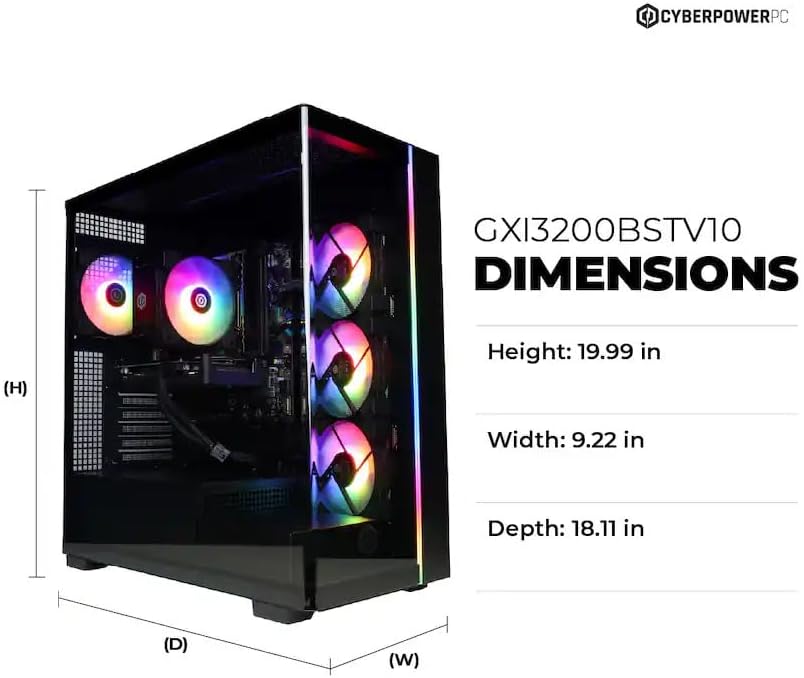
Image: Diagram illustrating the dimensions of the CyberpowerPC Gamer Xtreme GXi3200BSTV10: Height 19.99 in, Width 9.22 in, Depth 18.11 in.
8. Гаранција и подршка
8.1 Гаранција произвођача
Your CyberpowerPC Gamer Xtreme GXi3200BSTV10 comes with a 1-годишња гаранција произвођачаОва гаранција покрива недостатке у материјалу и изради при нормалној употреби. Молимо вас да сачувате доказ о куповини за потребе подношења захтева за гаранцију.
For specific terms and conditions of the warranty, please refer to the documentation included with your PC or visit the official CyberpowerPC webсајту.
8.2 Техничка подршка
If you encounter issues that cannot be resolved using the troubleshooting steps in this manual, please contact CyberpowerPC technical support. Have your model number (GXi3200BSTV10) and serial number ready when contacting support.
You can typically find support contact information on the CyberpowerPC website or in the documentation provided with your system.