Увод
This manual provides detailed instructions for the safe and efficient operation of your HAYEAR 8MP Digital Microscope Camera, Model HY-6700. This high-performance camera is equipped with an 8MP sensor, capable of capturing images and videos in 4K Ultra HD and 1080P resolutions. It supports simultaneous USB and HDMI output, making it suitable for various applications including industrial inspection, laboratory research, quality control, and detailed observation with image and video recording capabilities. Please read this manual thoroughly before use and retain it for future reference.
Производ је завршенview
Кључне карактеристике
- висока резолуција: 8MP sensor for 4K Ultra HD and 1080P image and video capture.
- Дуал Оутпут: Simultaneous USB and HDMI output for connection to PCs, monitors, or TVs.
- Свестране апликације: Ideal for industrial inspection, laboratory observation, quality control, and educational purposes.
- Image & Video Recording: Features still image capture and video recording functions for detailed documentation.
- Компатибилност система: USB connection compatible with Windows, Mac OS, and Linux systems.
Садржај пакета
Проверите да ли су све ставке наведене у наставку укључене у ваш пакет:
- 1 x HAYEAR Digital Microscope Camera (Model HY-6700)
- 1 к ХДМИ кабл
- 1 к УСБ кабл
- 1 к Упутство за употребу

Слика 1: Package contents including the camera, HDMI cable, USB cable, and instruction manual.
Сетуп
Camera Interface and Buttons
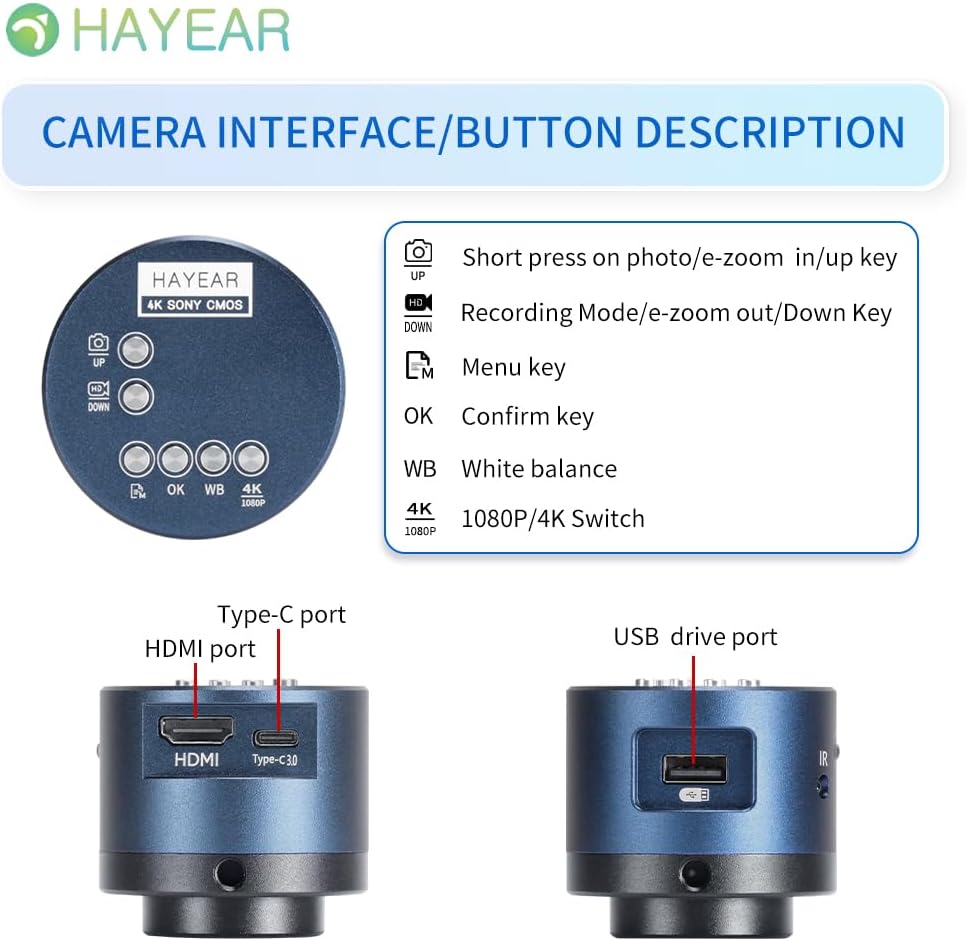
Слика 2: Готовоview of the camera's control buttons and ports.
- Photo/E-Zoom In/Up Key: Short press to take a photo or zoom in. Use for navigation (Up).
- Recording Mode/E-Zoom Out/Down Key: Short press to switch to recording mode or zoom out. Use for navigation (Down).
- Тастер менија: Access the camera's settings menu.
- ОК тастер: Потврдите изборе или радње.
- WB (White Balance) Key: Adjust white balance settings.
- 4K/1080P Switch: Toggle between 4K and 1080P resolution output.
- ХДМИ порт: Connect to an HDMI display (monitor, TV).
- Порт типа Ц: Улаз снаге и пренос података.
- USB Drive Port: Connect to a computer for data transfer or use as a webцам.
Повезивање са екраном
The camera supports simultaneous HDMI and USB output. Choose the connection method suitable for your application.
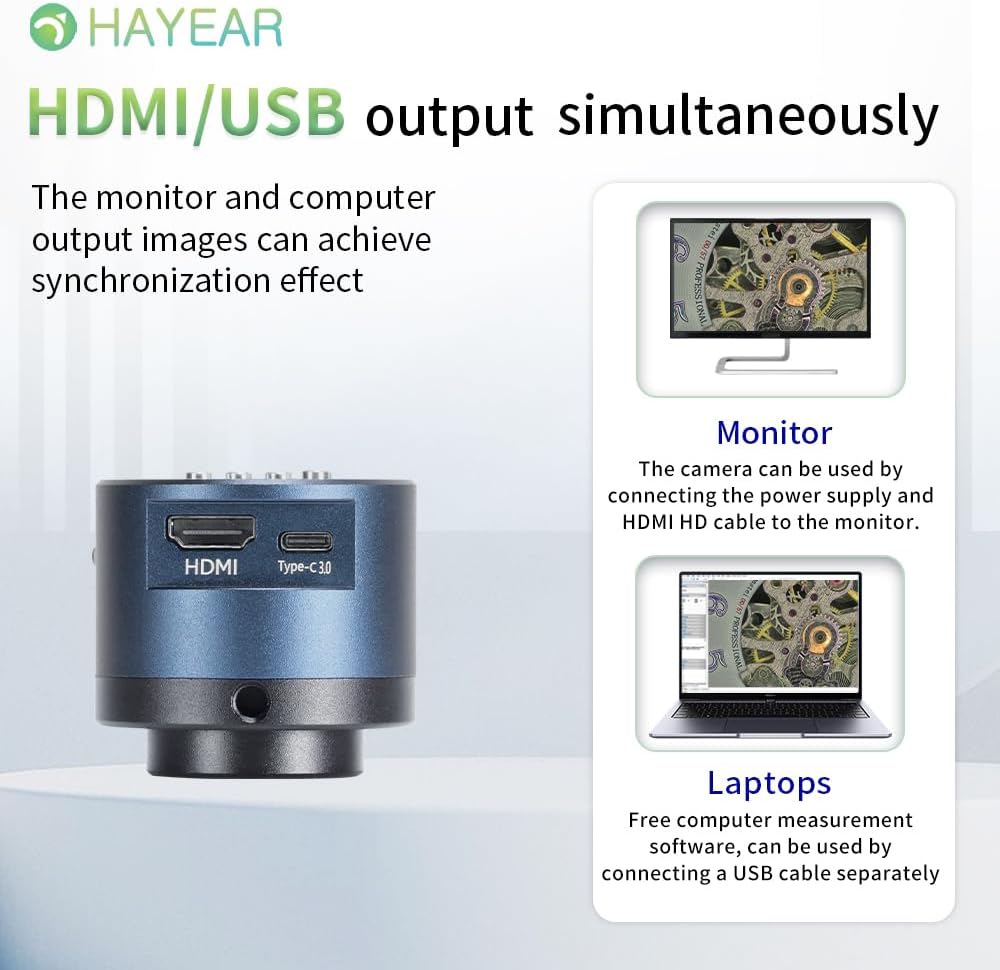
Слика 3: Illustrates simultaneous HDMI and USB output capabilities.
- ХДМИ веза: Connect the camera to an HDMI monitor or TV using the provided HDMI cable. Ensure the camera is powered via the Type-C port. This allows for direct display of the microscope's output.
- УСБ веза: Connect the camera to a computer (Windows, Mac, or Linux) using the provided USB cable. The camera can function as a webcam or be used with dedicated measurement software.
Укључивање/искључивање
The product powers on automatically when connected to a power source via the Type-C port. To turn off the device, disconnect the power plug from the camera or the power outlet.
Упутство за употребу
Основна операција
- Фотографисање: Short press the "Photo/E-Zoom In/Up" key to capture a still image.
- Снимање видео записа: Short press the "Recording Mode/E-Zoom Out/Down" key to switch to video recording mode, then press again to start/stop recording.
- Функција зумирања: Use the "Photo/E-Zoom In/Up" key to zoom in and the "Recording Mode/E-Zoom Out/Down" key to zoom out.
- Resolution Switch: Press the "4K/1080P" key to toggle between 4K and 1080P output resolutions.
Подешавање баланса белог
To achieve accurate color representation, adjust the white balance using the WB key. For one-touch white balance adjustment:
- If the image appears with a blue tint, open the camera's one-touch white balance function.
- Place a white paper under the light source.
- Adjust the light source from its darkest setting gradually to its brightest.
- The camera will automatically adjust the blue tint to a normal white balance state.
Навигација кроз мени
Press the "Menu" key to access the camera's settings. Use the "Up" and "Down" keys to navigate through options and the "OK" key to select or confirm.
Одржавање
- Чишћење: Користите меку, суву крпу за чишћење кућишта фотоапарата. За објектив користите специјализовану крпу и раствор за чишћење објектива. Избегавајте абразивне материјале или јаке хемикалије.
- Складиштење: Store the camera in a dry, dust-free environment when not in use. Protect it from extreme temperatures and humidity.
- Руковање: Handle the camera with care to prevent physical damage. Avoid dropping or subjecting it to strong impacts.
Решавање проблема
Ако наиђете на проблеме, погледајте следеће уобичајене проблеме и решења:
- Нема слике на екрану:
- Ensure the camera is properly powered on and the power cable is securely connected.
- Check the HDMI or USB cable connection to both the camera and the display/computer.
- Verify that the display input source is correctly selected (e.g., HDMI 1, USB).
- Image Appears Blue/Incorrect Colors:
- Perform a one-touch white balance adjustment as described in the "Operating Instructions" section.
- Ensure the lighting conditions are stable and appropriate for observation.
- Cannot Record Images/Videos:
- Ensure a compatible TF memory card (up to 128GB) is inserted correctly into the camera.
- Проверите да ли меморијска картица има довољно слободног простора.
- Verify that you are in the correct recording mode.
- Camera Not Recognized by PC (USB):
- Уверите се да је УСБ кабл добро повезан.
- Покушајте да се повежете на други УСБ порт на рачунару.
- Restart your computer and the camera.
- Ensure your operating system (Windows/Mac/Linux) has the necessary drivers installed (usually plug-and-play).
For further assistance, please contact technical support.
Спецификације
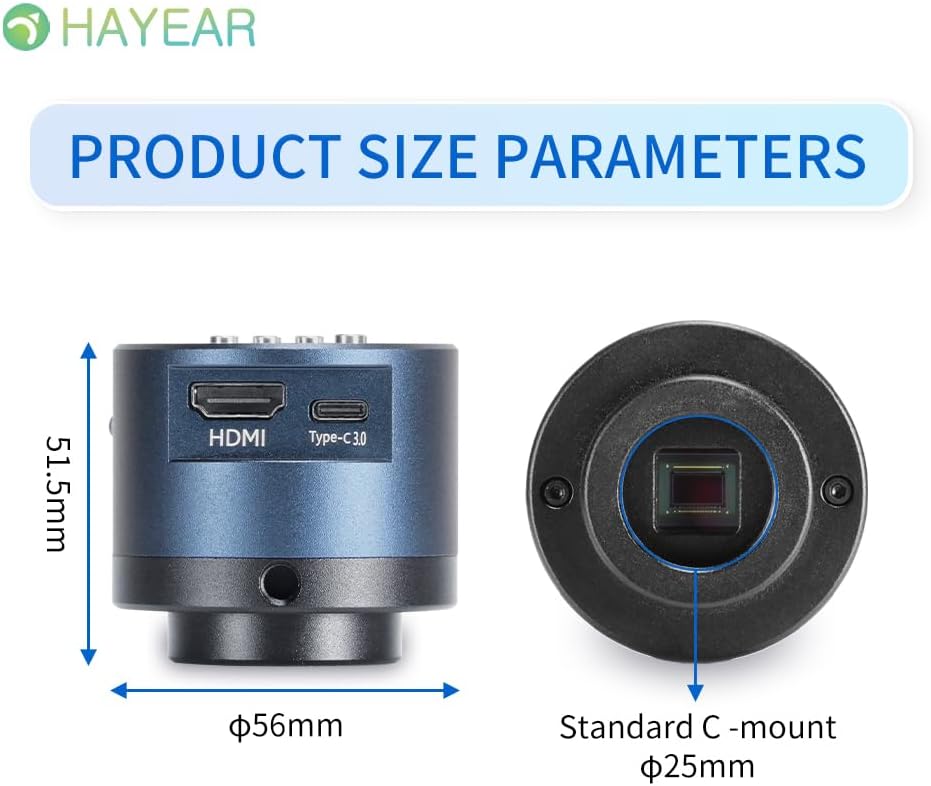
Слика 4: Dimensions of the HAYEAR Digital Microscope Camera.
| Феатуре | Спецификација |
|---|---|
| Модел | ХИ-КСНУМКС |
| Сензор | 8 мегапиксела |
| Видео Оутпут | 4K/2K/1080P (HDMI Output) |
| Величина сензора | 1/2.8 инча |
| Величина пиксела | 2.0 к 2.0 µм |
| Резолуција | 3840x2160@30FPS (4K); 1920x1080P@30FPS |
| Видео Рецординг | Supports 4K video recording |
| УСБ излаз | 1920x1080P@30FPS; 1280x720P@30FPS |
| Таласна дужина | 400 нм ~ 1000 нм |
| Излазни интерфејс | HDMI / USB (Simultaneous Support) |
| Баланс белог | One-touch / Auto / Manual |
| Ленс Типе | Standard C/CS Interface |
| Складиштење | TF Memory Card, up to 128GB |
| ПЦ подршка | Windows / Mac / Linux Systems |
| Имаге Зоом | 7x Optical Zoom / Digital Zoom |
| Димензије | 15 x 15 x 8 cm (Product Size) |
| Тежина | 500 г |
| Повер Инпут | 5 Волтс |
Гаранција и подршка
Информације о гаранцији
- All products undergo a thorough inspection before shipment to ensure quality.
- Customers are advised to inspect the package upon receipt.
- A one-year free warranty is provided for all machines. This warranty does not cover damage caused by human error or misuse.
Техничка подршка
Free technical support is always available. If you encounter any issues not covered in this manual or require further assistance, please contact HAYEAR customer service. Refer to the product packaging or official webсајт за контакт детаље.


