Увод
Experience the modernized design of the Xbox Wireless Controller in Pulse Red. This controller features sculpted surfaces and refined geometry for enhanced comfort during gameplay. It offers a battery life of up to 40 hours, a hybrid D-pad, and textured grip on the triggers, bumpers, and back-case for improved control. Seamlessly capture and share content with the dedicated Share button. Connectivity options include Xbox Wireless and Bluetooth technology, allowing for easy pairing and switching between various devices.
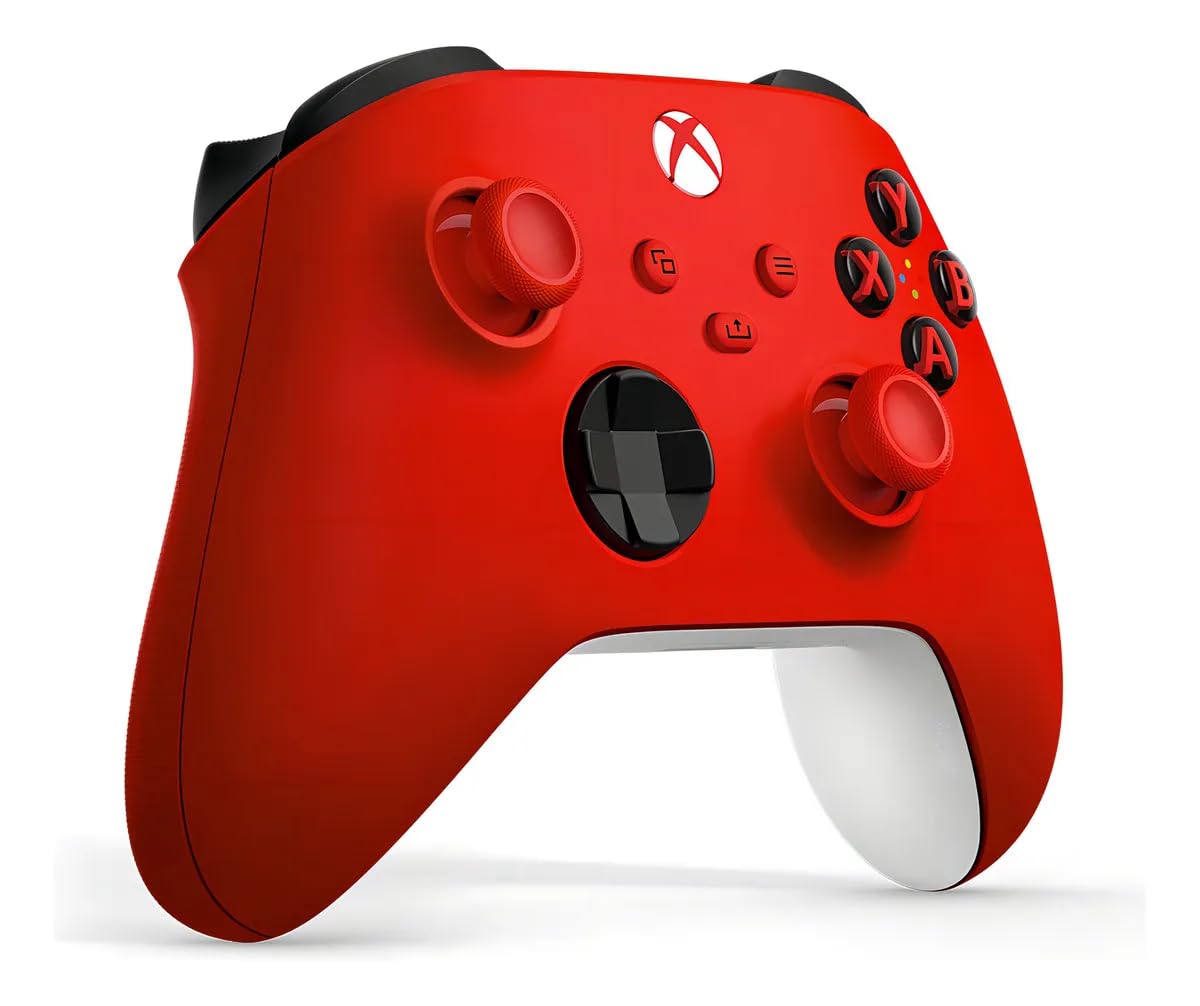
Слика: Фронт view of the Xbox Wireless Gaming Controller in Pulse Red.
Садржај пакета
- Xbox Wireless Gaming Controller (Pulse Red)
- 2 АА батерија

Image: The Xbox Wireless Gaming Controller in its retail packaging.
Распоред контролера
The Xbox Wireless Gaming Controller features a standard layout with several key improvements for an optimized gaming experience.

Image: An annotated diagram highlighting key features of the controller, including the hybrid D-pad, dedicated Share button, 3.5mm audio headset jack, sculpted surfaces, refined geometry, textured grip on triggers, bumpers, and back case, and Xbox Wireless and Bluetooth technology.
Сетуп
1. Уметање батерија
To power your controller wirelessly, insert the two included AA batteries into the battery compartment located on the back of the controller. Ensure correct polarity (+/-) as indicated inside the compartment.
Video: This video demonstrates the unboxing of the Xbox Wireless Gaming Controller and the process of inserting AA batteries into the battery compartment on the back of the controller.
2. Connecting via USB-C
For direct plug-and-play to your console or PC, connect a compatible USB-C cable (sold separately) to the USB-C port at the top of the controller and the other end to your device. This allows the controller to function without batteries.
Video: This video highlights the USB-C port on the top of the Xbox Wireless Gaming Controller and shows the battery compartment on the back, demonstrating wired and wireless power options.
3. Упаривање са уређајима
The controller supports Xbox Wireless and Bluetooth technology for versatile connectivity:
- Xbox конзола: Press the Xbox button to turn on the controller. Press and hold the Pair button on the controller (small button near the USB-C port) until the Xbox button flashes. Then, press the Pair button on your Xbox console.
- PC, Android, iOS, FireTV Sticks, Smart TVs, VR Headsets: Turn on Bluetooth on your device. Press and hold the Pair button on the controller until the Xbox button flashes. Select the controller from your device's Bluetooth settings to pair.

Image: The Xbox Wireless Gaming Controller shown alongside various compatible devices, illustrating its multi-device pairing capability.
Управљање контролером
1. Основне контроле
The controller features responsive buttons, joysticks, and a hybrid D-pad for precise input. The textured grip on the triggers, bumpers, and back-case ensures a secure hold during intense gaming sessions.

Слика: Крупни план view highlighting the hybrid D-pad, textured triggers, and the back-case grip of the controller.
2. Share Button Functionality
The dedicated Share button, located in the center of the controller, allows you to quickly capture screenshots and record gameplay moments. Press the button once for a screenshot, or hold it down to start/stop recording.

Слика: Детаљна view of the Share button, indicating its position and function.
3. Custom Button Mapping
Personalize your gaming experience by customizing button mappings using the Xbox Accessories app. This feature is available for Xbox Series X|S, Xbox One, and Windows 10/11. The app for Windows 10/11 may require a compatible USB-C cable (sold separately).

Image: A visual representation of custom button mapping, specifically showing the remapping of the 'B' and 'RB' buttons.
4. Повезивање слушалица
Plug any compatible headset into the 3.5mm audio headset jack located at the bottom of the controller for in-game audio and communication.
Одржавање
To ensure the longevity and optimal performance of your Xbox Wireless Gaming Controller, follow these maintenance guidelines:
- Чишћење: Редовно бришите контролер меком, сувом крпом. За тврдокорну прљавштину, благо дрхтајтеampНатопите крпу водом. Избегавајте јаке хемикалије или абразивне материјале.
- Складиштење: Store the controller in a cool, dry place away from direct sunlight and extreme temperatures. If storing for an extended period, remove the AA batteries to prevent leakage.
- Руковање: Avoid dropping the controller or exposing it to excessive force, which can damage internal components.
Решавање проблема
If you encounter issues with your Xbox Wireless Gaming Controller, consider the following:
- Проблеми са повезивањем: Ensure the controller is fully charged or has fresh batteries. Re-attempt the pairing process. Check for any wireless interference from other devices.
- Button/Joystick Malfunction: Ensure no debris is obstructing the buttons or joysticks. If issues persist, try updating the controller's firmware via the Xbox Accessories app.
- Трајање батерије: Battery life varies significantly with headsets, additional accessories, usage, and other factors. Consider using rechargeable battery packs for consistent power.
For more detailed troubleshooting and compatibility information, visit the official Xbox support webсајт на кбок.цом/цонтроллер-цомпатибилити.
Спецификације
| Број модела | ЕП2-29935 |
| Димензије производа | 6.91 к 5.61 к 2.76 инча |
| Тежина артикла | 13.12 унци |
| Батерије | Потребне су 2 АА батерије (укључене) |
| Повезивање | Xbox Wireless, Bluetooth, USB-C |
| Компатибилност | Xbox, Windows, Android, iOS, FireTV Sticks, Smart TVs, VR Headsets |
Гаранција и подршка
For information regarding product warranty, returns, and technical support, please refer to the official Xbox website or contact Xbox customer service. Keep your proof of purchase for any warranty claims.