1. Увод
Thank you for choosing the Tibuta Android 13 Tablet. This manual provides essential information to help you set up, operate, and maintain your device. Please read this manual carefully before using your tablet to ensure optimal performance and longevity.
2. Шта је у кутији
Приликом распакивања, проверите да ли су укључене све следеће ставке:
- Tibuta Android 13 Tablet
- пуњач
- УСБ кабл
- Упутство за употребу (овај документ)
- Гарантни лист
3. Производ је готовview
Familiarize yourself with the physical components of your Tibuta tablet.

Figure 3.1: Tablet Components (Side View)
This image illustrates the location of the power button, Type-C port, volume controls, Micro SD card slot, camera, reset button, headphone jack, and speakers on the tablet's exterior.

Figure 3.2: Tablet Components (Front and Back View)
Ова слика пружа детаљан view of the tablet, highlighting the speaker, front camera, reset button, volume controls, power button, 3.5mm headphone jack, rear camera, SD card slot, and Type-C port. It also shows the included power adapter and Type-C cable.
4. Подешавање
4.1 Почетно пуњење
Before first use, fully charge your tablet using the provided charger and USB cable. Connect the Type-C cable to the tablet's Type-C port and the charger to a power outlet. The battery indicator on the screen will show charging progress.
4.2 Укључивање/искључивање
- За укључивање: Press and hold the Power button (refer to Figure 3.1 or 3.2) until the screen lights up.
- За искључивање: Press and hold the Power button until a menu appears. Select 'Power off' and confirm.
- Рестартовати: From the same menu, select 'Restart'.
4.3 Почетна конфигурација
Upon first power-on, follow the on-screen prompts to set up your tablet. This includes selecting your language, connecting to a Wi-Fi network, and signing in with your Google account. A Google account is required to download apps from the Google Play Store.
4.4 Уметање Мицро СД картице
To expand storage, insert a Micro SD card (up to 1TB, not included) into the Micro SD card slot (refer to Figure 3.1 or 3.2). Ensure the tablet is powered off before inserting or removing the card.
5. Упутство за употребу
5.1 Основна навигација
The tablet features a sensitive touchscreen. Use standard Android gestures:
- Додирните: Изаберите ставку или отворите апликацију.
- Превуците: Листајте кроз странице или листе.
- Прстохват: Увећајте или умањите слике и web странице.
- Дуго притисните: Приступите контекстуалним менијима или померите иконе.
5.2 Повезивање на Ви-Фи
Иди на Подешавања > Мрежа и интернет > Wi-Fi. Turn on Wi-Fi, select your desired network, and enter the password if prompted. The tablet supports 2.4G and 5G Wi-Fi (802.11ac, 802.11b, 802.11g, 802.11n).
5.3 Блуетоотх упаривање
To connect Bluetooth devices (e.g., headphones, keyboard, mouse):
- Иди на Подешавања > Повезани уређаји > Подешавања везе > Блуетоотх.
- Укључите Блуетоотх.
- Уверите се да је ваш Bluetooth уређај у режиму упаривања.
- Select your device from the list and follow any on-screen instructions to complete pairing.
5.4 Употреба камере
The tablet is equipped with a 5MP front camera and an 8MP rear camera. Open the Camera app to capture photos and videos. The rear camera features PDAF Phase Auto-focus and an LED flash.

Figure 5.1: Camera and Split-Screen Functionality
This image demonstrates the tablet's dual camera capabilities for capturing moments and its split-screen feature for multitasking, such as video calls while viewинг докумената.
5.5 Функција подељеног екрана
The Android 13 operating system supports split-screen mode, allowing you to use two applications simultaneously. To activate, open an app, then swipe up from the bottom of the screen to access recent apps. Long-press the app icon at the top of the window and select 'Split screen'. Choose a second app to open alongside it.
5.6 Customization and Personalization
Android 13 offers extensive customization options. You can personalize your tablet by changing wallpapers, adding widgets to your home screen, and organizing app icons to suit your preferences.
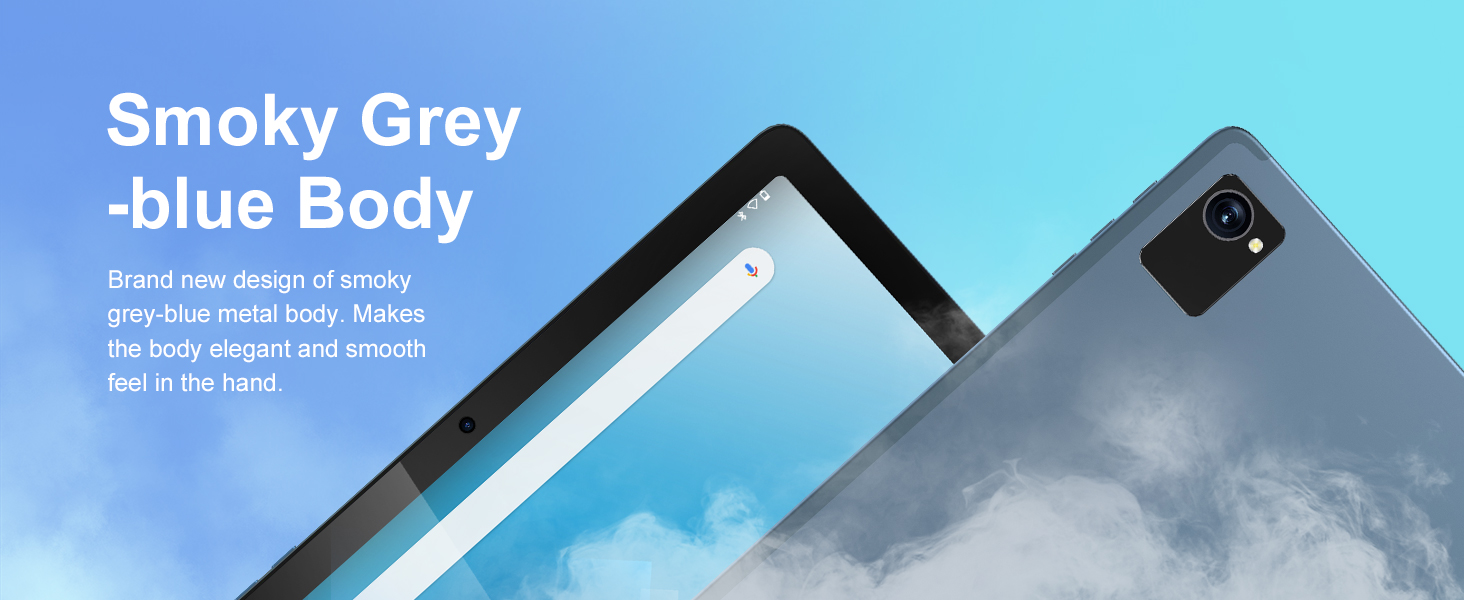
Figure 5.2: Customizable Interface
This image highlights the ability to customize widgets and change app icons, allowing users to personalize their tablet experience.
5.7 Режим заштите очију
To reduce eye strain, especially during prolonged use, activate the eye protection mode. This feature reduces the amount of blue light emitted by the screen. You can usually find this option in the Quick Settings panel or under Подешавања > Екран.
Figure 5.3: Eye Protection Feature
This image demonstrates the tablet's eye protection mode, which reduces blue light to prevent discomfort during extended viewинг.
5.8 Бежична пројекција
The tablet supports wireless projection, allowing you to cast your screen to compatible larger display devices such as smart TVs or projectors. This is ideal for presentations or sharing media with others.
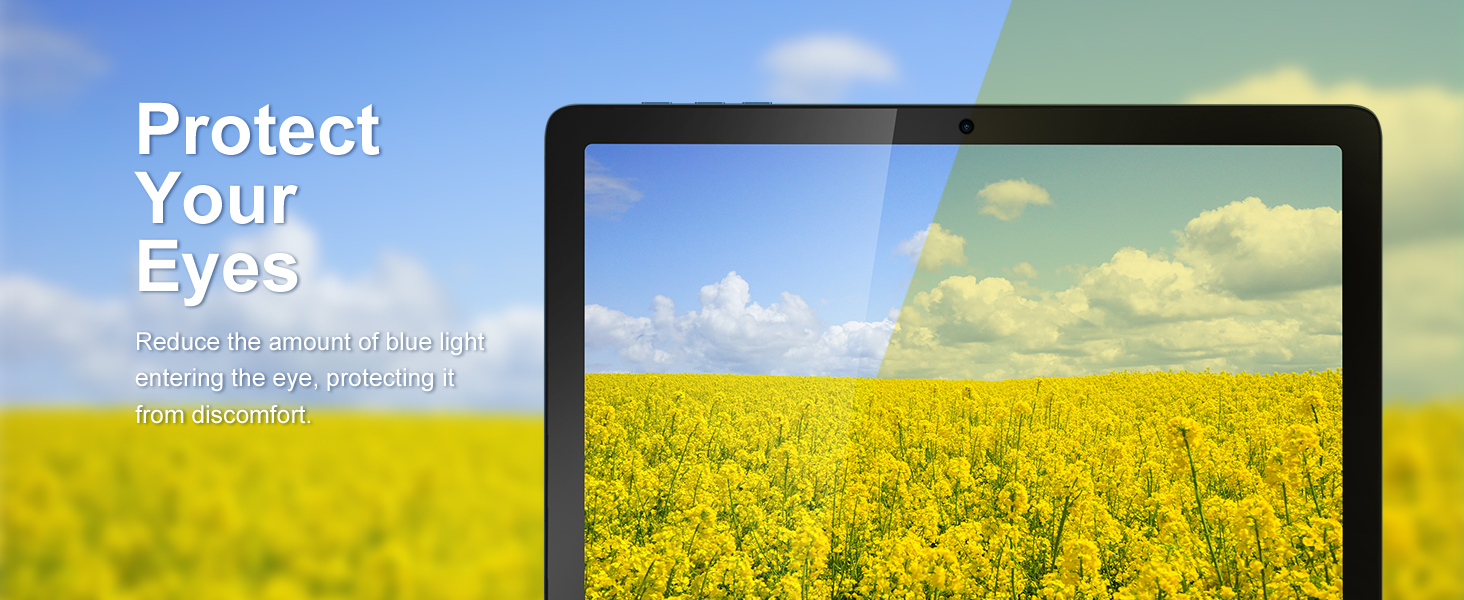
Figure 5.4: Wireless Projection in Use
This image depicts the tablet's wireless projection capability, enabling users to connect to larger screens for shared viewинг искуства.
5.9 GPS функционалност
The tablet includes GPS for navigation and location-based services. Ensure location services are enabled in Podešavanja > Lokacija for optimal performance with mapping applications.

Слика 5.5: GPS навигација
This image shows the tablet utilizing GPS for navigation, displaying a map with a highlighted route.
5.10 Media Consumption and Gaming
The 10.1-inch IPS HD display (1280x800 pixels) and Octa-Core processor provide a smooth experience for watching videos and playing games. The tablet supports Widevine L1 for high-definition streaming content. The Mali-G52 MC2 GPU enhances gaming performance.

Слика 5.6: Побољшано искуство играња
This image highlights the tablet's improved gaming performance, featuring gyroscope motion control and a Mali-G72 GPU for a responsive gaming experience.
6. Одржавање
6.1 Чишћење уређаја
Use a soft, lint-free cloth to clean the screen and body of the tablet. Avoid using harsh chemicals or abrasive materials that could damage the surfaces.
6.2 Одржавање батерије
The tablet is equipped with a 7000mAh battery, providing approximately 8 hours of average use. To prolong battery life:
- Избегавајте екстремне температуре.
- Не дозволите да се батерија често потпуно испразни.
- Use the provided charger.
- Подесите осветљеност екрана на удобан ниво.
6.3 Ажурирања софтвера
Your tablet runs on Android 13. Periodically check for system updates in Подешавања > Систем > Ажурирање система to ensure you have the latest features and security patches.
6.4 Управљање складиштем
The tablet comes with 64GB of internal storage (ROM) and 4GB of RAM. You can expand storage up to 1TB using a Micro SD card. Regularly manage your files and uninstall unused applications to maintain optimal performance.
КСНУМКС. Решавање проблема
Ево решења за уобичајене проблеме на које можете наићи:
- Уређај се не укључује: Уверите се да је батерија напуњена. Ако није, прикључите пуњач и сачекајте неколико минута пре него што поново покушате да је укључите.
- Споре перформансе: Close unused applications, clear cache, or restart the tablet. Consider freeing up storage space.
- Проблеми са Wi-Fi повезивањем: Check if Wi-Fi is enabled. Restart your router and the tablet. Ensure you are within range of the Wi-Fi signal.
- Рушење апликација: Уверите се да су апликације ажуриране на најновије верзије. Обришите кеш меморију или податке апликације у Подешавања > АпликацијеАко проблем и даље постоји, деинсталирајте и поново инсталирајте апликацију.
- Екран не реагује: Извршите присилно поновно покретање држећи дугме за напајање приближно 10-15 секунди.
8. Спецификације
Detailed technical specifications for the Tibuta Android 13 Tablet (Model A20 8GB+64GB):
| Феатуре | Спецификација |
|---|---|
| Бранд | Тибута |
| Назив модела | А20 |
| Број модела | 8ГБ+64ГБ |
| Оперативни систем | Андроид 13 |
| Марка процесора | MediaTek Octa-Core |
| Брзина процесора | 1.3 ГХз |
| Величина екрана | 10.1 инча |
| Резолуција екрана | 1280 x 800 Pixels (IPS HD) |
| РАМ | 4 ГБ |
| Капацитет складиштења | 64 GB (прошириво до 1 TB путем Micro SD картице) |
| Бренд графичког чипсета | PowerVR |
| ГПУ | Мали-Г52 МЦ2 |
| Повезивање | Bluetooth, Wi-Fi (802.11ac, 802.11b, 802.11g, 802.11n) |
| Бежична технологија | 2.4GHz + 5GHz Wi-Fi, Bluetooth 4.2 |
| Тип конектора | УСБ Типе-Ц |
| Трајање батерије (просечно) | 8 сата |
| Димензије артикла (Д к Ш к В) | 24.8 к 16.7 к 1.2 центиметара |
| Тежина артикла | 538.8 грама |
| Предња камера | 5 МП |
| Задња камера | 8 МП |
9. Гаранција и подршка
9.1 Гаранција произвођача
The Tibuta Android 13 Tablet comes with a 1-year manufacturer's warranty. Please refer to the included Warranty Card for detailed terms and conditions.
9.2 Корисничка подршка
If you encounter any issues not covered in this manual or require further assistance, please contact Tibuta customer support. Contact information can typically be found on the manufacturer's website or the warranty card.


