
1. Увод
The Hitron CODA56 is a Multi-Gigabit DOCSIS 3.1 Cable Modem designed to deliver high-speed internet access. This modem supports internet plans up to 2.5 Gbps, making it suitable for demanding online activities such as 4K streaming, online gaming, and video conferencing. It utilizes DOCSIS 3.1 technology for enhanced performance and efficiency. Please note that the CODA56 is a modem only and does not include built-in WiFi or routing capabilities; a separate WiFi router is required.
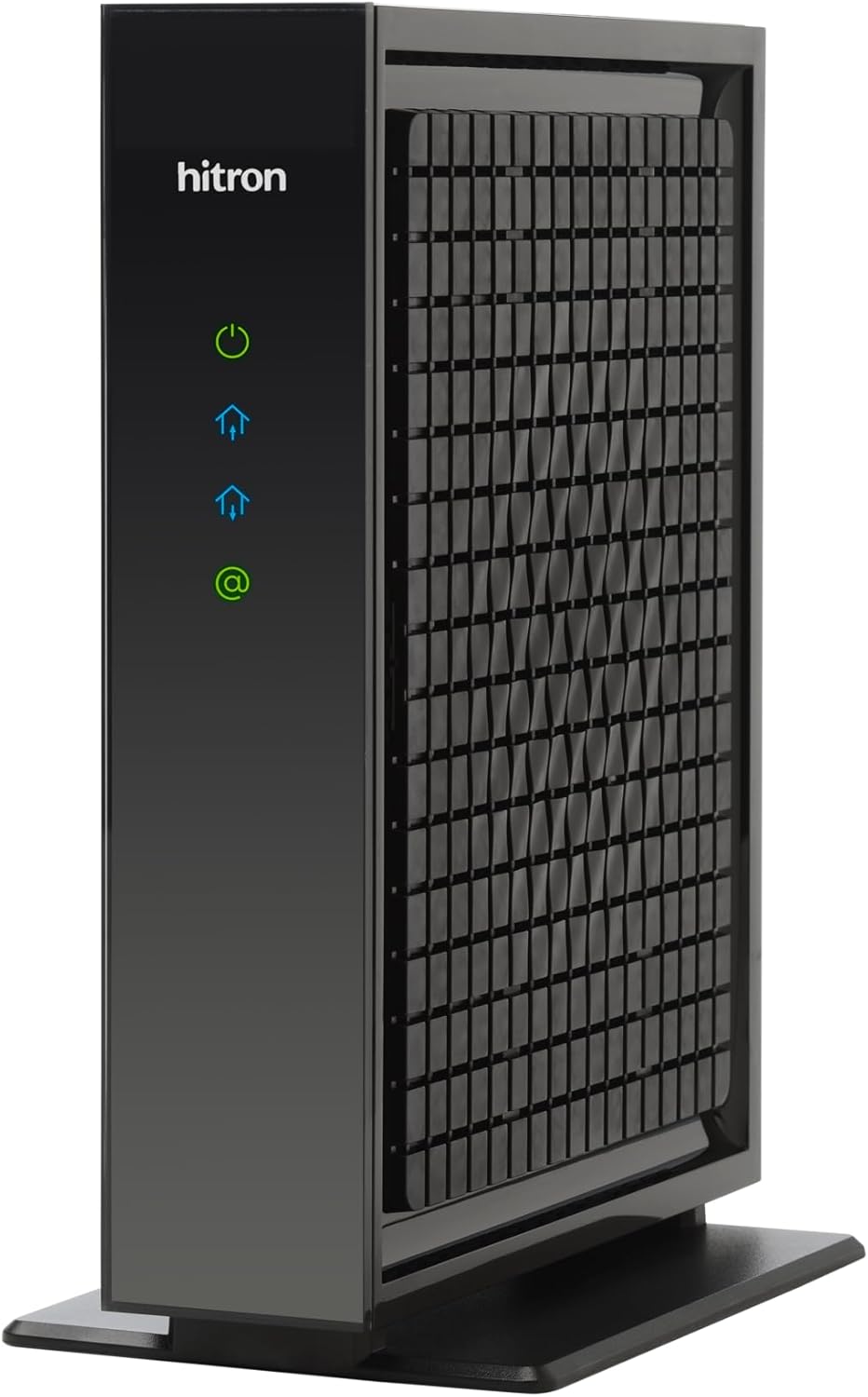
Фронт view of the Hitron CODA56 modem, showcasing its sleek black design and LED indicators for power, internet activity, and connection status.
2. Садржај пакета
Verify that all items are present in your CODA56 modem package:
- Hitron CODA56 DOCSIS 3.1 Cable Modem
- Повер Суппли
- 2.5 Gbps Ethernet Cable
- Коаксијални кабл

An illustration detailing the components included with the Hitron CODA56 modem, such as the modem itself, power supply, Ethernet cable, and coax cable. It also lists necessary additional items like a separate WiFi router and cable internet service.
3. Подешавање и инсталација
3.1 Контролна листа пре инсталације
- Cable Internet Service: Ensure you have an active cable internet subscription (DOCSIS). This modem is not compatible with fiber, DSL, satellite, or fixed wireless internet.
- Compatible Internet Plan: The CODA56 is designed for internet plans 1 Gbps and faster. Confirm your plan with your Internet Service Provider (ISP).
- Separate WiFi Router: A separate WiFi router or mesh system is required as this modem does not have built-in WiFi. For full 2.5 Gbps performance, your router should have a 2.5 Gbps Ethernet WAN/LAN port.
- Компатибилност интернет провајдера: Confirm that your ISP (e.g., Xfinity, Spectrum, Cox) supports the Hitron CODA56 modem.
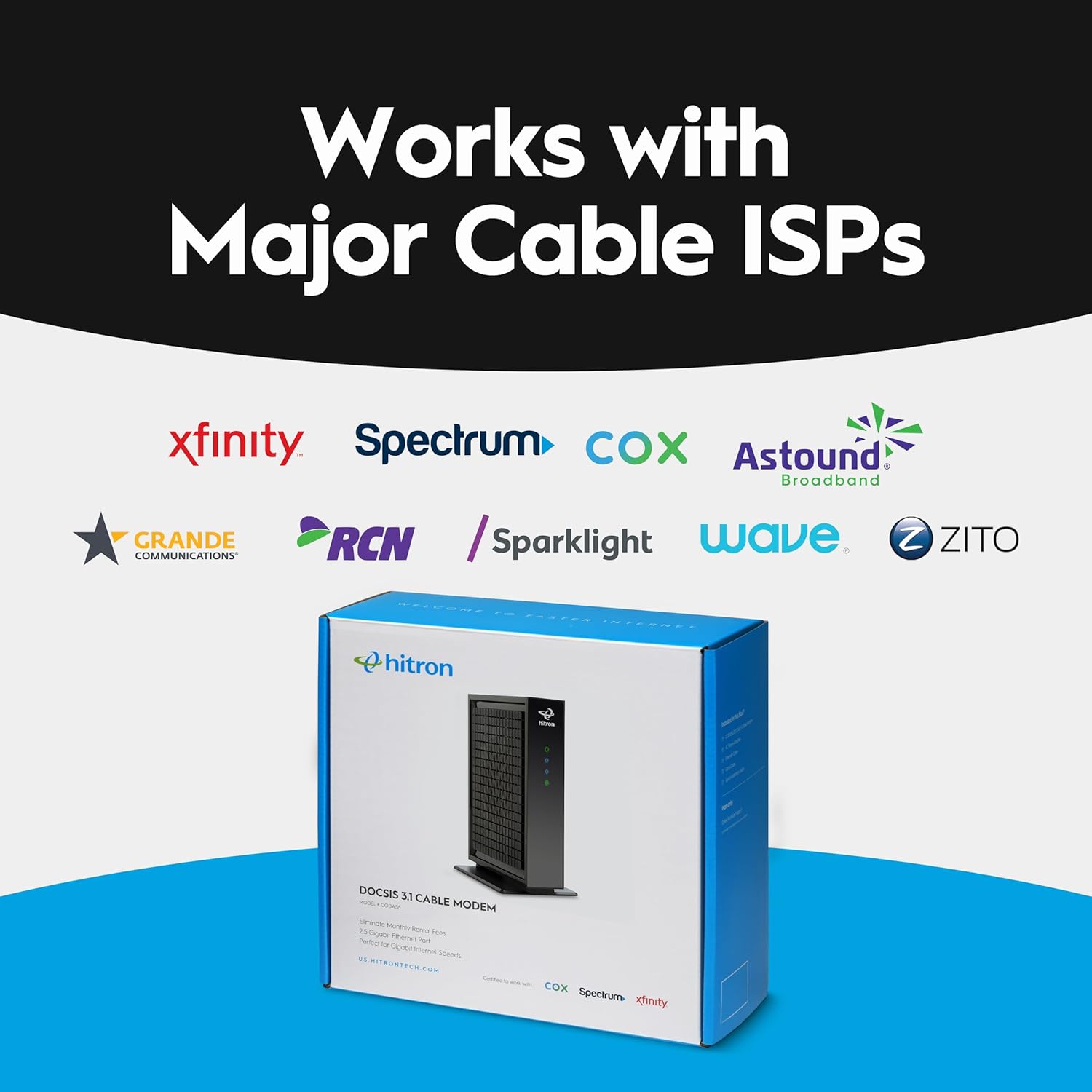
An image displaying the logos of various major cable internet service providers, including Xfinity, Spectrum, Cox, Astound Broadband, Grande Communications, RCN, Sparklight, Wave, and Zito, indicating compatibility with the Hitron CODA56 modem.
3.2 Кораци повезивања
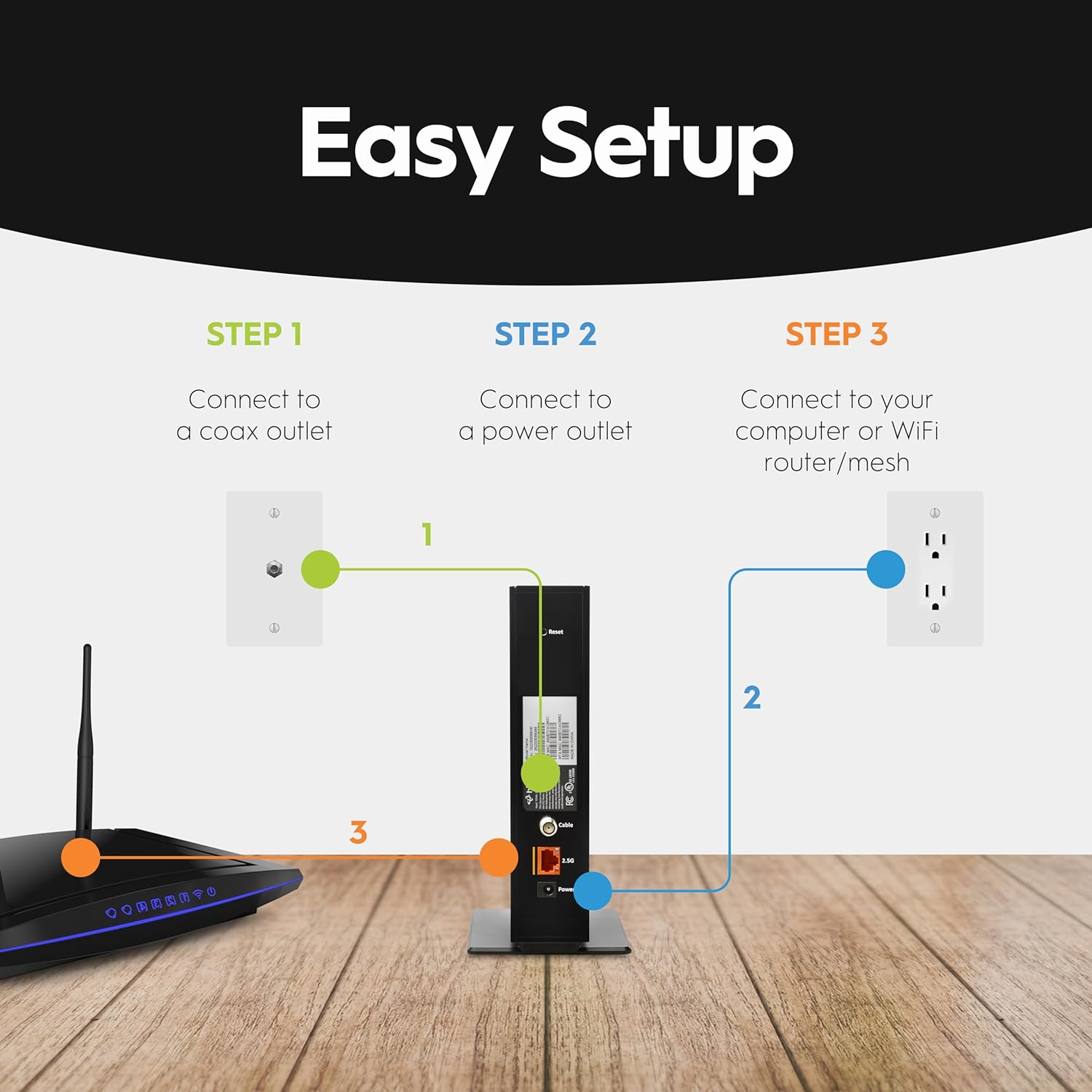
- Connect Coax Cable: Connect one end of the supplied coax cable to the cable wall outlet and the other end to the 'Cable' port on the back of your CODA56 modem. Ensure the connection is finger-tight.
- Повежите Етернет кабл: Connect one end of the supplied Ethernet cable to the 2.5 Gbps Ethernet port on the back of your CODA56 modem and the other end to the WAN (Internet) port of your WiFi router. If connecting directly to a computer, use the Ethernet cable to connect the modem to your computer's Ethernet port.
- Повежите адаптер за напајање: Connect the power adapter to the 'Power' port on the back of your CODA56 modem and then plug the adapter into a power outlet. The modem will begin its startup sequence.

A visual guide illustrating the three simple steps for setting up the Hitron CODA56 modem: connecting to a coax outlet, connecting to a power outlet, and connecting to a WiFi router or computer.

An illustration demonstrating how the Hitron CODA56 modem connects to a separate WiFi router or mesh system via an Ethernet cable, highlighting the need for a 2.5 Gbps Ethernet port on the router for optimal performance.
3.3 Modem Activation
After connecting the modem, you will need to activate it with your Internet Service Provider (ISP). The activation process typically involves:
- Contacting your ISP: Call your ISP's customer support line.
- Providing Modem Information: You will need to provide the MAC address (CM MAC) and Serial Number (S/N) of your CODA56 modem, which are usually found on a label on the bottom or back of the device.
- Following ISP Instructions: Your ISP will guide you through the activation process, which may include registering the modem on their network and configuring your service.
4. Operation and LED Indicators
The CODA56 modem features several LED indicators on the front panel that provide information about its operational status:
| ЛЕД индикатор | Статус | Опис |
|---|---|---|
| Моћ (⏻) | Солид Греен | Модем је укључен. |
| Downstream (⌂) | Солид Блуе | DOCSIS 3.1 downstream channel is locked. |
| Солид Греен | DOCSIS 3.0 downstream channel is locked. | |
| Upstream (⌃) | Солид Блуе | DOCSIS 3.1 upstream channel is locked. |
| Солид Греен | DOCSIS 3.0 upstream channel is locked. | |
| Internet (@) | Солид Греен | The modem is online and connected to the internet. |
| Трепери зелено | Подаци се преносе или примају. |
Once the Internet LED is solid green, your modem is successfully connected to the internet. You can then connect your devices to your separate WiFi router to access the network.
5. Одржавање
5.1 Општа нега
- Пласман: Поставите модем у добро проветрен простор, даље од директне сунчеве светлости, извора топлоте и влаге. Обезбедите адекватан проток ваздуха око уређаја.
- Чишћење: Use a soft, dry cloth to clean the modem's exterior. Avoid using liquid or aerosol cleaners, as they may damage the device.
- Циклус напајања: If you experience connectivity issues, try power cycling the modem by unplugging the power adapter for 10-15 seconds and then plugging it back in.
5.2 Ажурирања фирмвера
Firmware updates for the Hitron CODA56 modem are managed and pushed by your Internet Service Provider (ISP). You do not need to manually update the firmware. Ensure your modem remains powered on and connected to the cable network to receive automatic updates.
КСНУМКС. Решавање проблема
If you encounter issues with your Hitron CODA56 modem, refer to the following common troubleshooting steps:
- Нема напајања: If the Power LED is off, ensure the power adapter is securely connected to the modem and a working electrical outlet. Try a different outlet.
- Нема интернет везе:
- Check all cable connections (coax, Ethernet, power) to ensure they are secure.
- Verify that the Downstream, Upstream, and Internet LEDs are solid green or blue (for DOCSIS 3.1). If they are blinking or off, there might be an issue with your cable signal or ISP service.
- Power cycle the modem and your router.
- Contact your ISP to confirm service status and modem activation.
- Споре брзине интернета:
- Ensure your internet plan supports the speeds you expect.
- Confirm your router has a 2.5 Gbps Ethernet port to fully utilize the modem's capabilities.
- Test speeds with a wired connection directly to the modem (after disconnecting your router and restarting the modem) to rule out router or WiFi issues.
- Contact your ISP if speeds remain consistently below your subscribed plan.
- Прегревање модема: Ensure the modem is placed in a well-ventilated area and not covered. Excessive heat can affect performance and longevity.
7. Спецификације
| Феатуре | Детаљ |
|---|---|
| Модел | ЦОДА56 |
| DOCSIS стандард | 3.1 (backward compatible with 3.0) |
| Максимална брзина интернета | До 2.5 Гбпс |
| Етхернет порт | 1 x 2.5 Gigabit Ethernet |
| Димензије (Д к Ш к В) | 7 к 1.77 к 8.13 инча |
| Тежина артикла | 1.02 фунти |
| Компатибилни интернет провајдери | Xfinity, Spectrum, Cox, Charter Spectrum, Cox Gigablast, Cable One Sparklight, Zito Media |
| Технологија повезивања | Етхернет |
| Компатибилни уређаји | Router, Personal Computer, Laptop, Gaming Console |
A graphic illustrating the performance advantage of DOCSIS 3.1 technology, indicating it is up to 10 times faster than the older DOCSIS 3.0 standard, which the Hitron CODA56 modem utilizes.
8. Гаранција и подршка
Hitron provides comprehensive support for its products. The CODA56 modem includes warranty coverage and technical support 7 days per week. For specific warranty terms, product registration, or technical assistance, please refer to the official Hitron webсајт или директно контактирајте њихову корисничку подршку.

An image depicting the Hitron CODA56 modem alongside a piggy bank, suggesting that purchasing this modem can lead to savings by eliminating monthly rental fees from internet service providers. Users are advised to check with their provider regarding current rental fees.
9. Видео снимци производа
Ниједан званични видео снимак производа од продавца није био доступан за уграђивање у овај приручник.