1. Увод
Thank you for choosing the Dierya x TMKB M1 Wireless Gaming Mouse. This manual provides detailed instructions on how to set up, operate, and maintain your new gaming mouse. The M1 mouse offers versatile connectivity, high-precision tracking, and customizable features to enhance your gaming and productivity experience.
2. Производ је готовview
2.1 Компоненте и контроле
Familiarize yourself with the various buttons and features of your Dierya M1 mouse:
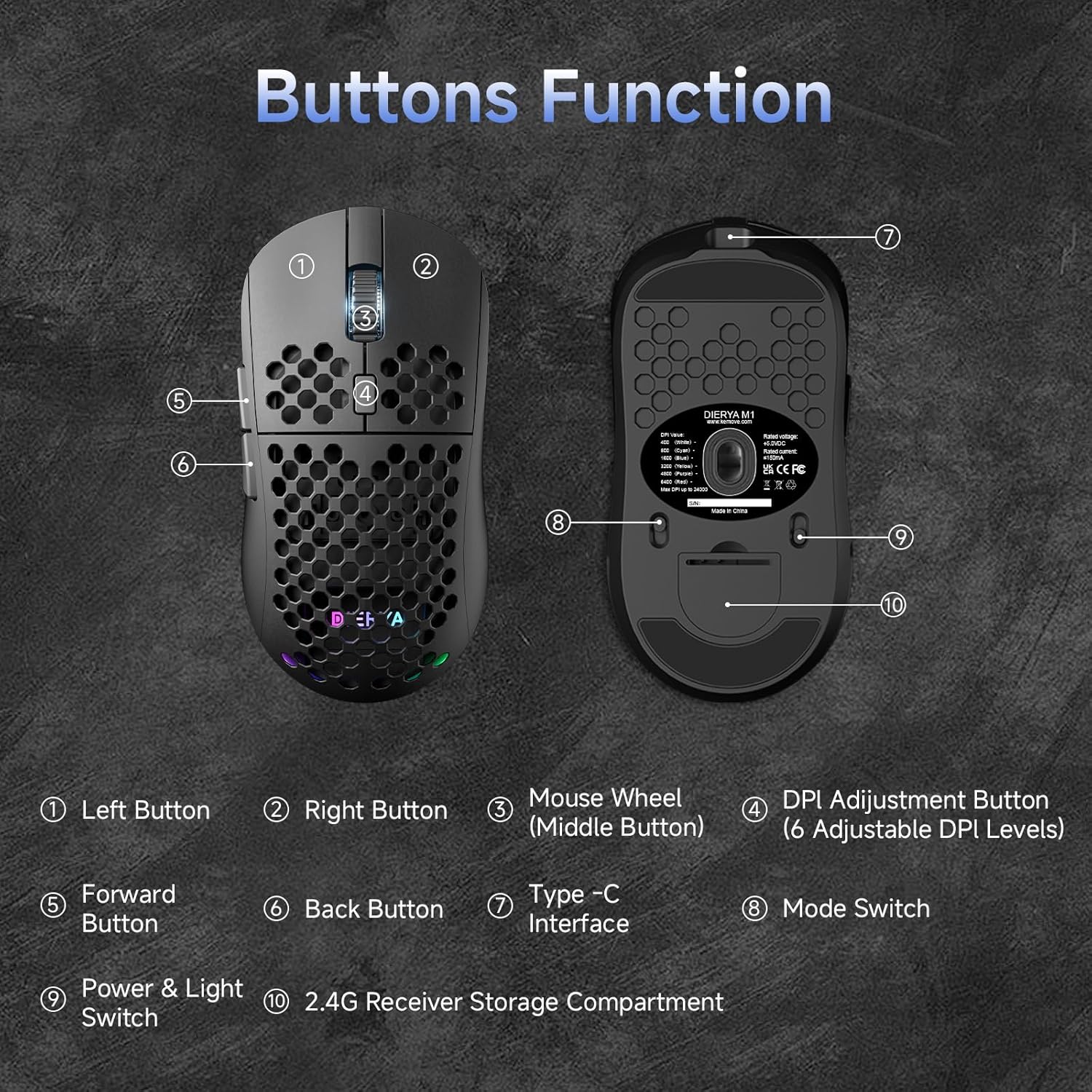
This diagram illustrates the various components of the Dierya M1 wireless gaming mouse. It highlights the Лево дугме (1), Десно дугме (2), Mouse Wheel (Middle Button) (3), DPI Adjustment Button (4) with 6 adjustable DPI levels, Forward Button (5), Back Button (6), Type-C Interface (7) for charging and wired connection, Прекидач режима (8) for selecting connection type, Power & Light Switch (9), анд тхе 2.4G Receiver Storage Compartment (10) located on the underside.
2.2 Кључне карактеристике
- 24,000 DPI Optical Sensor: Adjustable DPI range from 200 to 24,000, with 6 preset levels (400-6400 DPI).
- Тромодална повезаност: Supports ultra-fast 2.4GHz wireless, energy-efficient Bluetooth 5.2, and stable USB-C wired connections.
- Дуг век трајања батерије: 1000mAh battery provides up to 180 hours in ECO mode or 48 hours with RGB lighting, with 1-hour fast charging.
- Лаган и ергономски дизајн: Weighs only 90g with a honeycomb shell for breathability and a symmetrical design (125x63x41 mm).
- Програмабилна дугмад: 6 customizable buttons via the M1 Driver software (Windows only).
- Динамичко RGB осветљење: 13 integrated RGB lighting effects with 16.8 million customizable colors.
- Високе перформансе: 125-1000 Hz polling rate, 300 IPS tracking speed, and 35G acceleration.
- Durable Switches: Equipped with Huano switches rated for 20 million clicks and 100% PTFE feet for smooth gliding.
3. Подешавање
3.1 Пуњење миша
Before first use, it is recommended to fully charge the mouse. Connect the provided USB-C cable to the Type-C Interface (7) on the mouse and the other end to a USB power source (e.g., computer USB port, USB wall adapter).
- The mouse charges in approximately 1 hour.
- The scroll wheel LED will indicate charging status (e.g., red for charging, green for fully charged).
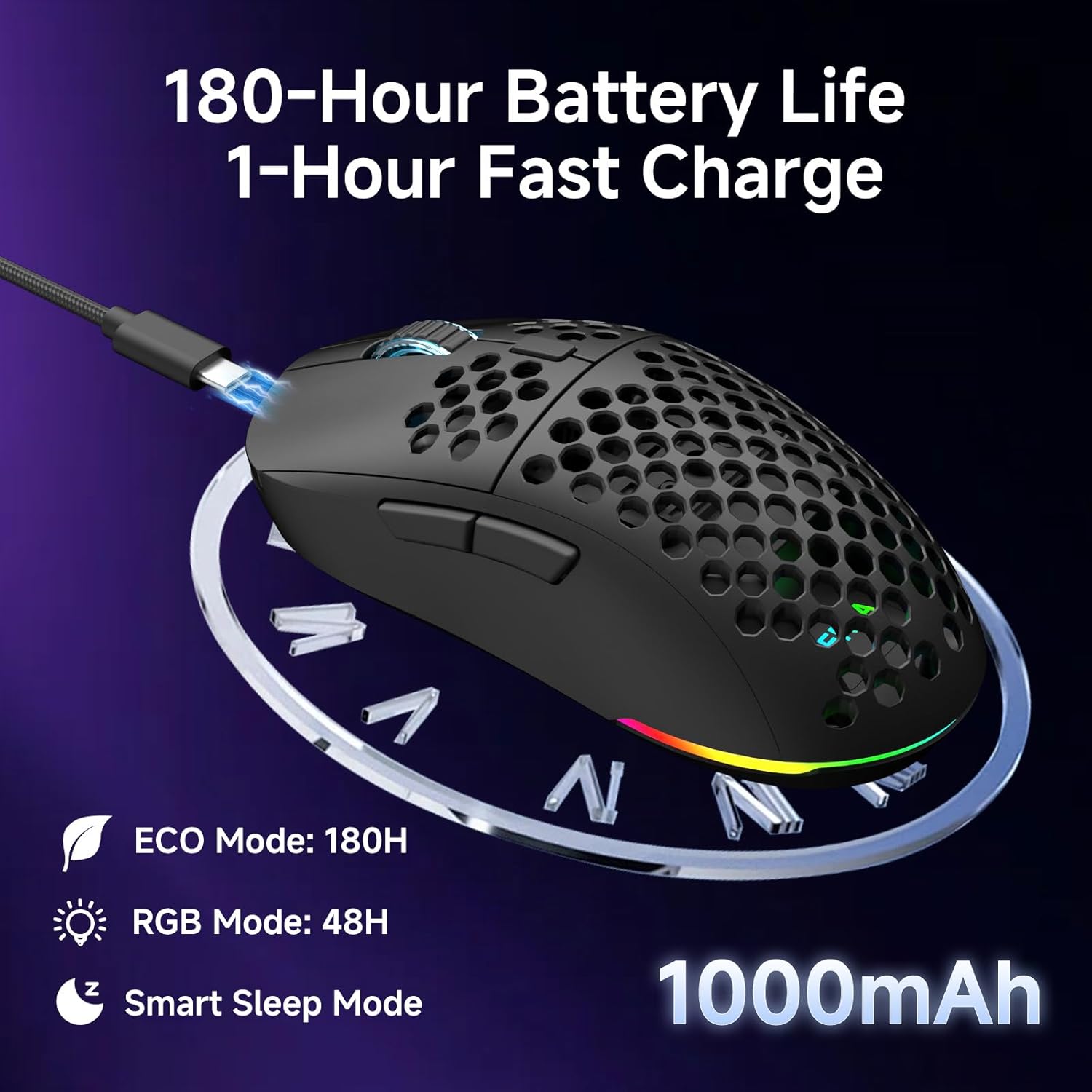
The Dierya M1 mouse features a 1000mAh battery, providing up to 180 hours of use in ECO mode or 48 hours with RGB lighting enabled. It supports fast charging, reaching full capacity in approximately 1 hour via the included USB-C cable. The mouse also includes a smart sleep mode to conserve power during inactivity.
3.2 Повезивање миша
The Dierya M1 mouse offers three connection modes: 2.4GHz Wireless, Bluetooth 5.2, and USB-C Wired.

The Dierya M1 mouse supports three flexible connection modes: Bluetooth 5.2 for energy-efficient pairing with up to two devices, 2.4GHz Wireless via a USB dongle for ultra-fast response, and a stable USB-C Wired connection for charging and direct use. Each mode offers a different polling rate, with 2.4GHz and wired modes providing 1000Hz, and Bluetooth offering 125Hz.
3.2.1 Бежична веза од 2.4 GHz
- Locate the 2.4G receiver in the storage compartment (10) on the underside of the mouse.
- Прикључите 2.4G пријемник у слободан USB порт на рачунару.
- Set the Mode Switch (8) on the underside of the mouse to the '2.4G' position.
- The mouse should connect automatically. The polling rate for this mode is 1000 Hz.
3.2.2 Bluetooth 5.2 веза
- Set the Mode Switch (8) on the underside of the mouse to the 'BT' position.
- На рачунару или уређају отворите подешавања за Bluetooth и потражите нове уређаје.
- Select 'Dierya M1' from the list of available devices to pair.
- The mouse supports Bluetooth 5.2 and has a polling rate of 125 Hz in this mode.
3.2.3 Жична веза преко USB-C кабла
- Connect the USB-C cable to the Type-C Interface (7) on the mouse.
- Повежите други крај USB-C кабла са доступним USB портом на рачунару.
- The mouse will automatically switch to wired mode and begin charging. The polling rate for this mode is 1000 Hz.
4. Упутство за употребу
4.1 ДПИ подешавање
The Dierya M1 mouse features a dedicated DPI Adjustment Button (4) to cycle through preset DPI levels. The scroll wheel LED color indicates the current DPI setting.
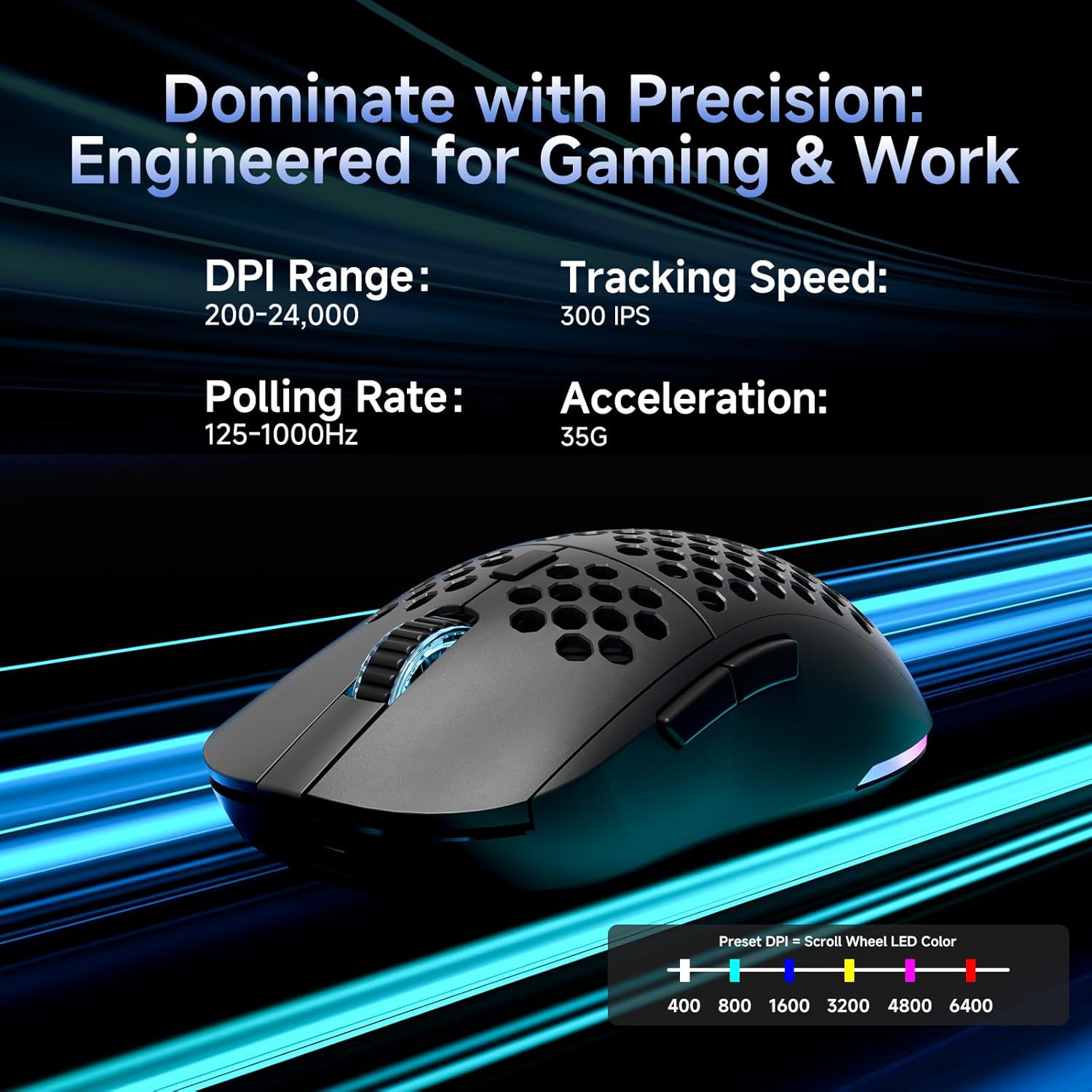
This image details the performance specifications of the Dierya M1 mouse, including a DPI range of 200-24,000, a tracking speed of 300 IPS, a polling rate of 125-1000Hz, and 35G acceleration. It also shows the preset DPI levels (400, 800, 1600, 3200, 4800, 6400) and the color indicators on the scroll wheel for each setting.
- Press the DPI Adjustment Button (4) to cycle through the 6 default DPI settings: 400, 800, 1600, 3200, 4800, and 6400 DPI.
- Each DPI level is indicated by a specific color on the scroll wheel LED.
- For custom DPI settings and a wider range (200-24,000 DPI), use the M1 Driver software.
4.2 RGB контрола осветљења
The Dierya M1 mouse features dynamic RGB lighting. You can control the lighting effects and colors using the M1 Driver software.
- The mouse has 13 built-in RGB lighting effects.
- Use the M1 Driver software to customize colors (16.8 million options), brightness, and speed of the lighting effects.
- The Power & Light Switch (9) on the underside can be used to turn the lighting on or off.
4.3 Програмабилни тастери и софтвер
The M1 mouse has 6 programmable buttons that can be customized using the dedicated M1 Driver software.

The Dierya M1 driver software, currently available for Windows, allows users to customize various aspects of the mouse. This includes reassigning the 6 programmable buttons, creating macros, adjusting DPI settings, modifying the polling rate, and personalizing the 13 dynamic RGB lighting effects with 16.8 million colors.
- Компатибилност софтвера: The M1 Driver software is currently only available for Windows operating systems.
- Кључни задатак: Reassign functions to any of the 6 programmable buttons (Left, Right, Middle, DPI, Forward, Back).
- Креирање макроа: Create and assign complex macros to streamline in-game actions or productivity tasks.
- DPI & Polling Rate: Fine-tune DPI settings beyond the presets and adjust the polling rate.
- РГБ прилагођавање: Personalize lighting effects, colors, and patterns.
- Проfile Менаџмент: Сачувај и учитај различите професионалцеfileза разне игре или апликације.
4.4 Режими уштеде енергије
The M1 mouse is designed with automatic power-saving features to extend battery life:
- The mouse will enter an automatic power-saving mode after 1-5 minutes of inactivity.
- This inactivity time can be adjusted via the M1 Driver software.
- Да бисте пробудили миш, једноставно га померите или кликните на било које дугме.
5. Одржавање
Proper maintenance ensures the longevity and optimal performance of your Dierya M1 mouse.
- Чишћење: Користите меку, суву крпу да обришете површину миша. За тврдокорну прљавштину, благо дamp Може се користити крпа, али водите рачуна да влага не уђе у миш. Избегавајте јаке хемикалије или абразивна средства за чишћење.
- Одржавање сензора: Одржавајте оптички сензор на доњој страни миша чистим и без прашине или прљавштине како бисте осигурали прецизно праћење.
- Одржавање батерије: Избегавајте често потпуно пражњење батерије. За дуготрајно складиштење, напуните миш до око 50% и чувајте га на хладном и сувом месту.
- Складиштење: Када се не користи, чувајте миш на чистом и сувом месту, даље од екстремних температура.
КСНУМКС. Решавање проблема
If you encounter issues with your Dierya M1 mouse, refer to the following common troubleshooting steps:
| Проблем | Могући узрок | Решење |
|---|---|---|
| Mouse not responding (2.4GHz) | Low battery, receiver unplugged, incorrect mode, interference. | Charge the mouse. Ensure 2.4G receiver is securely plugged in. Set Mode Switch to '2.4G'. Try a different USB port. Reduce distance to receiver. |
| Миш не реагује (Блутут) | Low battery, incorrect mode, not paired, Bluetooth off on device. | Charge the mouse. Set Mode Switch to 'BT'. Ensure Bluetooth is enabled on your device. Re-pair the mouse in Bluetooth settings. |
| Миш не реагује (жичани) | Cable not connected, faulty cable/port. | Ensure USB-C cable is securely connected to both mouse and computer. Try a different USB port or cable. |
| Нетачно праћење | Прљав сензор, неодговарајућа површина, неисправан DPI. | Clean the optical sensor. Use a mouse pad or a clean, non-reflective surface. Adjust DPI settings. |
| РГБ осветљење не ради | Lighting switched off, low battery, software issue. | Check Power & Light Switch (9). Charge the mouse. Check settings in M1 Driver software. |
| Дугмад се не могу програмирати | M1 Driver not installed/running, not on Windows. | Ensure M1 Driver software is installed and running (Windows only). Check software settings. |
7. Спецификације
| Назив модела | M1 |
| Бранд | Dierya |
| Технологија повезивања | 2.4 GHz бежична веза, Bluetooth 5.2, USB-C жична веза |
| Технологија детекције покрета | Оптицал |
| DPI опсег | 200 - 24,000 DPI (6 preset levels: 400, 800, 1600, 3200, 4800, 6400) |
| Поллинг Рате | 125-1000 Хз |
| Брзина праћења | КСНУМКС ИПС |
| Убрзање | 35Г |
| Број дугмади | 6 (Програмабилно) |
| Капацитет батерије | КСНУМКС мАх литијум-јонска |
| Трајање батерије | Up to 180 hours (ECO mode), 48 hours (RGB mode) |
| Време пуњења | Прибл. 1 сат |
| Тежина | 90 грама |
| Димензије | 125 к 63 к 41 мм |
| Тип прекидача | Huano (20 million clicks) |
| Материјал стопала | 100% ПТФЕ |
| Компатибилност оперативног система | Виндовс, мацОС, Линук, Цхроме ОС |
| Driver Software Compatibility | Само Виндовс |
8. Гаранција и подршка
8.1 Гаранција произвођача
The Dierya M1 Wireless Gaming Mouse comes with a 1-годишња гаранција произвођачаОва гаранција покрива недостатке у материјалу и изради при нормалној употреби. Молимо вас да сачувате доказ о куповини за потребе подношења захтева за гаранцију.
8.2 Корисничка подршка
For further assistance, technical support, or warranty inquiries, please refer to the official Dierya website or contact your retailer. Ensure you have your product model (M1) and proof of purchase ready when seeking support.


