Увод
The ShanWan Wireless Controller is a versatile gaming peripheral designed for use across multiple platforms, including PC, iPhone, Android, Nintendo Switch, and Steam. It offers tri-mode connectivity (Bluetooth, 2.4G wireless, and USB-C wired) to ensure a seamless gaming experience. This manual provides detailed instructions for setup, operation, maintenance, and troubleshooting to help you maximize your controller's performance.
Note: This controller is not compatible with Xbox or PlayStation 4/5 consoles.
Садржај пакета
- ShanWan Wireless Controller
- УСБ-Ц кабл за пуњење
- 2.4G бежични адаптер
- Кориснички приручник (овај документ)
Цонтроллер Оверview
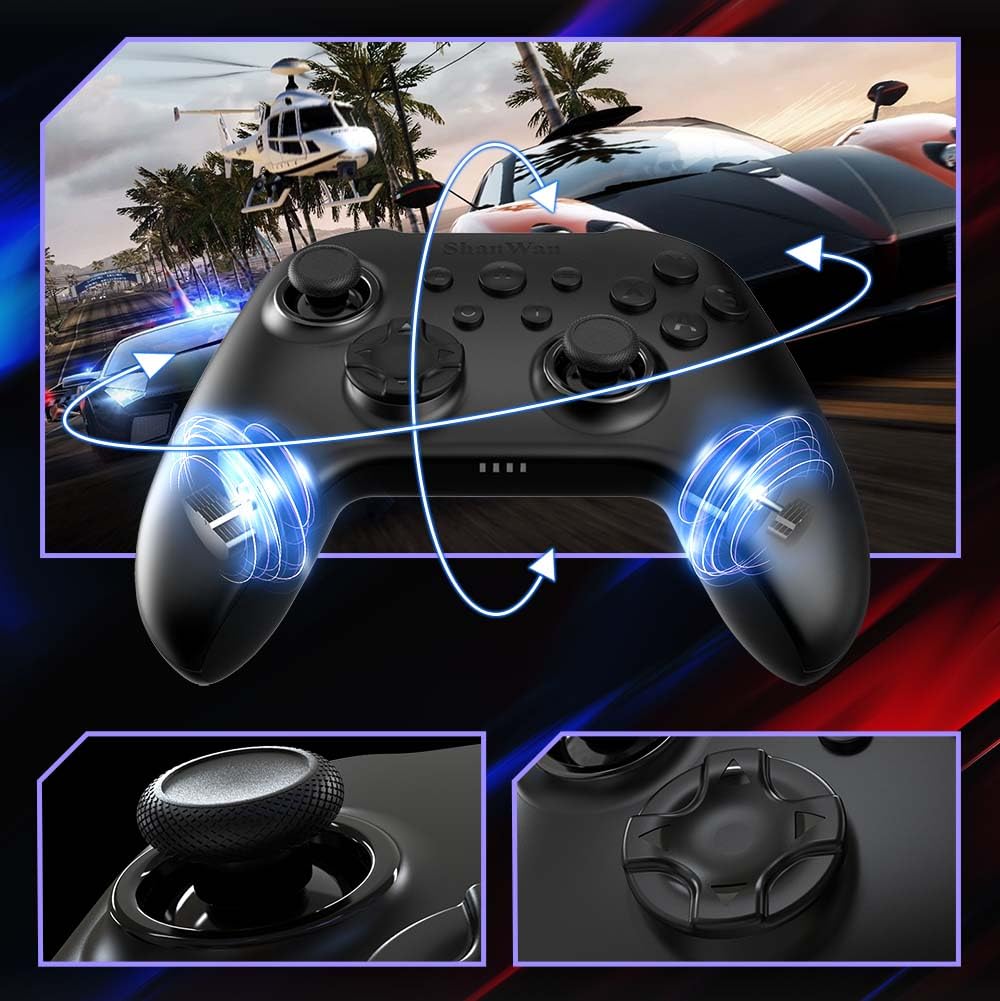
слика: Фронт view of the ShanWan Wireless Controller, showcasing its ergonomic design, dual joysticks, D-pad, and face buttons (A, B, X, Y).
слика: Назад view of the ShanWan Wireless Controller, highlighting the mode switch for different platforms (X, D, S).
Кључне карактеристике:
- Џојстици са Холовим ефектом: Designed for precision with no dead zones and anti-drift capabilities.
- Durable Gel Buttons: Conductive gel buttons tested for 1 million clicks for long-lasting performance.
- 6-осни жироскоп: Provides precise motion sensing for immersive gameplay.
- Двоструки вибрациони мотори: Delivers strong and subtle haptic feedback for an enhanced gaming experience.
- Турбо функција: Омогућава брзо, поновљено притискање дугмади.
Сетуп
1. Пуњење контролера
Before initial use, fully charge the controller using the provided USB-C cable. Connect the USB-C end to the controller and the USB-A end to a power source (e.g., computer USB port, USB wall adapter). The charging indicator lights will show charging status and turn off when fully charged.
2. Повезивање са уређајима
The ShanWan Wireless Controller supports three connection modes: Bluetooth, 2.4G Wireless, and USB-C Wired. Ensure the mode switch on the back of the controller is set to the appropriate platform before attempting to connect.

слика: Visual representation of the controller's tri-mode connectivity, illustrating Bluetooth, 2.4G wireless, and USB-C wired options.
Mode Switch Settings:
- 'S' Mode: За Нинтендо Свитч.
- 'X' Mode: For PC (X-input), Android.
- 'D' Mode: For PC (D-input), iOS.
Блуетоотх веза:
- Set the mode switch on the back of the controller to the desired platform ('S', 'X', or 'D').
- Press and hold the pairing button (usually a small button on the top or back) until the indicator lights flash rapidly.
- On your device (PC, iPhone, Android, Switch), go to Bluetooth settings and search for new devices.
- Select "ShanWan Controller" or a similar name from the list to pair.
- Once paired, the indicator lights on the controller will become solid.
2.4G Wireless Connection (for PC/Switch):
- Set the mode switch on the back of the controller to 'X' (for PC) or 'S' (for Switch).
- Insert the 2.4G wireless dongle into a USB port on your PC or Switch dock.
- Press the Home button on the controller to power it on. It should automatically connect to the dongle.
- The indicator lights will become solid once connected.
Жична веза преко USB-C порта:
- Connect the USB-C cable to the controller and the other end to your PC or Switch dock.
- The controller will automatically be recognized as a wired device.
- No specific mode switch setting is required for wired connection, but setting it to the correct platform mode ('X' for PC, 'S' for Switch) is recommended for optimal compatibility.
Упутство за употребу
Укључивање/искључивање:
- Укључено: Press the Home button once.
- Искључивање: Press and hold the Home button for 3-5 seconds, or the controller will automatically power off after a period of inactivity.
Контрола покрета:
The built-in 6-axis gyroscope provides motion control capabilities, particularly useful for games on Nintendo Switch or other compatible platforms. Ensure the game supports motion controls for this feature to function.
Вибрациона повратна информација:
The dual vibration motors provide haptic feedback during gameplay. The intensity of the vibration can often be adjusted through game settings or the Gamepad Space app.
Турбо функција:
To activate the Turbo function for a specific button:
- Press and hold the button you wish to set to Turbo.
- While holding the button, press the Turbo button (refer to controller layout for location).
- The button will now repeatedly register presses as long as it is held down.
To deactivate Turbo for a button, repeat the process.
Software Customization (Gamepad Space App):
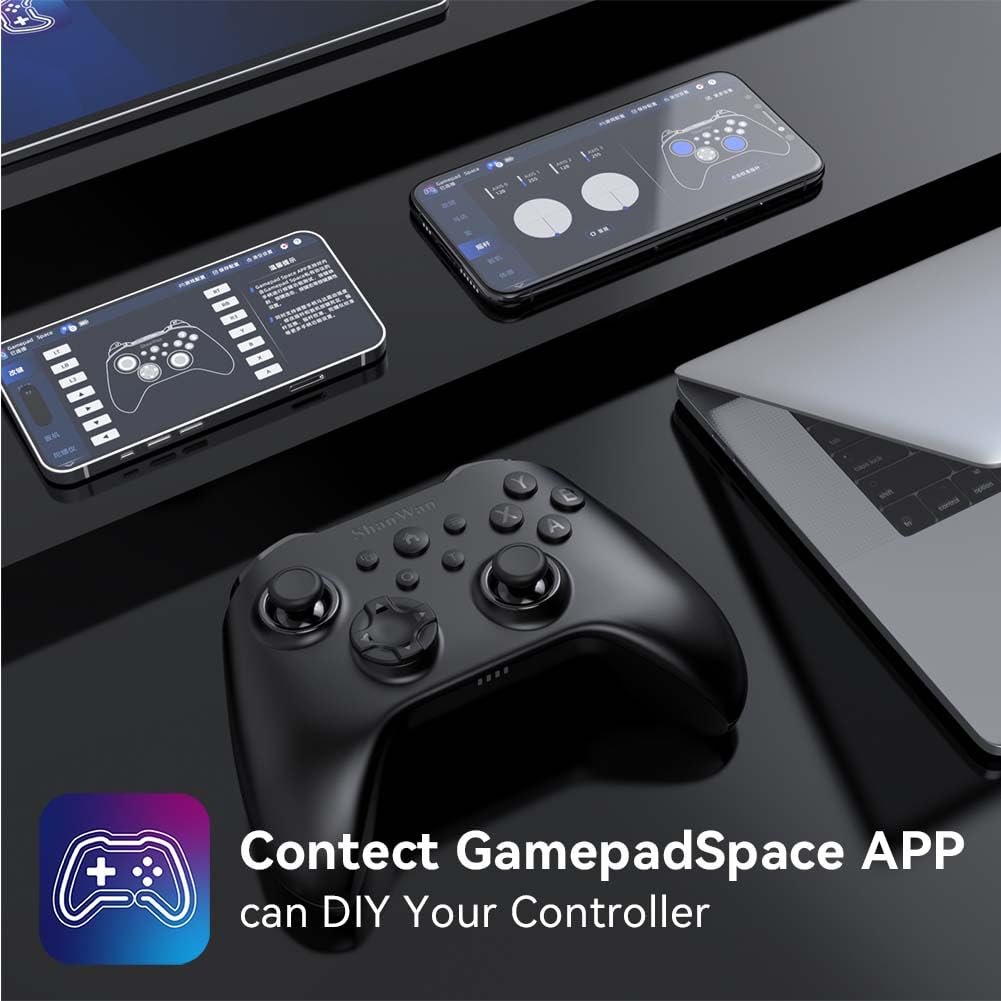
Enhance your gaming experience by customizing controller settings using the Gamepad Space mobile application.

слика: A ShanWan controller alongside smartphones displaying the Gamepad Space app, illustrating options for calibration and on-the-fly adjustments.
- Download the "Gamepad Space" app from your mobile device's app store.
- Connect your controller to your mobile device via Bluetooth.
- У оквиру апликације можете:
- Надоградите фирмвер.
- Подесите мртве зоне палице и окидача.
- Прилагодите интензитет вибрација.
- Test buttons.
Одржавање
- Чишћење: Користите меку, суву крпу за чишћење контролера. Избегавајте употребу јаких хемикалија или абразивних материјала.
- Складиштење: Чувајте контролер на хладном и сувом месту, даље од директне сунчеве светлости и екстремних температура.
- Одржавање батерије: Да бисте продужили век трајања батерије, избегавајте често потпуно пражњење контролера. Редовно га пуните, чак и ако га не користите стално.
Решавање проблема
Контролер се не повезује:
- Уверите се да је контролер напуњен.
- Verify the mode switch on the back of the controller is set correctly for your platform (S, X, or D).
- За Bluetooth, уверите се да је Bluetooth на вашем уређају укључен и да је контролер у режиму упаривања.
- For 2.4G wireless, ensure the dongle is properly inserted and the controller is in the correct mode.
- Покушајте да поново покренете и контролер и уређај.
Кашњење уноса или прекиди везе:
- Уверите се да у близини нема јаких електромагнетних сметњи.
- Move closer to your device for a stronger wireless signal.
- Ensure the controller's battery is not low.
- Consider using a wired USB-C connection for the most stable experience.
Joystick Drift or Unresponsive Buttons:
- Calibrate the joysticks and test buttons using the Gamepad Space app.
- Ensure the controller's firmware is up to date via the Gamepad Space app.
- Clean around the buttons and joysticks to remove any debris.
Спецификације
| Модел | B0FS13DT2B |
| Технологија повезивања | Блутут, 2.4Г бежични, УСБ-Ц жични |
| Компатибилни уређаји | Android, iOS, Nintendo Switch, Nintendo Switch 2, PC |
| Тип контролера | Гамепад |
| Количина дугмета | 12 |
| Посебне карактеристике | Hall Effect Joysticks, 6-Axis Gyroscope, Dual Vibration, Turbo Function, Software Customization |
| Извор напајања | Баттери Поверед |
| Тежина артикла | 300 грама |
| Димензије артикла (Д к Ш к В) | 2.5 cm x 4 cm x 6 cm |
Гаранција и подршка
ShanWan products are designed for reliability and performance. For specific warranty information, please refer to the documentation included with your purchase or visit the official ShanWan support website. If you encounter any issues not covered in this manual, please contact ShanWan customer support for assistance.
Подршка на мрежи: Visit the ShanWan Store on Amazon


