Увод
Thank you for choosing the ProtoArc KM310 Wireless Mechanical Keyboard and Mouse. This combo offers a responsive typing experience with low-profile linear red switches and versatile multi-device connectivity. The ergonomic mouse is designed for comfort and precision. This manual provides detailed instructions for setup, operation, maintenance, and troubleshooting to ensure optimal performance.
Шта је у кутији

Image: Contents of the ProtoArc KM310 package, including the keyboard, mouse, charging cable, and user manual.
- ProtoArc KM310 Wireless Mechanical Keyboard
- ProtoArc Wireless Mouse
- УСБ-Ц кабл за пуњење
- Упутство за употребу
Производ је завршенview
Карактеристике тастатуре

Слика: Крупни план view of the ProtoArc KM310 keyboard, highlighting its low-profile keys and linear red switches.
- Лов-Проfile Механички кључеви: Equipped with linear red switches for a smooth, quiet, and responsive typing experience.
- Aluminum Top Case: Provides durability and a sleek, modern aesthetic.
- Подесиве ноге са нагибом: Ergonomically designed with 2-stage foot mats offering 6° and 9° tilt options for comfortable typing.
- Изглед у пуној величини: A 108-key layout suitable for office and business use.
Карактеристике миша

Image: The ProtoArc KM310 mouse being held, showcasing its ergonomic design for a natural grip.
- 63G Ultra-Lightweight: Reduces hand fatigue during extended use and enhances portability.
- Ергономски дизајн: Contoured shape for a comfortable and natural grip.
- Подесиви ДПИ: Three DPI levels (1000/1600/2400) for tailored control and precision.
- Тихи клик: Дизајниран за тихи рад.
- Дугмад за напред/назад: Integrated for seamless browsing.
Повезивање и снага
- Повезивање са више уређаја: Connects up to 3 devices via 2.4G USB receiver or Dual Bluetooth (BT1, BT2).
- Пуњива: Both keyboard and mouse feature Type-C charging. The mouse's USB receiver is stored on its bottom.
- Дуг век трајања батерије: Up to 150-200 days standby time; 2-3 hours for a full charge.
Упутства за подешавање
1. Пуњење уређаја

Image: The keyboard and mouse are shown connected to power sources via USB-C cables for charging.
- Connect the provided USB-C charging cable to the charging port on the keyboard (located on the top edge) and the mouse (located on the front edge).
- Укључите други крај кабла у УСБ извор напајања (нпр. УСБ порт рачунара, УСБ адаптер за зид).
- The indicator lights will show charging status. Allow 2-3 hours for a full charge.
2. Повезивање са уређајима

Image: A desk setup showing the ProtoArc KM310 keyboard and mouse connected to a laptop, monitor, and tablet, illustrating multi-device capability.
The KM310 combo supports three connection modes: 2.4G wireless via USB receiver, Bluetooth 1 (BT1), and Bluetooth 2 (BT2).
2.1. 2.4Г бежична веза
- Пронађите УСБ пријемник који се налази у одељку на дну миша.
- Укључите УСБ пријемник у слободан УСБ порт на рачунару.
- Укључите тастатуру и миш користећи одговарајуће прекидаче за напајање.
- The devices should connect automatically.
2.2. Блутут веза (BT1 / BT2)
- Укључите тастатуру и миш.
- На тастатури притисните БТ1 or БТ2 key (usually located on the number pad, indicated by orange keycaps) to select the desired Bluetooth channel. The indicator light will flash.
- On your device (computer, tablet, etc.), go to Bluetooth settings and search for "ProtoArc KM310 Keyboard" and "ProtoArc KM310 Mouse".
- Select the devices to pair. The indicator light will stop flashing once connected.
- Repeat for a second Bluetooth device using the other BT channel.
2.3. Пребацивање између уређаја
To switch between connected devices, simply press the corresponding connection key on the keyboard (2.4G, BT1, or BT2) and the channel switch button on the bottom of the mouse.
Упутство за употребу
Употреба тастатуре
- куцање: Тхе лов-проfile linear red switches provide a responsive and quiet typing experience.
- Компатибилност са оперативним системом: The keyboard is compatible with Windows and Mac OS. Keys like 'Win' and 'Alt' also show 'Option' and 'Cmd' for Mac users.
- Подешавање нагиба: Use the adjustable tilt legs on the underside of the keyboard to set your preferred typing angle (6° or 9°).
Употреба миша
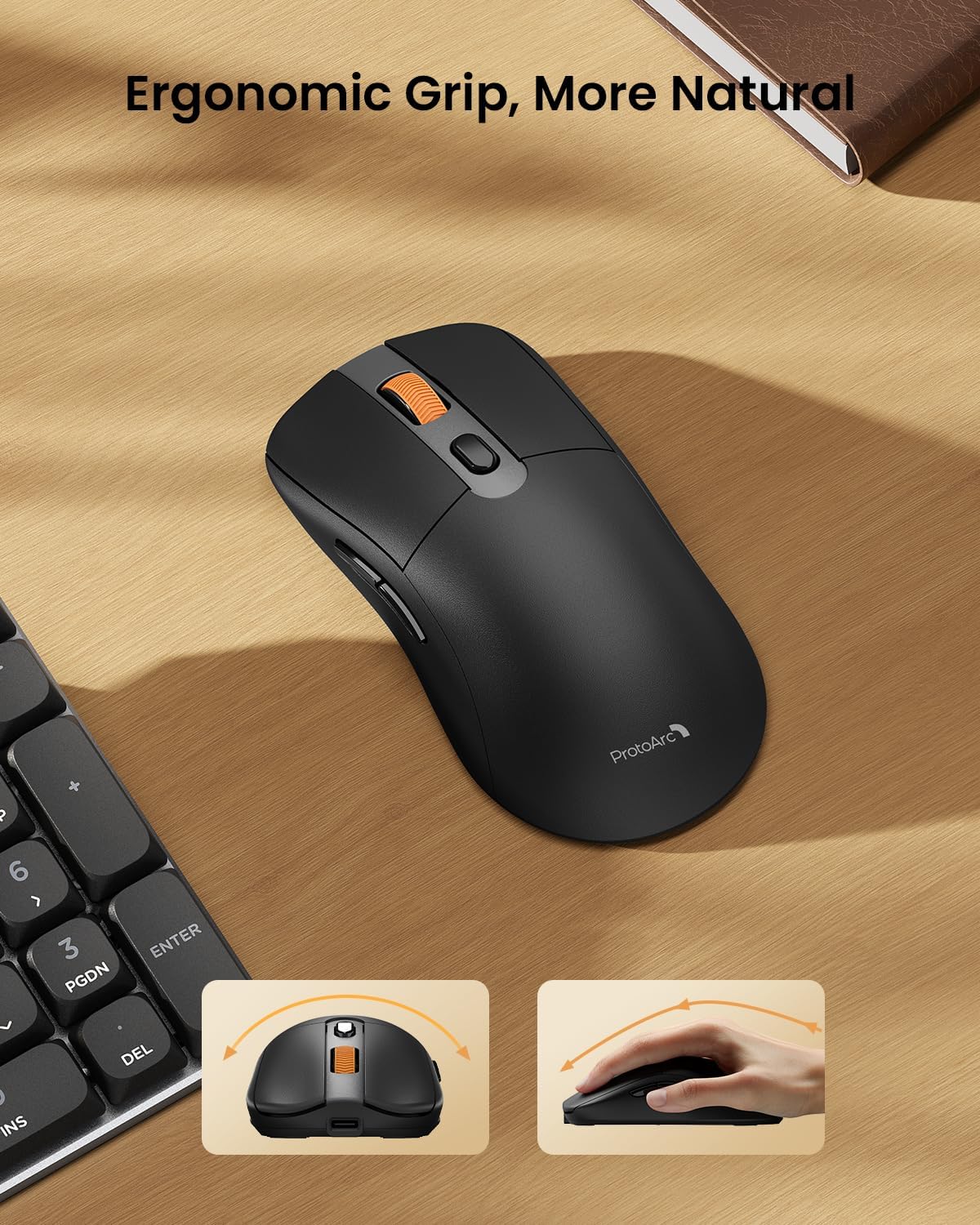
Image: A close-up of the ProtoArc KM310 mouse, illustrating the three adjustable DPI settings (1000, 1600, 2400).
- ДПИ подешавање: Press the DPI switch button (usually located near the scroll wheel) to cycle through the 3 DPI levels (1000/1600/2400) to match your preference for cursor speed and precision.
- Дугмад за навигацију: Користите дугмад за напред и назад са стране миша за брзу навигацију web претраживачи или file истраживачи.
- Тихи кликови: The mouse features silent click buttons for a quiet working environment.
Одржавање
- Чишћење: Користите меку, суву крпу да обришете тастатуру и миш. За тврдокорну прљавштину, благо дamp Може се користити крпа са благим сапуном, водећи рачуна да течност не уђе у уређај.
- Одржавање батерије: Recharge the devices when the battery indicator is low. Avoid prolonged exposure to extreme temperatures.
- Складиштење: When not in use for extended periods, turn off the devices to conserve battery life. Store the USB receiver inside the mouse to prevent loss.
Решавање проблема
Keyboard/Mouse Not Turning On or Stopping Working
- Проверите батерију: Ensure both the keyboard and mouse are sufficiently charged. Connect them to a power source using the USB-C cable.
- Поправка упаривања уређаја:
- For 2.4G connection, ensure the USB receiver is securely plugged in and the devices are set to 2.4G mode.
- For Bluetooth connection, ensure the devices are set to the correct BT channel (BT1 or BT2) and re-pair them through your device's Bluetooth settings.
- Пробајте други кабл: If charging issues persist, try using a different USB-C cable to rule out a faulty cable.
- сметње: Move the devices closer to your computer or away from other wireless devices that might cause interference.
- Контактирајте подршку: If the issue persists, please contact ProtoArc customer support for further assistance.
Спецификације
| Број модела | КМ310 |
| Бранд | ПротоАрц |
| Боја | Спаце Греи |
| Технологија повезивања | Блутут, УСБ (2.4Г бежично) |
| Посебне карактеристике | Лов Проfile Keys, Linear Red Switches, Ergonomic Design, Ultra-Light Mouse, Ergonomic Mouse |
| Компатибилни уређаји | Laptop, Personal Computer, Tablet (Windows 7/8/10, Mac OS X 10.12, Android 4.3 or higher) |
| Тежина артикла | 2.31 фунти |
| Димензије пакета | 17.68 к 8.07 к 2.05 инча |
Гаранција и подршка
The ProtoArc KM310 Mechanical Keyboard and Mouse combo comes with a 2-годишња гаранција.
For any questions, technical support, or warranty claims, please contact ProtoArc customer service:
- Емаил: суппорт@протоарц.цом
- Телефон: +1 866-287-8188
Званични видео производа
Видео: Званична видео презентација производаasing the features and design of the ProtoArc KM310 Aluminum Mechanical Keyboard and Mouse.


